DOCX Transformer — Export settings
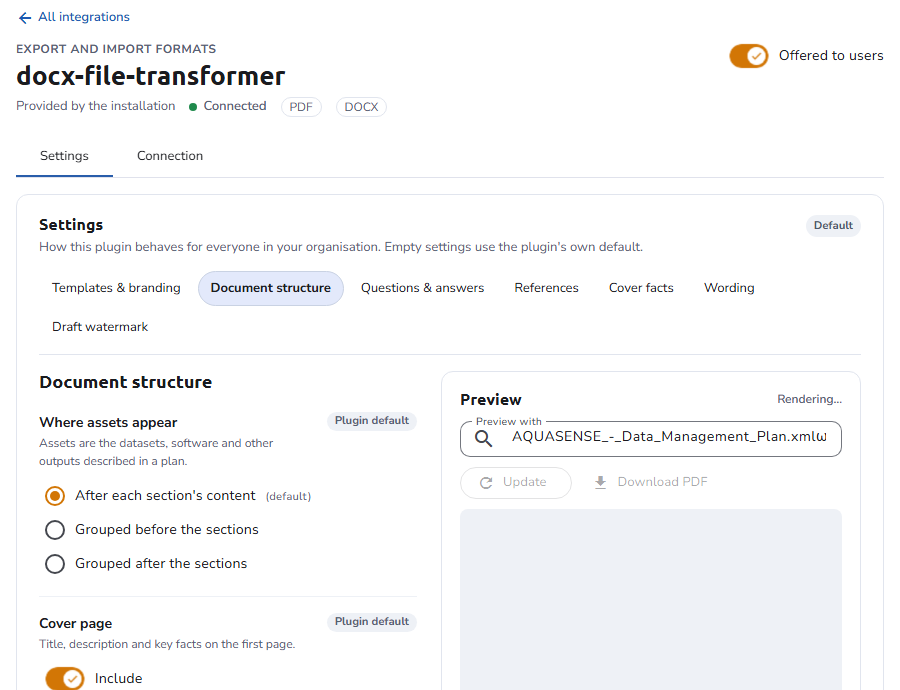
Export settings change what DOCX and PDF exports contain and how they look, without editing a template. Administrators set them for the whole organisation on the settings page of the DOCX transformer (organisation settings: Settings → Plugins → docx-file-transformer → Configure → Settings), and per blueprint or asset template in the Export template card of their editors. The most specific value applies; see Where templates apply.
Every setting shows whether it holds its own value (Changed) or follows a broader level (Plugin default, From organisation settings), and has its own Reset to default. The settings are grouped like the sections below; pick a group above the settings to show it. A blueprint's Export template card shows only the settings that affect plan exports, and an asset template's card only those that affect asset exports. The Preview on the settings page renders a plan with the edited values before they are saved.
Templates & branding
| Setting | Values | Default |
|---|---|---|
| Plan template | A Word file used for plan exports instead of the built-in template. See Managing templates. | Built-in template |
| Asset template | The same for exports of a single asset. | Built-in template |
| Accent colour | The color of heading numbers, table headers, links and the cover stripe. | #2457C5 |
| Cover logo | A PNG or JPEG image shown at the top of the cover page. | None |
Document structure
| Setting | Values | Default |
|---|---|---|
| Where assets appear | After each section's content: each asset follows the blueprint section it belongs to, numbered under it (8.1, then 8.1.1 inside it). Grouped before the sections / Grouped after the sections: an Assets chapter, numbered like a section, holds every asset. | After each section's content |
| Cover page | Include or leave out the cover (title, description, key facts). | Include |
| Table of contents | Include or leave out the table of contents, with page numbers. | Include |
| Table of contents depth | How many heading levels the table of contents lists: Plan sections, Plan sections and assets, Also asset sections, or Also asset sub-sections. | Plan sections and assets |
| Section numbering | Number headings (1, 1.1, 1.2) or leave them unnumbered. | Numbered |
| Start each section on a new page | On or off. | Off |
| Start each asset on a new page | On or off. | Off |
| Page size | A4 or Letter, for every page of the export. | A4 |
| Date format | How dates are written, as a pattern: dd/MM/yyyy gives 30/09/2026, d MMMM yyyy gives 30 September 2026. An invalid pattern falls back to the default. | dd/MM/yyyy |
Questions & answers
| Setting | Values | Default |
|---|---|---|
| Question layout | Question above answer, Question and answer table, or Answers only. | Question above answer |
| Question guidance | Show or leave out the help texts of blueprint sections and questions. | Leave out |
| Unanswered questions | Leave out questions without an answer, or Show as "Not answered" to keep them with a placeholder. | Leave out |
| Comments | Include or leave out the comments left on questions while the plan was written. | Include |
| Table style | Lined, Grid or Striped, for tables of answers and references. | Lined |
References
| Setting | Values | Default |
|---|---|---|
| Reference layout | Name and details (each reference with its details on a line below), Name only, or Table. | Name and details |
| Details per reference type | For each reference type, which details to show and in which order: tick the details and order them with the arrows. Identifier (e.g. ORCID, DOI) is the reference's persistent identifier. A type left as it is shows its identifier and every detail its type defines, except a catalogue's internal record id. | All details |
Cover facts
The key facts table on the cover. Rows are listed in order; drag or use the arrows to reorder them, the pencil to rename a row, and Add a row to add one. A row without a value in a given plan is left out of that plan's export.
| Setting | Rows it can hold | Default |
|---|---|---|
| Plan cover facts | Any reference type (the plan's references of that type, labelled like the blueprint question that asks for them), Contacts, DOI, once deposited, Version, Status, Blueprint, Language, Access, Created, Last updated, Finalized, Created by, Members. | Funders, Grants, Researchers, Organisations, Contacts, DOI |
| Asset cover facts | Any reference type (the asset's references of that type), Type, Template, Part of (plan), Section, Status, Tags, Created. Shown on the cover of an asset export. | Type, Template, Part of, Section, Status, Tags |
A row can also show the answer to a question found by its semantic, which makes one row work across blueprints. Such rows are written sem:<semantic>, for example sem:rda.dmp.ethical_issues_exist=Ethics approval; existing rows of this kind are kept and shown with their code.
Wording
Replace the fixed texts of exports ("Data Management Plan", "Contents", "Version", "Not answered", "Generated with OpenCDMP" and others) with your organisation's terms. The table lists every built-in text; type your own text next to it, or click Hide to leave a text out of exports (for example the "Generated with OpenCDMP" note). A text left empty keeps the built-in wording in the plan's language. Use Search texts and Only changed to find texts.
The Data Management Plan text (planKind) is the line above the title on the cover. Replacing it, for example with "Output Management Plan", also replaces the blueprint type shown there.
Draft watermark
| Setting | Values | Default |
|---|---|---|
| Draft watermark | Stamp exports of plans and assets that are not finalized, or never. | On exports that are not finalized |
| Watermark text | A fixed text to stamp on every status. Leave empty to stamp the plan's or asset's status in capitals, for example UNDER REVIEW; a status without a name stamps DRAFT, in the plan's language. | The status |