Plugins
The Plugins page lists the plugins your users export, deposit, and evaluate with, grouped by kind:
- Export and import formats: file transformers, which turn plans and assets into documents such as Word, PDF, or machine-readable files, and read them back in.
- Repositories: deposit services, where users deposit finalized plans and get a persistent identifier back.
- Evaluators: evaluator services, which check plans and assets against quality and FAIR criteria.
Authorization
Open to the System Administrator and Organisation Admin roles. See Roles.
Navigation
Switch the sidebar to the Admin view, choose Settings under Organisation, then Plugins in the Integrations group. See Organisation settings.
The plugin list
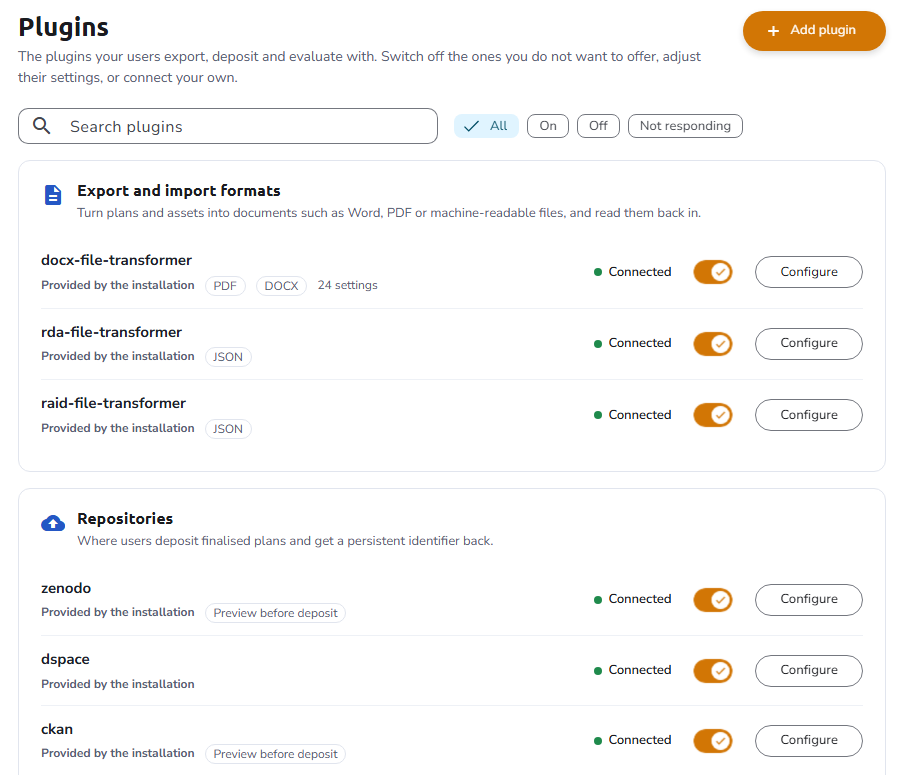
Each plugin is marked Provided by the installation or Added by you, with its status: Connected, Not responding, or Off (Not saved yet for a plugin you have just added). Whether each plugin answers is checked every time you open the Plugins page, and after you save plugin settings. The settings Overview shows the latest result, and checks only when no result is available yet, for example on the first visit after the page is reloaded. Repositories that let users review the metadata before publishing are marked Preview before deposit. To find a plugin, search the list or filter it with All, On, Off, and Not responding.
Offer or hide a plugin
Use the switch on a plugin's row to offer it to your users or hide it. A plugin that is switched off is hidden from your users but keeps its settings; nothing they already exported or deposited is affected. The change applies when you save.
Add a plugin
Click Add plugin to connect a plugin that runs outside the installation. Your installation administrator or the plugin's provider can give you its details:
| Field | Description |
|---|---|
| Kind | Export and import format, repository, or evaluator |
| Plugin id | The id the plugin reports for itself, for example docx or zenodo |
| Address | The plugin's base address, without the /api part, for example https://my-deposit-service.example.com |
| Token issuer address | The token endpoint the platform requests a token from before calling the plugin, not the realm URL, for example https://keycloak.example.com/auth/realms/OpenCDMP/protocol/openid-connect/token |
| Client id / Client secret | The Keycloak client the platform signs in to the plugin with |
| Scope | The OAuth2 scope requested when signing in; it must add the audience the plugin checks, normally plugins |
Repositories also need:
| Field | Description |
|---|---|
| Transformer for the PDF copy | The export format used to generate the PDF file that is deposited |
| Transformer for the machine-readable copy | The export format used to generate the RDA JSON file that is deposited |
A repository added this way also gets a Largest response (bytes) of 6554000; change it afterwards on the plugin's Connection tab (see Plugin page).
The Plugin id must exactly match the id the plugin reports for itself. Test connection calls the plugin and, if it reports a different id, shows the one to use.
Plugin page
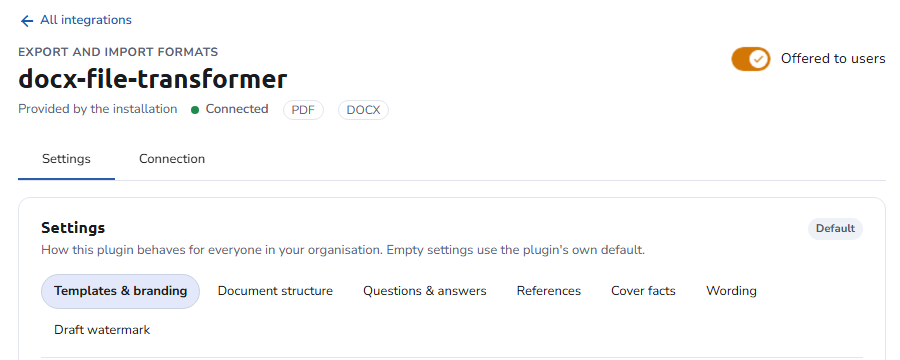
Click Configure on a plugin to open its page. The header has the switch that offers the plugin to users (Offered to users / Not offered), and two tabs:
-
Settings: how the plugin behaves for everyone in the organisation. The fields are the configuration fields the plugin declares, each shown according to its type (text, file, on/off, choice, color, number, and others). Empty settings use the plugin's own default. Settings appear once the plugin is switched on, saved, and responding.
-
Connection: where the plugin runs and how the platform signs in to it, with Test connection. Plugins provided by the installation have their connection managed by the installation; you can still check that they answer. Plugins you added can be edited here, or removed with Remove plugin. The tab holds the Address, Token issuer address, Client id / Client secret, and Scope described in Add a plugin and, for a repository, the two transformers and one more field:
Field Description Largest response (bytes) The largest response the platform accepts from the repository service; Responses larger than this are refused. Required, at least 1. Set to6554000when the repository is added.
When the plugin sorts its settings into groups (as the DOCX transformer and the repositories do), the Settings tab shows a menu of the groups, with the number of changed settings in each. Every setting shows its description and whether it holds its own value (Changed, with its own Reset to default) or follows the plugin's default (Plugin default). Settings that pick a reference type list the organisation's reference types.
Settings that hold a secret, such as an access token or a password, are never shown again after you save:
- A saved secret reads Set · stored encrypted, with Replace to enter a new one and Remove to delete it. A removal reads Removed when you save until you save, and Undo cancels it.
- While you type a new secret, the hint reads Stored encrypted. It is never shown again after you save. Keep the current one cancels the replacement.
For the DOCX transformer, the settings are grouped by topic, each explained, with a live PDF Preview of one of your plans. Uploaded templates are checked right away, and warnings or errors appear under the uploader. See Managing templates and Export settings.
Repositories
The settings of a repository decide how your users publish plans to it. Each repository declares its own, and most share these groups:
| Group | Settings |
|---|---|
| Who publishes | Ways to publish: the organisation's account and users' own accounts, only the organisation's account, or only users' own accounts. Preselected: the choice users see selected when both are allowed (users with saved credentials always start on their own account). Organisation account name: what users see as the organisation's account in Publish as. |
| Organisation account | The credentials of the organisation's own account in the repository (an Access token, or a Username and Password), used when users publish under the organisation's account. Empty: the installation's account is used. |
| [Repository] record | Defaults for the records your users create, such as the community or collection, publisher, license, language, which plan members are credited as authors (Authors from plan members), and whether a public plan's page is linked from the record (Link the public plan page). An empty setting uses the installation's value. |
| Files | Files to deposit: which of Plan document, Machine-actionable plan (RDA JSON), and Supporting files are uploaded with the record. Empty: every file the repository accepts. A file whose export plugin is switched off is never uploaded. |
| Reference types | The codes of the reference types that hold the plan's licenses, funders, grants, organisations, or researchers, when they differ from the installation's. |
| Review | Hidden sections: sections of the review users never see; values your plans map into them are still published. Values users can't change: record defaults shown in the review as set by the organisation; users' edits to them are ignored. |
The exact settings of each repository are listed in its deposit service documentation.
An organisation that has not saved any plugin settings follows the plugin settings of the Default organisation. A plugin's Settings tab then shows them marked Set by the installation; Use your own value starts the organisation's own copy.
See also
- Organisation settings - The settings hub, and how settings are saved
- Plugin configuration models - How plugins declare their settings
- Deposit services - The settings of each repository