Help pages & legal
The Help pages & legal page manages the FAQ, guides, and policy pages that people open from the footer of the side navigation menu and from the Support menu. These pages are available to both signed-in and anonymous users.
Every page ships with a built-in text. Change a page to use your own wording; the other pages keep the built-in text.
The pages are:
- About: A brief description of the platform
- FAQ: Frequently asked questions
- User Guide: A short guide available to users directly on the platform
- Glossary: A brief description of the most important terms used in the application
- Terms Of Service
- Cookie Policy: A description of the cookies the application uses
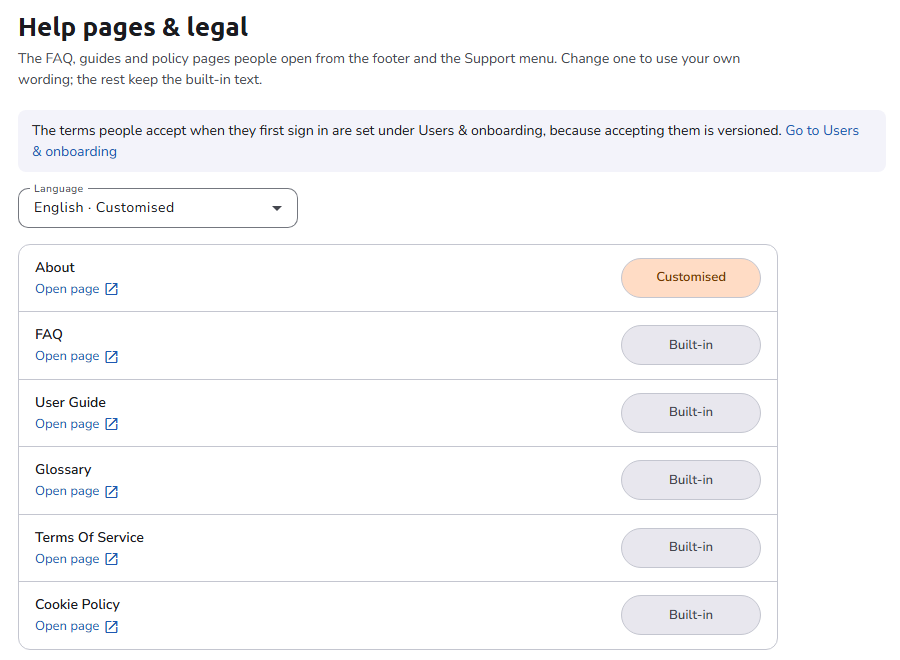
The terms that people accept when they first sign in are not set here but under Settings > Users & onboarding, because accepting them is versioned. The page links there. See Organisation settings.
Editing a page
- Select the Language to work on. Languages in which at least one page is customized are marked Customised in the list. The pages can have a translation for every registered language.
- Each page shows its state for that language as a button:
- Built-in: the page uses the built-in text.
- Shared: the page uses a text set by the default organisation, which every organisation shares.
- Customised: your organisation has its own text.
- Click the state button to open the page in a drawer. A built-in or shared text is shown read-only; click Customise this page to edit a copy of it.
- Edit the text in the rich text editor and click Save.
Other actions in the drawer:
- Preview opens the page, as people see it, in a new browser tab. Open page next to each page in the list does the same.
- Reset to built-in text removes your wording for this page and language and goes back to the built-in text.
Saving a page that shows a Shared text creates your organisation's own copy; the shared text itself is not changed.
If you close the drawer or open another page with unsaved changes, you are asked whether to discard them.
Authorization
Users with the System Administrator, Organisation Admin, or Content & Workflow Manager role can access this page and customize the pages. See Roles.
Navigation
In the side navigation menu, switch to the Admin view, go to Organisation > Settings, and open Help pages & legal (in the Content group of the section menu).