Research Insights
The Research Insights page answers questions such as "how many of our datasets will be deposited in Zenodo?" or "which licenses do FCT-funded plans choose?" by counting the answers that plan authors gave to a question of an asset template or a plan blueprint, across the whole organisation.
You pick one question, its answers are counted at once, and you refine the result with filters and breakdowns until it says what you need. The whole definition lives in the page URL, so you can bookmark a count you need every quarter.
Research Insights is in the Analytics group of the admin side navigation, together with Usage when the optional KPI service is enabled. Analytics holds the pages that report on the organisation's data.
Which organisations are counted
By default the page counts the plans and assets of the organisation you are working in, and nothing else: records of other organisations, including those of the default organisation, are never mixed into its numbers or its export.
Users with the System Administrator or Installation Manager role also see a This organisation / Every organisation toggle, at the top of the page and next to Copy link once a question is chosen. Every organisation counts across the whole installation:
- Search results and the template and blueprint pickers list the templates and blueprints of every organisation, with the organisation code in parentheses after the name.
- The scope line of the result starts with Every organisation.
- Organisation becomes the first option of Break down by.
- The CSV export gains a first column with the organisation code of each item.
- A higher item limit applies (see Limits).
A copied link keeps the scope. Opened by a user without the installation-wide permission, it counts that user's own organisation instead.
Finding a question
The page opens on one search box. Type what you remember of the question:
- Its number, as the template editor shows it:
5.2.4finds section 5, subsection 2, question 4, and5.2finds everything under 5.2. - A word of its title or of one of its field labels, such as
repository,license, orfunder.
The results are grouped:
- Across all templates: semantic tags that template authors put on their fields, for example
rda.dataset.distribution.host.title. Choosing a tag counts every field that carries it, in every template and blueprint, as a single question, whatever each template calls it. Tags are compared without regard to case or surrounding whitespace, soRDA.Dataset.Typeandrda.dataset.typeare one question. The most common wording is shown beneath the tag as As templates call it: …, and Advanced lists every wording and template the tag was read from. Choose a tag when the organisation runs several templates and the question is about the research, not about one template. - Asset template questions and Plan blueprint questions: one question of one template or blueprint lineage. All versions of the lineage are read, deleted versions included, so assets written against an older version are counted too.
Each result shows what kind of answers the question holds (choice, reference, free text, yes / no, or date) and how many versions of the template exist.
Browsing instead
Below the search, Or browse by offers an Asset template and a Plan blueprint picker. Choosing one shows its numbered question tree; tick one or more questions and click Count answers to … selected. Use this when you know the number but not the wording, or when you want several questions of the same template counted together.
Ticking a question counts the fields that carry its answer. When a yes/no sits beside other fields, as in "are there ethical issues? please specify", the yes/no is the question and is counted on its own. A tick box that only reveals another field, such as "cannot find it? type it in", is left out, so that Yes and No do not land among the repositories. Click choose fields to count a different set.
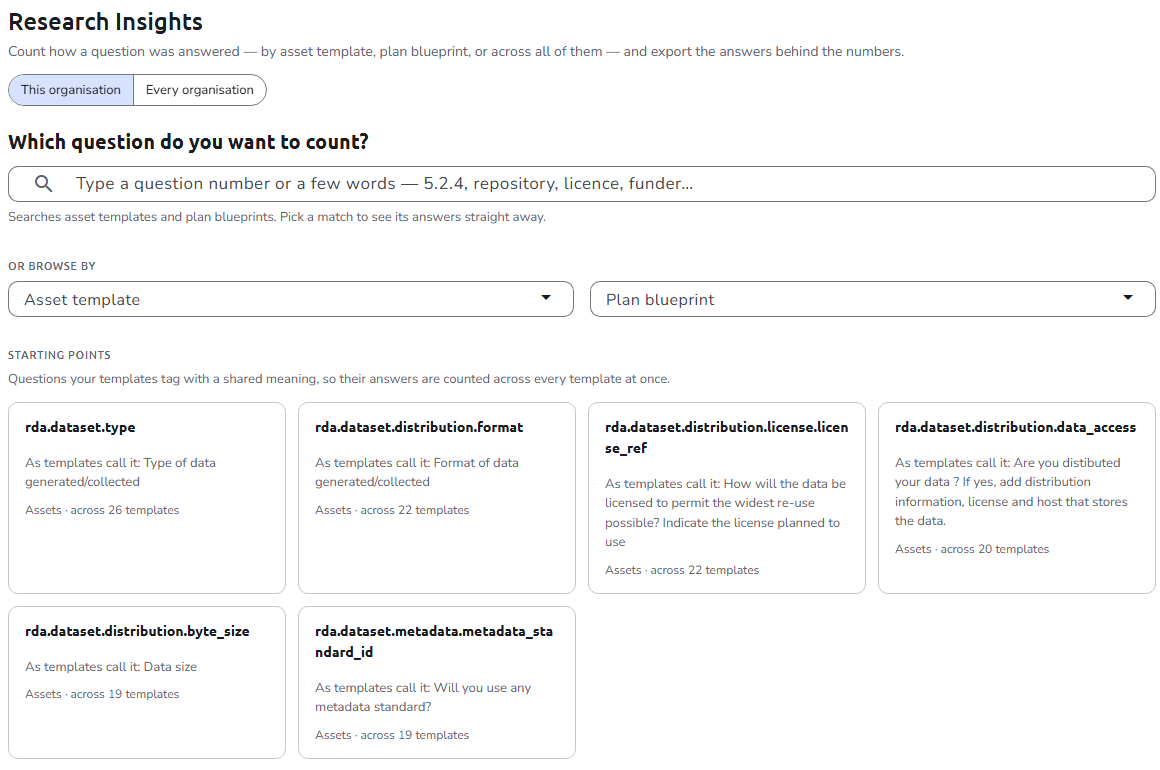
Starting points
When your templates tag questions with shared semantics, the most widely shared ones are offered as cards under Starting points. Each card shows the tag, the wording templates most often give it, and how many templates share it, and counts its answers across templates with one click.
Reading the result
The answers are counted as soon as a question is chosen and again after every change. By default the count uses the latest version of each plan, active items only, and all statuses.
-
The lead sentence states the result in one line, ready to paste into an email, for example "Of 72 assets on the FCT template (in 34 plans), 38 answered this question. The most common answer is POLEN DataHub (25), followed by Zenodo (7)."
-
Answers lists every distinct answer with its count, share of those who answered, and a bar.
-
Who answered shows four numbers that together account for every item counted:
State Meaning Answered The question was shown to the author and a value was given. Not answered The question was shown and left empty. Not applicable The question was hidden for this item by an earlier answer (a conditional rule), or does not exist in the template version the item uses. Not readable The item still stores its answers in the pre-2.0 format. The database migrations that run when the API service starts convert pre-2.0 plan values (see the upgrade guide), so this state does not normally appear. A warning above the result says how many items are affected.
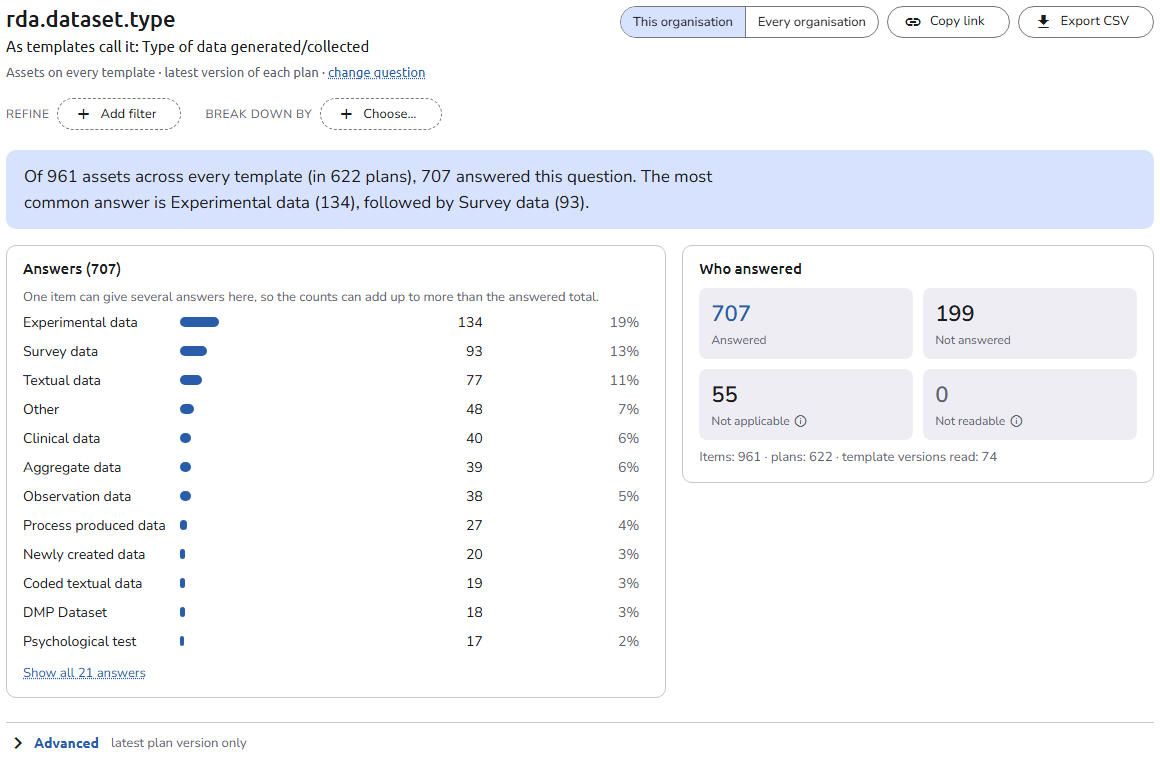
- The header names the scope, for example Assets on FCT · 2 versions · latest version of each plan, and offers change question, Copy link, and Export CSV. For a cross-template question the title is the tag itself, with the most common wording as a subtitle. While the answers are counted again after a change, a progress bar is shown above the previous result.
How answers are counted
- Answers that differ only in letter case or spacing, such as Zenodo, zenodo, and Zenodo followed by a space, are counted as one answer, under the spelling most items used. The same spelling is used in the breakdowns and the export.
- Formatting is removed from rich-text answers before they are compared.
- Reference answers are counted by label, not by id: two references both labeled Zenodo count as one answer. Deleted references are still counted, marked (deleted).
Free text and multiple answers
Free-text questions have as many distinct answers as authors; the twenty most common are listed and the rest are folded into Other text (n). A question that accepts several answers at once (references, tags, multi-select) notes that its counts can add up to more than the answered total.
Refining
The Refine row above the result carries the filters as chips. Click Add filter and pick one:
- About the plan: Plan status, Plan access, Plan blueprint (not offered when the question itself comes from a blueprint), and Reference of the plan…, which lists every reference type of the organisation (Funder, Organisation, Grant, License, …) and matches plans that carry any of the chosen references.
- About the asset (asset questions only): Asset status, Created (after and before a date), and Reference of the asset… with the same reference types, matching the asset's own references.
Each chip opens a small editor in place; click the × to drop it. A Plan blueprint filter narrows an asset count to plans built from that blueprint, and also makes the plan's own answers available as breakdowns (see Advanced).
Breaking down
Break down by splits the counts by up to three levels: asset status, plan status, plan access, plan blueprint, plan version status, template version, created or finalized period, the answer to any question being counted, or, when a blueprint filter is set, the answer given on the parent plan. In the Every organisation scope, Organisation is offered too.
The result is a pivot table: one row per breakdown value, the five most common answers as columns with a total row, shaded so the heaviest cell reads first. "Where do the datasets of FCT-funded plans go, by plan status" is one such table.
Advanced
Folded under Advanced at the bottom of the result:
- Fields counted: which fields of each question are read, with tick boxes that only show or hide other fields marked toggle — not counted.
- For a cross-template question, the wordings it is applied under and the templates it is read from.
- Scope: Latest plan version only and Include deleted items. Latest plan version only is on by default and counts each plan once, using its newest version. The newest version is chosen before the filters apply: when a plan's newest version is a draft, a filter on a finalized status leaves the plan out and does not count its older finalized version, so the filter and a breakdown by status agree. Turn it off to count superseded versions as separate items.
- Group dates by year or month, shown only when a date is being counted or broken down by.
- Plan questions: for an asset count narrowed to one blueprint, the blueprint's question tree. Ticked questions become available under Break down by as Plan answer to ….
Exporting
Export CSV downloads one row per item counted, with the plan id, plan, statuses, versions, and dates (and, for asset questions, the asset id and asset), then one value column and one state column per question. For asset questions, the ticked plan questions follow, prefixed Plan:. An export in the Every organisation scope starts with the organisation code of each item. The file is UTF-8 with a byte order mark so it opens correctly in Excel, and a cell that would start with =, +, -, or @ is prefixed with a quote so that a spreadsheet does not run an answer as a formula.
The export is authorized separately from viewing the counts, because it leaves the platform with row-level answers; see Authorization.
Limits
Answers are counted over every matching item. Above a configured limit the request is refused, not truncated: 20 000 items for one organisation and 100 000 for every organisation by default. The refusal states how many items matched and what the limit is; narrow the filters and try again. Installation administrators can change both limits, the number of questions and breakdowns per request, and the free-text cut-off in the backend configuration.
Authorization
Users with the System Administrator or Installation Manager role, or the Organisation Admin role of the current organisation, can open this page, count answers, and export them. See Roles. The counts are organisation-wide: they include every plan and asset of the organisation, not only those the user collaborates on.
The Every organisation scope, and its export, are open only to the System Administrator and Installation Manager roles.
Navigation
This view is available when the user presses the Research Insights link under the Analytics group of the admin side navigation. The link is shown only to the roles listed under Authorization.
See also
- Reports for developers - The question search, outline, query, and export endpoints
- Reports configuration - Backend environment variables
- Asset templates and Plan blueprints - Where questions and their semantics are defined