Admin listings
Most administration pages that show records as a table share the listing controls described below. They include Plan Blueprints, Asset Templates, Reference Types, Prefilling Sources, Languages & texts, Webhooks, Comment statuses, Users, Organisations, and Edit Locks. Each of those pages covers only what is specific to it.
Some administration pages are not listings: plan and asset statuses are edited from the workflow diagram in Settings > Plan & asset workflows, and help pages, notification templates, and types have pages of their own. See their pages for details.
Organisation scope tabs
Listings whose records can belong to a specific organisation or be shared from the default organisation show a row of scope tabs above the table:
- Owned by [organisation name]: records that belong to the organisation you are currently working in. This is the default tab.
- Shared by default organisation: records that belong to the default organisation and can be used, but not edited, by every other organisation.
- All: every record regardless of organisation.
Each tab shows a count badge with the number of records in that scope. The scope follows the organisation you are working in: if you switch organisation, or open a saved link to a listing, the tabs apply to the organisation selected at that moment.
While the Owned by [organisation name] tab is open and shared records exist, a strip below the table notes how many more are shared by the default organisation, with a Show shared action that opens the Shared by default organisation tab.
Rows that belong to the default organisation carry a Shared chip. If the current organisation cannot edit them, their open icon is an eye (View) instead of a pencil (Edit), and their actions menu shows a disabled Edit in the default organisation entry. Opening such a record shows a read-only banner explaining that it belongs to the default organisation. Other rows you cannot edit, such as finalized blueprints and asset templates, also show the eye icon.
Not every listing supports organisation scoping. Only listings whose records can belong to different organisations show scope tabs; each page states whether its listing is scoped.
The scope tabs do not appear while you are working in the default organisation itself. Records owned by the default organisation are the same records every other organisation sees under Shared by default organisation, so the listing shows all of the default organisation's own records, with no tabs and no scope-related empty states.
Search
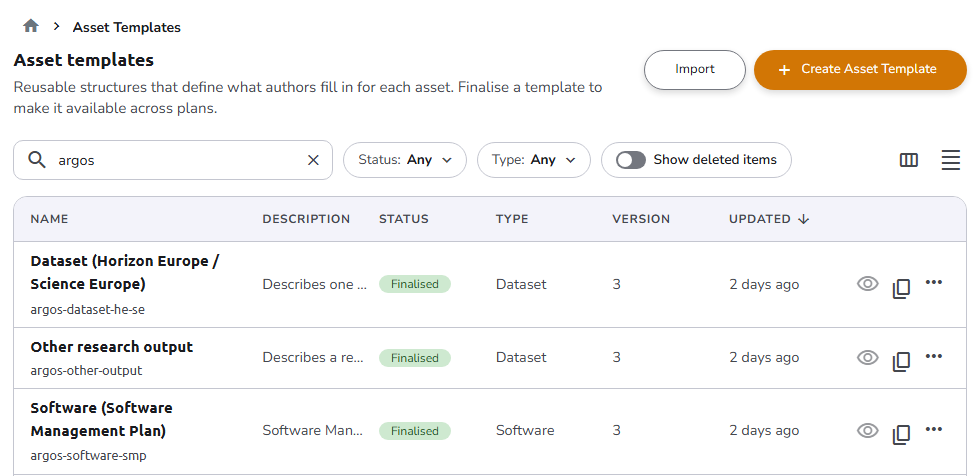
Each listing has a search input in its toolbar. Click it, or press / anywhere on the page, to focus it directly. Type to filter the listing by name or code; click the clear icon to reset the search.
Filters
Filters relevant to a listing appear as chips in the toolbar, next to the search input. Click a chip to open its options and apply them immediately; the chip's label reflects the current selection. Less common filters are grouped under a More filters chip.
Show deleted
On listings whose records can be deleted and kept, a Show deleted items chip toggles the listing between active and deleted records. While it is on, a strip above the table reminds you that you are viewing deleted items. Deleted items cannot be restored, but you can still open them, and clone them where cloning is available. Click Back to active items to return to the normal view.
Column picker and density
At the top right of the listing:
- The Display settings button (column icon) opens a menu where you can choose which columns are visible.
- The density toggle switches the row height between comfortable and compact. Your choice is remembered in the browser and applies to every listing.
Sorting
Column headers that support sorting are clickable. Click a header to sort by that column; an arrow icon shows the current direction. The table header stays visible while you scroll through a long listing.
Dates
Date columns show a relative value (for example, 2 days ago). Hold the pointer over the value to see the exact date and time in a tooltip.
Empty states
The listing shows a different message depending on why it is empty:
- No records at all: a message inviting you to create the first one, with a shortcut to do so where creation is supported.
- No records match your search or filters: a message suggesting you adjust your search or filters, with a Clear filters action. If matching records exist in a different scope tab, a Matches in other scopes hint links you directly to that tab.
- Nothing owned by the current organisation, but shared records exist: on the Owned by [organisation name] tab, a message notes how many records are shared by the default organisation and offers a button to jump to the Shared by default organisation tab.
- No deleted items: while Show deleted items is on and there is nothing to show, a message confirms that nothing has been deleted from the list.
Opening a record
On most listings, click anywhere on a row, or its pencil or eye icon in the last column, to open the record. Depending on the page, the record opens in a full-page editor or in a drawer over the listing; each page describes which. Where the record has a page of its own, the row's title is also a link: Ctrl+click (or middle-click) the title to open the record in a new browser tab. Further actions, such as Delete, are in the three dots menu at the end of the row.
Pagination
The number of records per page and page navigation are controlled at the bottom of the listing. Use the page size selector to show 10, 25, 50, or 100 records per page, and the page controls to move between pages.
See also
- Edit Locks, Webhooks, and the other administration pages that use this listing: the filters and behavior specific to each one
- Organisations: background on organisations and the default organisation