Prefilling sources
The Prefilling Sources page configures the external sources that fill in asset fields for authors.
What are prefilling sources
Prefilling sources are external APIs that integrate with OpenCDMP to help users populate asset fields automatically. When creating an asset, users can search these sources and import relevant information directly into their form, instead of answering every question by hand.
Why use prefilling sources
Prefilling sources save authors time and improve data quality:
- Authors import data from trusted external APIs instead of typing it.
- Data from authoritative sources, such as ORCID for researcher profiles or Zenodo for datasets, is more reliable than manual entry.
- Data from external sources comes in standard formats, so the same information is always recorded the same way.
- One search fills several related asset fields at once, for example the title, authors, DOI, and abstract of a publication record.
Common use cases
Typical prefilling sources include:
- ORCID: researcher profiles and publication lists
- Zenodo: research datasets and DOIs
- OpenAIRE: research outputs and projects
- Crossref: publication metadata
- ROR (Research Organization Registry): organization information
- Custom APIs: institution-specific data repositories
How prefilling works
- The user starts creating an asset and chooses to prefill it instead of filling fields manually.
- The user selects a prefilling source and searches for their subject, for example a dataset title or a DOI.
- The search request is sent. It returns a list of matching results, each with a Reference ID, a Name, and a Description.
- The user picks a result from the list.
- The full record request is sent, if the source fetches the full record, to retrieve the complete details of the picked result. Otherwise the values of the search result are used directly.
- The fill rules copy values from the record, or fixed values, into the new asset:
- into the asset's own Label, Description, or Tags;
- into every asset template question that carries a given semantic.
Prefilling is available only in the blueprint sections that enable it. The blueprint section can also restrict which sources are offered: an empty list means every active prefilling source of the organisation, a non-empty list means exactly those sources. See Blueprints for configuration details.
Fill rules reach template questions through semantics: a fill rule's semantic must match the semantic assigned to a question in the asset template. Because of this, the same source works with several templates.
Managing prefilling sources
The Prefilling Sources page is in the Data Sources group of the administration menu. It lists every prefilling source configured in your organisation.
The listing shows the Label of each source with its code underneath, and the Created and Updated timestamps. At the top right corner of the listing you can also select which columns to display.
You can create a new source with the Create Prefilling Source button at the top right of the page, or edit or delete an existing one with the three dots on the last column.
This listing is organisation-scoped and supports the standard admin listing controls: scope tabs, search, Show deleted, column picker, and density. This page has no filters beyond those shared controls.
Authorization
Open to the System Administrator and Organisation Admin roles. See Roles.
The prefilling source editor
Opening or creating a prefilling source shows the prefilling source editor. Its header shows the label, the code, and the number of fill rules. The header actions are:
- Close: Returns to the listing.
- Save: Saves the prefilling source. A note next to the buttons says whether there are unsaved changes.
- More actions (three dots):
- Export XML: Downloads the prefilling source's definition as an XML file, which can be used as a backup or shared with another environment.
- Import XML: Loads a previously exported XML file into the editor, replacing the connection, search, full record, and fill rules with the ones in the file.
- Delete: Removes the prefilling source. Only available when editing an existing prefilling source.
Importing a file only updates the editor in your browser. The snackbar reads Definition imported. Review the changes and save to keep them. Nothing is sent to the server until you press Save, so you can close the editor without saving to discard an import.
Import and Export only cover the prefilling source's definition. The Label and Code are not included and must still be set in the editor.
The editor is organised in numbered tabs that follow the order in which a source is set up: 1 Connection, 2 Search, 3 Full record, 4 Fill rules, and Try it.
The connection, the search, and the full record use the same building blocks as the API sources of a reference type: headers and authentication, a Request step, a Search rules step, and a Test and map step. Connecting to an external API describes them in full; the sections below cover what differs for prefilling.
1 Connection
About this source
- Label: The display name of this prefilling source, shown to users in the prefill step and to administrators when they offer it in a blueprint section, for example
Zenodo DatasetsorORCID Researchers. - Code: A short, unique identifier for this source, for example
zenodo-datasetsororcid-researchers.
Connection
The connection is set once: the search and full record requests both use it.
- Headers: The Content-Type sent with requests, and any of the supported headers (
ACCEPT,CONNECTION,ALLOW HEADER,ALLOW ORIGIN,ALLOW CREDENTIALS,ORIGIN). Custom headers, such as API keys, are not supported. - Authentication: Turn on Needs a token when the API requires one, then set how to Get a token (method, token URL, and a JSON request body), how to Read the token from the reply (the name of a top-level Token field, and the Token type,
Bearerby default), and see how it is Sent with every search. See Authentication.
Press Next: Search to continue.
2 Search
The search runs as the author types in the prefill step. When the full record is fetched, it only has to return enough to recognize and pick a record. Without a full record, it also returns the values the fill rules use.
The tab has three steps:
- Request: The Method, the URL with its placeholders, the First page number, and, for
POST, the request body. The connection is shown asUses the connection: its headers and authentication., with a Change button that opens the Connection tab. For example:https://zenodo.org/api/records/?page={page}&size={pageSize}&q={like}&type=dataset - Search rules: Who filters the results, and the rules that decide what replaces each placeholder, such as
{like}. See Search rules. The Depends on setting of reference types is not offered here. - Test and map: Run a test search, set the Response format (
JSONorXML), where the results are (Results are in) and where the total count is (Total count is in), and map the reply. The What authors pick from panel always has Reference ID, Name, and Description, which make the pick list;Entries without a Reference ID or Name are dropped.Without a full record, clickAdd fieldto name more values for the fill rules, each with a Name and a Path in the reply. See Test and map and Path syntax.
The Run test button is disabled until the Request step has a method and a URL.
3 Full record
Turn on Fetch the full record when the search returns too few fields. After the author picks a search result, the record is fetched again by its Reference ID, which replaces {like} in the URL, and the fill rules read from that reply.
A typical pattern is:
- Search:
GET /api/records?q={like}returns a list with minimal fields. - Full record:
GET /api/records/{like}returns one complete record by its ID.
When it is on, the tab shows the same Request, Search rules, and Test and map steps as the Search tab, with these differences:
- Turning it on adds a
likeplaceholder whose rule sends{like}, the Reference ID of the picked result. - Search rules do not offer the choice of who filters the results, because the request fetches a single record.
- Test and map tests with a Record to fetch, picked from the results of the last test in the Search tab. Run a test there first.
- The Fields the record gives the fill rules panel lists named values only: click
Add fieldand give each value a Name and a Path in the reply. The fill rules pick from these names.
When it is off, the tab lists the fields the search result gives the fill rules, with a link to name more in Search › Test and map.
Turning the full record on or off moves the paths of the values your fill rules use between the search and the full record.
4 Fill rules
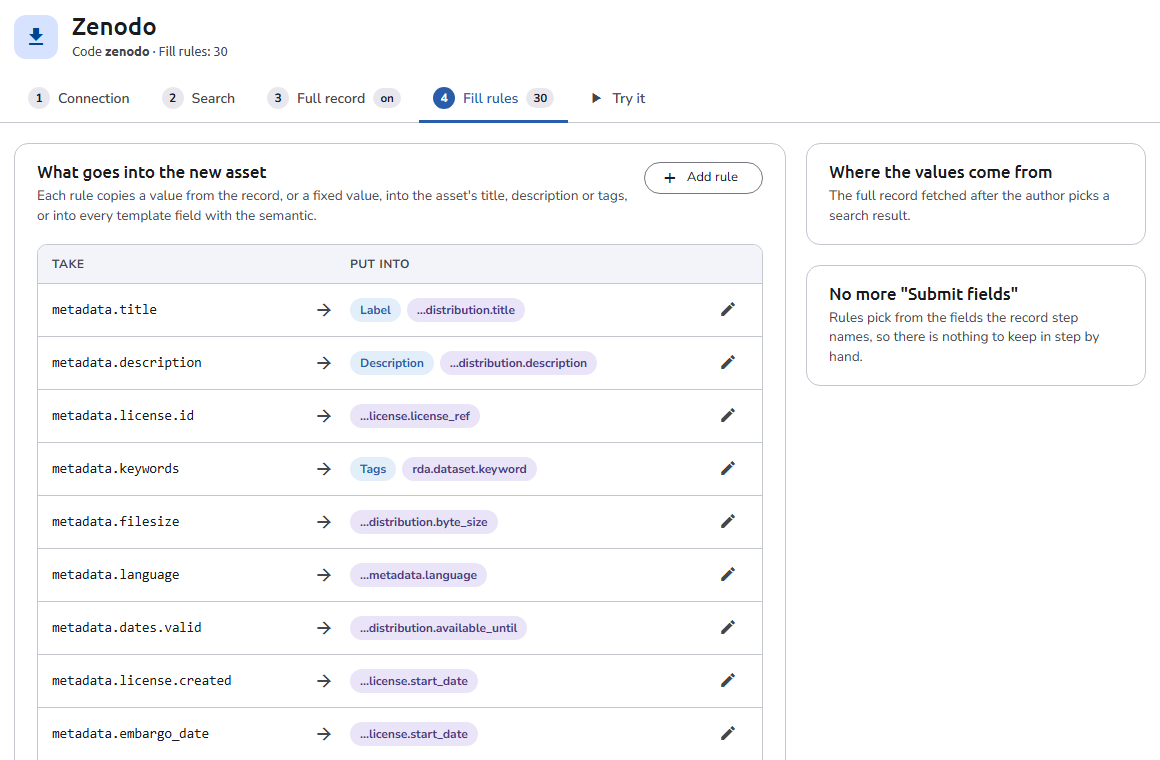
Fill rules define what goes into the new asset. Each rule copies a value from the record, or a fixed value, into the asset's title, description, or tags, or into every template field with a semantic.
The tab lists the rules as Take and Put into pairs, with the value of each field in the last test. A side panel, Where the values come from, names the reply the rules read: the full record, or, when the full record is off, the search result the author picks. Click Add rule to add one, or the edit button of a rule to change or delete it.
The rule dialog has two parts:
- Take:
- A value from the record: Pick a Record field from the names given in Full record, or in Search › Test and map when the full record is off. The dialog shows its value in the last test.
- A fixed value: A Value set on every asset prefilled from this source, for example
zenodo.
- Put into: Choose either or both:
- The asset's own field:
Label,Description, orTags(orNone). A Tags value that is a JSON list adds one tag per item. - Template fields with semantic: A semantic key, picked from the suggestions or typed in. See Semantics. It fills every field of the asset template that carries it.
- The asset's own field:
Click Done to keep the rule, or Delete rule to remove it. A rule must take something and put it somewhere. Rules that fill nothing are marked in the list and counted in a Needs attention panel:
Goes nowhere: The rule has neither an asset field nor a semantic.Not returned by the record: The record field the rule takes is no longer named in the search or full record.
Try it
Try it as an author would runs the search, the full record, and the fill rules with the settings as they are now, without saving anything:
- Enter a search and press
Search. The first results are listed by their Name, Description, and Reference ID. - Pick a result. When the full record is on, it is fetched.
- The new asset, prefilled shows what each rule puts where: the asset's Label, Description, and Tags, the template fields by semantic with the record field each value came from, and how many rules filled a value.
The search is disabled until the Search tab, and the Full record tab when it is on, have a method and a URL.
Validation when saving
When you press Save, the editor checks the prefilling source before sending it. The Label and Code are required, and so are the search request and, when it is on, the full record request. If something is missing, the editor opens the tab that needs attention, in the order Connection, Search, Full record, Fill rules. Errors returned by the server are shown on the matching control.
Complete example: Zenodo dataset prefilling
A complete prefilling source for Zenodo research datasets.
1 Connection
| Field | Value |
|---|---|
| Label | Zenodo Datasets |
| Code | zenodo-datasets |
| Content-Type | application/json |
| Needs a token | Off |
2 Search
Request
| Field | Value |
|---|---|
| Method | GET |
| URL | https://zenodo.org/api/records/?page={page}&size={pageSize}&q={like}&type=dataset |
| First page number | 1 |
Search rules
| Setting | Value |
|---|---|
| Who filters the results | The API |
| Placeholder | like |
| Rule 1 | Condition is anything, value to send {like} |
| No rule matches: Send instead | * |
Test and map
| Setting | Value |
|---|---|
| Response format | JSON |
| Results are in | $.hits.hits |
| Total count is in | $.hits.total |
| Field | Path in the reply |
|---|---|
| Reference ID | $.id |
| Name | $.metadata.title |
| Description | $.doi |
3 Full record
Turn on Fetch the full record.
| Field | Value |
|---|---|
| Method | GET |
| URL | https://zenodo.org/api/records/{like} |
| Results are in | $ |
| Name | Path in the reply |
|---|---|
title | $.metadata.title |
description_text | $.metadata.description |
doi | $.doi |
access_rights | $.metadata.access_right |
license | $.metadata.license.id |
4 Fill rules
| Take | Put into |
|---|---|
Record field title | The asset's own field Label |
Record field description_text | The asset's own field Description |
Record field doi | Template fields with semantic rda.dataset.dataset_id.identifier |
Record field access_rights | Template fields with semantic rda.dataset.distribution.data_access |
Record field license | Template fields with semantic rda.dataset.distribution.license.license_ref |
Fixed value zenodo | The asset's own field Tags |
Use semantics that the questions of your asset templates actually carry. See Semantics.