Users
The Users page lists people and lets you change their roles. It has two views:
- This organisation: the people who have access to the organisation you are working in. Here you invite new members and change their organisation roles.
- All organisations: every account of the installation, across all organisations. Here you also change installation-wide roles.
Which view you get depends on your role: an Organisation Admin sees the organisation's members, an Installation Manager sees all accounts, and a System Administrator can switch between the two with the This organisation / All organisations toggle at the top of the page.
The This organisation view shows the members of the organisation selected in the top bar. To manage another organisation, select it with the organisation button in the top bar first. If you do not belong to any organisation, that button is not available.
Navigation
In the side navigation menu, switch to the Admin view and go to Organisation > Users. For a System Administrator or an Organisation Admin, this opens the members of the current organisation; for an Installation Manager, it opens all accounts.
Authorization
- This organisation: users with the System Administrator role, or the Organisation Admin role of the organisation, can access this view, change organisation roles, and invite users.
- All organisations: users with the System Administrator or Installation Manager role can access this view and change roles in it.
See Roles for what each role grants.
The listing
The columns are:
- Name: the person's name and avatar, with their email address below
- Email (hidden by default)
- Created and Updated
- Roles: in This organisation, the person's roles in this organisation; in All organisations, their installation-wide roles and their roles in the organisation you are working in. People without roles show No role yet, and people who have never signed in show Not signed in yet.
Use the Display settings button at the top right to choose which columns are visible.
This listing supports the standard admin listing controls: search, filter chips, Show deleted items, column picker, and density. It has no scope tabs.
Changing roles
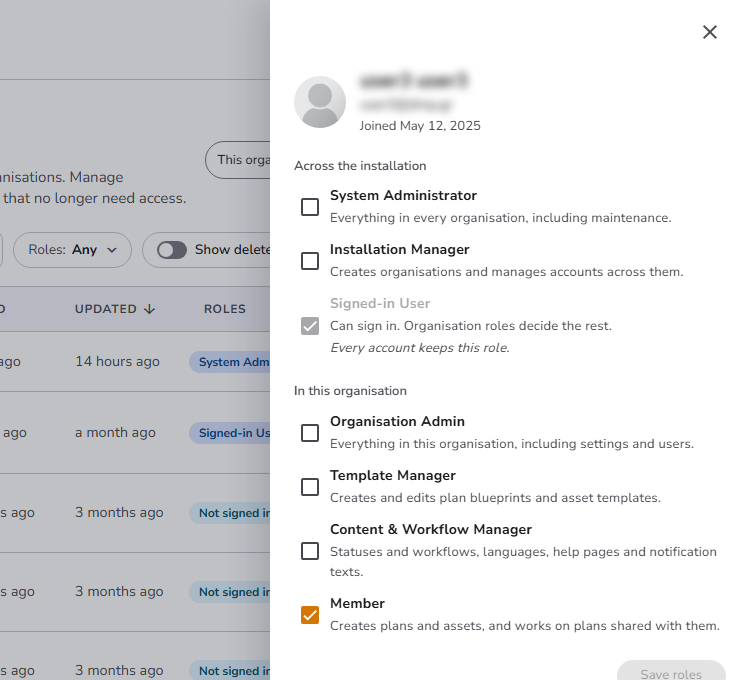
Click a person's row, or its edit (pencil) button, to open a drawer with their name, email address, and the date they joined, and their roles, each with a short explanation.
The In this organisation group (the heading can show the organisation's name instead) holds the organisation roles:
- Organisation Admin: everything in this organisation, including settings and users
- Template Manager: creates and edits plan blueprints and asset templates
- Content & Workflow Manager: statuses and workflows, languages, help pages, and notification texts
- Member: creates plans and assets, and works on plans shared with them
In the All organisations view, the drawer also has an Across the installation group with the installation-wide roles:
- System Administrator: everything in every organisation, including maintenance
- Installation Manager: creates organisations and manages accounts across them
- Signed-in User: can sign in; organisation roles decide the rest
See Roles for everything each role grants.
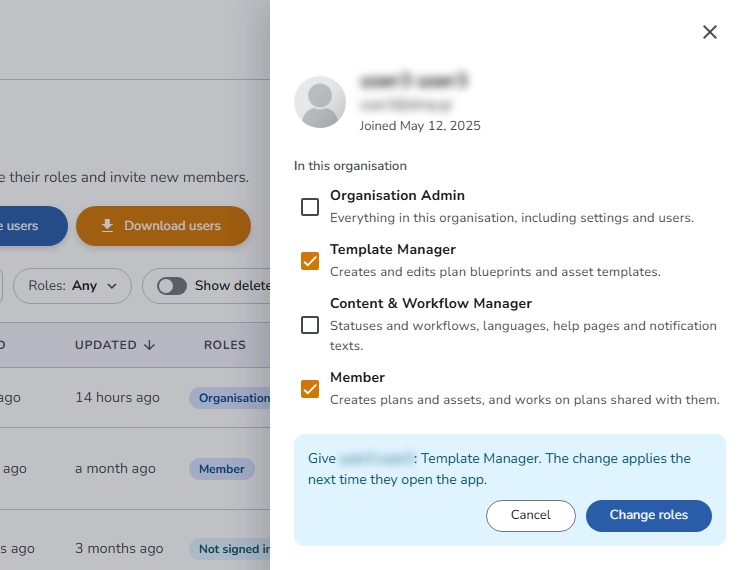
Tick or untick roles and click Save roles. The drawer summarizes the roles you are giving and taking away; click Change roles to confirm, or Cancel to go back. The change applies the next time the person opens the application.
In an organisation other than the Default organisation, roles also decide membership:
- Taking away all of a person's organisation roles removes them from the organisation. The summary says so before you confirm.
- Giving an organisation role to someone who is not a member adds them to the organisation, which the summary also mentions.
Some roles cannot be changed, and the drawer shows why next to the role:
- Signed-in User is always kept in the All organisations view: every account holds it.
- You cannot take System Administrator or Organisation Admin away from yourself.
- The only Organisation Admin of an organisation keeps the role until someone else is made Organisation Admin.
- Only a System Administrator can give or take away System Administrator; for an Installation Manager the role is locked.
Roles can be set only after the person's first sign-in. Until then, the drawer shows a note instead of the roles; people you invite get the roles of their invitation when they accept it.
Inviting users
In the This organisation view, click Invite users at the top of the page. For each person, enter an Email address and select one or more organisation Roles; click the add button to invite more people at once. Click Invite to send the invitations.
Downloading the list
Click Download users at the top of the page to download the people of the current view as a .csv file. The file holds everyone in the view; the search and filters do not apply to it.
This page's filters
- Roles: its own filter chip. You can filter people by their roles: organisation roles in This organisation, installation-wide and organisation roles in All organisations. You can select one or more roles.
By default, no role is selected.
For the search, Show deleted items, column picker, and density controls shared with other administration pages, see Admin listings.