Organisation settings
The organisation settings let administrators configure the organisation they are working in: its branding, the defaults of new users, the plugins it offers and their settings, its workflows, what plans and lists show first, notifications, and what users see when they sign in for the first time.
Each settings page is described on a page of its own, listed below in the order of the menu.
Authorization
The settings hub is open to the System Administrator and Organisation Admin roles. The Content & Workflow Manager role reaches only some of its pages: Languages & texts, Plan & asset workflows, Help pages & legal, and Notification templates; for this role, Settings opens on Plan & asset workflows. The menu lists only the pages you can open. See Roles.
Navigation
Switch the sidebar to the Admin view and choose Settings under Organisation. The page opens on the Overview, and a menu on the left leads to each page, in groups: Appearance, Integrations, Workflows, Content, and Communication.
How settings are saved
Each group of settings shows the value that applies to the organisation, and where it comes from:
- Default: neither the organisation nor the Default organisation has saved a value, so the built-in value applies.
- Set by the installation: the organisation follows the value the Default organisation saved (see what falls back). The value is shown read-only. Use your own value starts the organisation's own copy of it, which you can then edit; saving creates it, and Discard goes back to the shared value.
- Changed: the organisation has its own value. Reset to default removes it, after a confirmation, so the Default organisation's value, or the built-in one, applies again.

Changes are not stored until you save. While a page has unsaved changes, a bar at the bottom shows how many places changed, with Save changes and Discard. Settings that need attention (for example a required field left empty) are reported there, and saving waits until they are fixed. Leaving a page with unsaved changes asks for confirmation first.
Languages & texts, Webhooks, Plan & asset workflows, Comment statuses, Help pages & legal, and Notification templates also open inside the hub.
Overview
A card for each page of the hub, grouped as in the menu, with a short description. For the pages that store organisation settings, the card also shows their state: Using the defaults, or how many of its settings are customized and when they were last updated, and how many follow the Default organisation (set by the installation). The Plugins card shows how many plugins are offered to users and how many are not responding. Click a card to open its page.
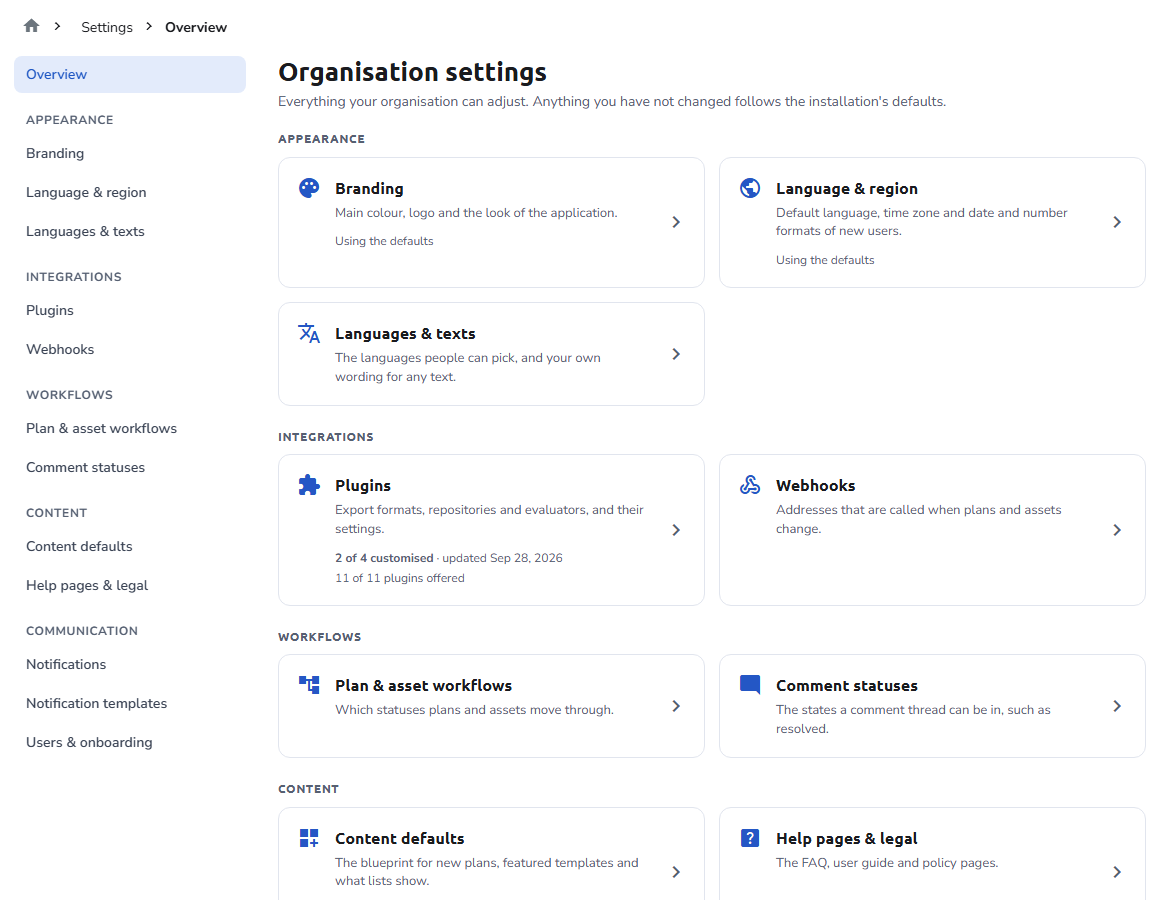
Settings pages
Appearance
Branding
Main color, logo, and custom style variables. See Branding.
Language & region
The default language, timezone, and format of new users. See Language & region.
Languages & texts
The languages people can pick, and your own wording for any text. See Languages & texts.
Integrations
Plugins
Export formats, repositories, and evaluators: offer or hide them, connect your own, and adjust their settings. See Plugins, and on that page:
- Add a plugin: connect a plugin that runs outside the installation.
- Plugin page: a plugin's settings and connection.
- Repositories: the settings that decide how users publish plans.
Webhooks
Addresses that are called when plans and assets change. See Webhooks.
Workflows
Plan & asset workflows
The statuses plans and assets move through, and who can move them. See Plan & asset workflows.
Comment statuses
The states a comment thread can be in. See Comment statuses.
Content
Content defaults
What people see first when they start a plan and browse the lists. See Content defaults, and on that page:
- Blueprint for new plans: the blueprint pre-selected for a new plan.
- Featured blueprints and asset templates: what is offered first.
- References shown in lists: the reference types shown on the rows of My Plans and My Assets.
Help pages & legal
The FAQ, user guide, and policy pages. See Help pages & legal.
Communication
Notifications
The channels each notification uses, and which is tried first. See Notifications.
Notification templates
The wording of every email and in-app message. See Notification templates.
Users & onboarding
What people see when they sign in for the first time. See Users & onboarding, and on that page:
- Terms and conditions: the terms users accept, and their versions.
- Guided tours: turn the page tours on or off.