Notification Templates
The Notification templates page lists every message the platform sends, by email or in the application, and lets you change the wording of any of them for your organisation.
Every notification has a built-in text, provided by the notification service. Customize a notification to use your own wording for this organisation. The notifications you do not customize keep the built-in text and pick up future improvements.
The notification list
The left side of the page lists the notifications, grouped into Plans, Assets, Comments, Account, Support, and Other. Counters at the top show how many are customised and how many use the built-in text, and a Customised badge marks each customised notification. Click a notification to open it in the editor beside the list.
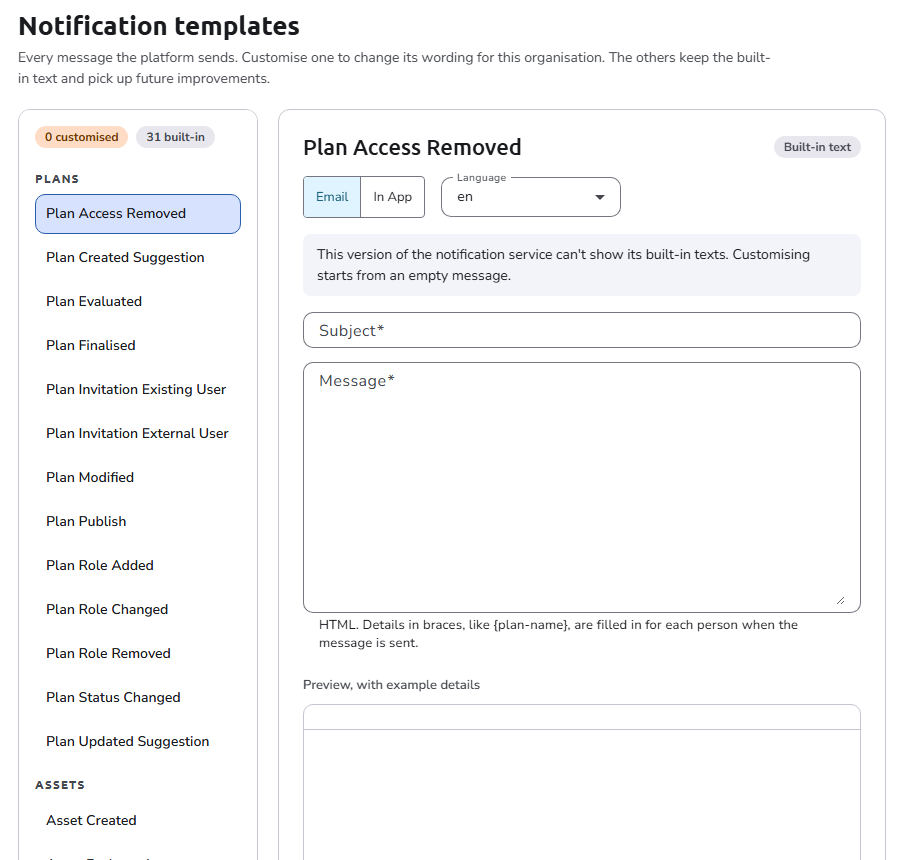
Plan collaboration changes have their own notifications, which you can customize separately:
- Plan Role Added: a collaborator is granted a role on a plan.
- Plan Role Changed: a collaborator's role on a plan is changed.
- Plan Role Removed: a specific role is removed from a collaborator on a plan.
- Plan Access Removed: a user is removed from a plan.
Editing a notification
The editor shows the state of the selected text: Built-in text, Customised for this organisation, Customised by the default organisation, or Unsaved changes.
- If the notification is sent on both channels, choose Email or In App.
- Select the Language. If there is no built-in text in that language yet, the English text is shown, and saving creates a version in the selected language.
- Edit the Subject and the Message. The message is HTML. Details in braces, like
{plan-name}, are filled in for each person when the message is sent. - To add a detail, click it under Insert a detail. A dashed detail, marked not used, is one that the built-in message uses but yours does not yet.
- Check the result in Preview, with example details.
- Click Save. The Subject and the Message are required: while either is empty, saving marks it Required instead.
For email, More email options: copies and attachments holds:
- Also send a copy to and Send a hidden copy to: email addresses, separated by commas.
- When the sender adds copies too and When the sender adds hidden copies too: how your addresses combine with copies the sender adds (
Not Override,Additive, orReplace). - Allow attachments: when checked, the notification can have attachments.
Other actions:
- Send a test to me sends the message as it is in the editor to your own email address or in-app notifications.
- Reset to built-in text removes this organisation's wording and goes back to the built-in text.
Older versions of the notification service cannot show their built-in texts. In that case the page says so, customizing starts from an empty message, and Send a test to me is not available.
Authorization
Users with the System Administrator, Organisation Admin, or Content & Workflow Manager role can access this page and customize notifications. See Roles.
Navigation
In the side navigation menu, switch to the Admin view, go to Organisation > Settings, and open Notification templates (in the Communication group of the section menu).