Languages & texts
The Languages & texts page lists the languages offered in the interface. Open a language to change any of its texts for your organisation. Texts you do not change keep the built-in wording and follow future updates.
Navigation
This page is in the organisation settings: open Settings in the Organisation group of the administration menu, then Languages & texts.
Authorization
Only users with the System Administrator, Organisation Admin, or Content & Workflow Manager role can access this page. See Roles.
Listing
The listing shows, for each language:
- Language: the language name and its code. The default language carries a
Defaultbadge. The default is the one shown first in the language menu and to visitors who are not signed in; it is chosen in Language & region. - Texts:
Built-in texts, no changes,Built-in texts, N changed, or, for a custom language,Custom language, N of M translated. - Created and Updated timestamps.
At the top right corner of the listing you can also select which columns to display. Click Add language to add a language, or use the three dots on the last column to edit or delete one.
This listing is organisation-scoped and supports the standard admin listing controls: scope tabs, search, filter chips, Show deleted, column picker, and density. This page has no filters beyond those shared controls.
The language menu shows the default language first and the others alphabetically.
How texts are stored
OpenCDMP ships with built-in texts for every language it is translated into. A language saved here stores only the texts you change, as overrides on top of the built-in texts:
- Texts you leave unchanged keep the built-in wording, including the improvements of future releases.
- The changes of the default organisation apply to every organisation. An organisation's own changes apply on top of them.
- In a custom language, texts that are not translated yet show in English.
- Changes show after users reload the page.
Adding a language
Click Add language and choose Which language?:
- A built-in language: Comes fully translated with OpenCDMP. Pick it from the Language list, which shows only the languages your organisation has not added yet. You can still change any of its texts afterwards.
- Another language: You provide the translations. Enter a Language code, a two- or three-letter ISO 639 code, optionally followed by a region (for example
is,mt, orpt-BR). The hint shows the name the language menu will use.
Press Add language to save it. The texts become editable once the language is saved. The language cannot be changed after it is added.
Editing texts
Opening a language shows its name, its code, whether it is a Built-in language or a Custom language, and, for the default language, a Default language badge. The language opens inside the organisation settings, with Cancel, Delete, and Save at the top. The Texts (built-in language) or Translations (custom language) section lists every text of the interface:
| Column | Built-in language | Custom language |
|---|---|---|
| Where it appears | The section and ID of the text | The section and ID of the text |
| Second column | Built-in text | The text in the language you translate from |
| Third column | Your text | Your translation |
- Built-in language: Type in Your text to change a text for this organisation. Leave it empty to keep the built-in text. Changed texts are marked
Changed, and Reset to built-in text undoes a change. - Custom language: Translate each text. Translate from chooses the built-in language shown next to your translation. Clear translation empties a translated text. A progress bar shows how many texts are translated, so you can save a partial translation and finish it later.
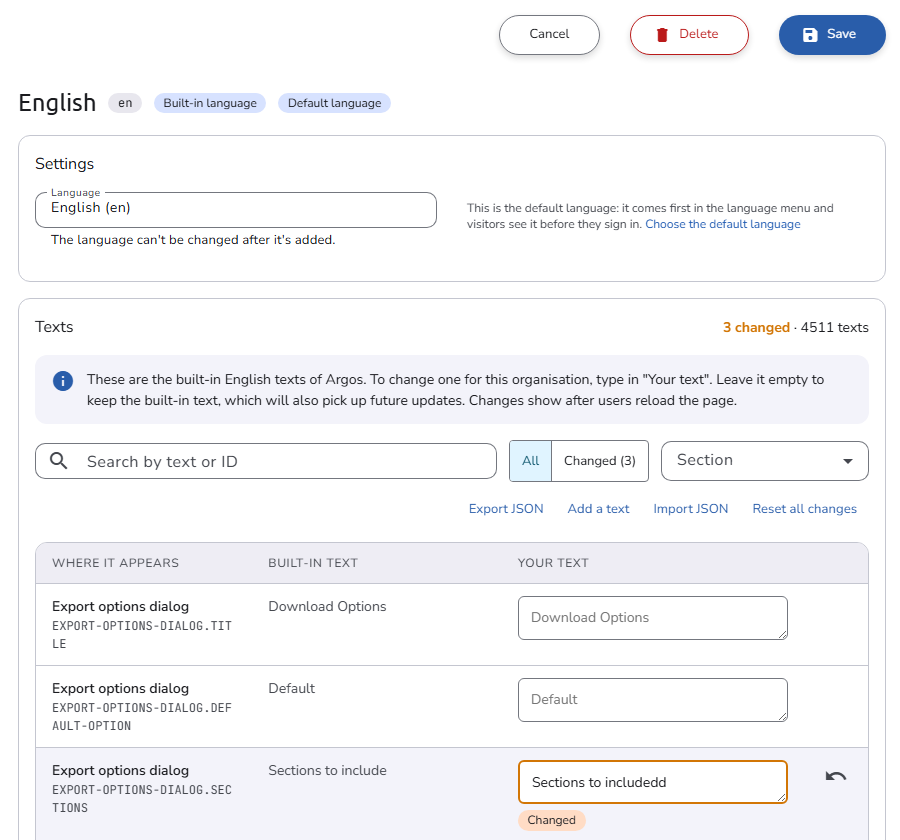
The toolbar helps you find texts:
- Search by text or ID: Matches the ID, the built-in text, or your text.
- Show:
All, or only theChangedtexts (built-in language) or theNot translatedtexts (custom language). - Section: Limits the list to one section of the interface.
The toolbar also offers:
- Export JSON: Downloads your changes as a JSON file.
- Import JSON: Applies the texts of a JSON file, for example one exported from another installation. Texts that are not built in are added.
- Add a text: Adds a text that is not built in, such as the name of your installation's own plugin. Enter the Text ID the application looks up (for example
GENERAL.EVALUATOR.MY-EVALUATOR) and the Text. Added texts are markedAddedand can be removed. - Reset all changes: Built-in language only. Restores every built-in text.
Press Save to store the changes.
Some texts contain placeholders such as {{ APP_NAME }} or {{count}}, which are filled in when the text is shown. A warning appears when your text drops one of them. Texts that are lists must stay valid JSON; the language cannot be saved until such texts are fixed.
Languages saved by earlier versions stored a full copy of the texts. When you open such a language, the editor keeps only the texts that differ from the built-in ones; save it to store the trimmed version. Texts that still differ, for example wording from an older release, show as changed, and Reset all changes restores the built-in texts.