Plan & asset workflows
The Plan & asset workflows page defines the lifecycle of plans and assets in an organisation. It has a tab for each, and each tab holds two things that work together:
- the statuses: the states a plan or an asset can be in, such as
Draft,Under Review, orFinalized. A status decides whether its plans or assets can still be edited, what people can do with them, and who can move work into it; - the workflow: the status every new plan or asset starts in, and the moves (transitions) allowed from each status to the next.
A status can only be reached through a move that the workflow allows, and the status menu of a plan or asset offers only the statuses the user may move work into. How authors change the status of their work is described in Plan workflow and Asset workflow of the user guide.
Navigation
In the side navigation menu, switch to the Admin view, go to Organisation > Settings, and open Plan & asset workflows (in the Workflows group of the section menu). The Plans tab holds the Plan workflow card and the Assets tab the Asset workflow card. A dot on a tab marks unsaved changes.
Authorization
Users with the System Administrator, Organisation Admin, or Content & Workflow Manager role can access this page, edit the workflows, and create, edit, and delete statuses. Statuses shared by the Default organisation can be edited and deleted only there (see Statuses shared by the Default organisation). See Roles. For a Content & Workflow Manager, Organisation > Settings opens directly on this page.
The workflow card
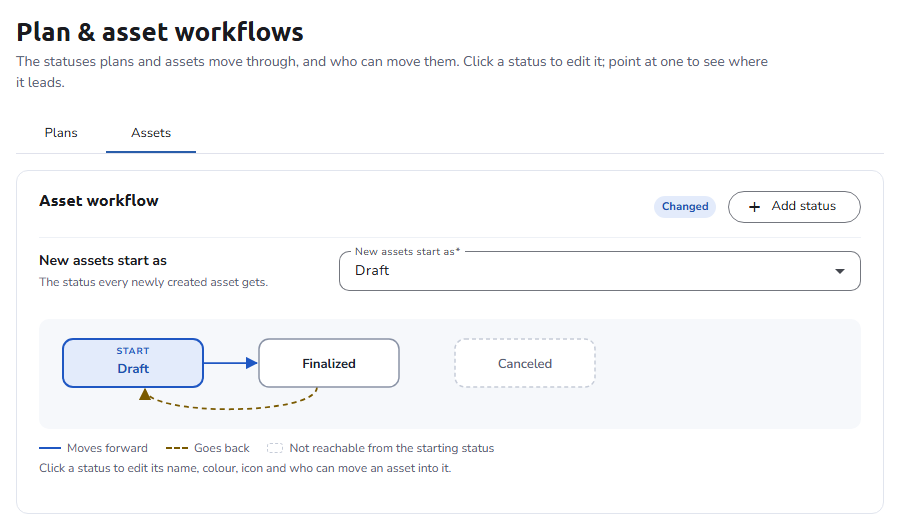
Each tab shows its workflow as a diagram: every status is a box, the starting status is marked START, and arrows show the allowed moves. Point at a status, or move the keyboard focus to it, to highlight where it leads. The legend below the diagram distinguishes moves forward, moves that go back, and statuses that are not reachable from the starting status, which are drawn with a dashed border. The moves themselves are set in the Allowed changes card below the diagram.
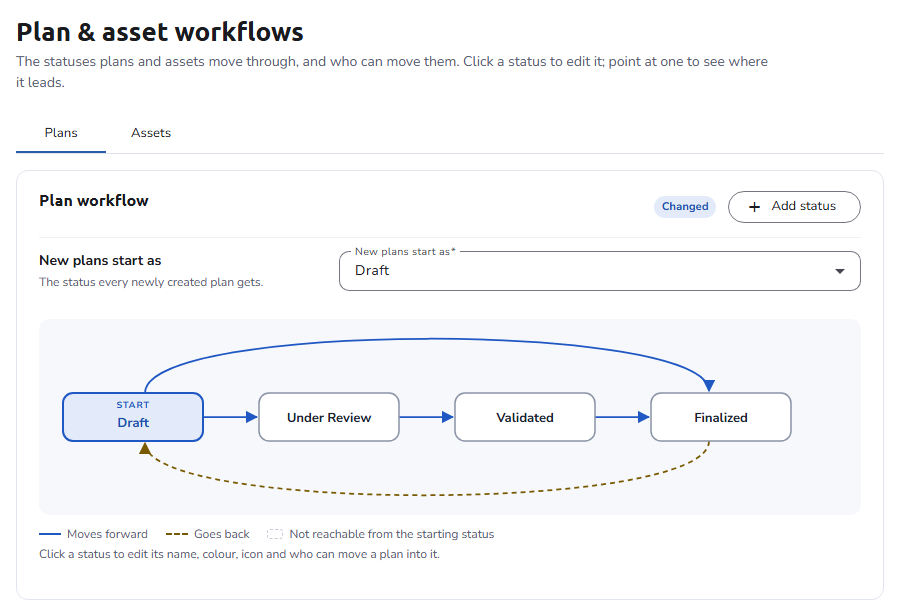
- New plans start as / New assets start as: the status every newly created plan or asset gets. Choose a status that counts as Draft, so that new work can be edited.
- Add status: creates a new status (see the status panel).
- Click a status to edit its name, colour, icon, and who can move work into it.
The tag next to the card title shows whose workflow applies:
- Changed: the organisation's own workflow. Reset to default removes it, so the Default organisation's applies again. The Default organisation's own workflow is the one the others fall back to, so it has no Reset to default.
- Set by the installation: the organisation has no workflow of its own and follows the Default organisation's, which the card shows read-only. To change it, click Use your own value: the organisation's own workflow starts as a copy of the shared one, and saving creates it.
- Default: no workflow exists yet, in the Default organisation either. The card reads No plan workflow is set up, so new plans cannot be created. Save one here to set it up. (or the same for assets). Set up the workflow and save to create one.
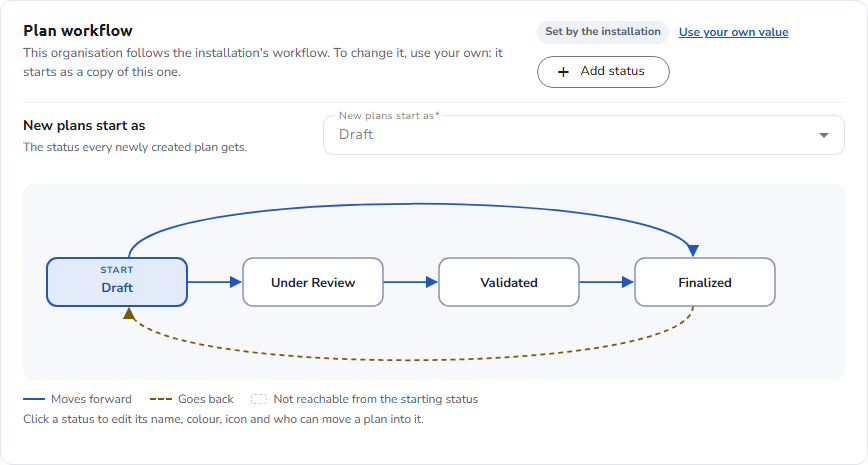
The starting status and the allowed changes are saved with Save changes in the save bar at the bottom of the page; Discard undoes unsaved changes. A workflow needs at least one transition. A saved workflow takes effect immediately for all plans or assets of the organisation.
Allowed changes
The Allowed changes card lists the statuses twice, as a grid: each row is the status a plan or an asset is in, and each column the status it can move to. Tick a box to allow the move from the status on the left to the status above it, or untick it to remove the move; the arrows in the diagram update straight away. While you edit, the rows and columns keep the order of the saved workflow.
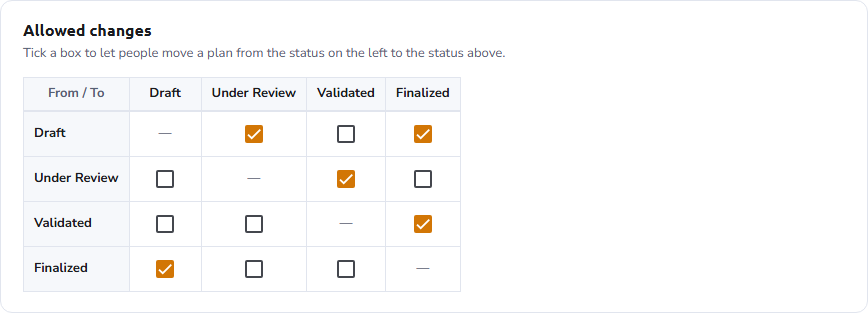
When the workflow card is read-only because the organisation follows the Default organisation's workflow, so is the grid; click Use your own value first.
The status panel
Click a status in the diagram, or Add status, to open the status in a panel on the right. The panel is the same for plan and asset statuses:
- Name: The label of the status.
- Colour: The color in which plans or assets with this status are shown in lists and badges. Pick one of the swatches; a color set earlier outside the palette stays selectable.
- Icon: The icon shown next to the status in lists, on the overview page, and in the status menu. Type in Icon name to search the Material icons by name and pick one from the suggestions, or click Upload an image instead to use your own image.
This is optional. Without an icon, statuses that count as Draft, Finalised, or a step in between get a default icon. - This status counts as: The internal status, which decides how the platform treats work in this status. See What a status counts as.
- Button that moves work here: The label of the action that moves a plan or an asset into this status, shown on the plan or asset page (for example "Send for review").
This is optional. If it is not set, the status name is displayed. - Who can move a plan here / Who can move an asset here: The plan roles (Owner, Viewer, Editor, Reviewer, Data Steward, Data Privacy Officer (DPO), Ethics Reviewer) whose holders can change a plan or an asset to this status, and, under Anyone with one of these roles in this installation, the account roles that can do so (System Administrator, Installation Manager, Signed-in User, Organisation Admin, Template Manager, Content & Workflow Manager, Member). A new status starts with Organisation Admin ticked. See Who can change a status.
- In this status people can: The actions available in this status:
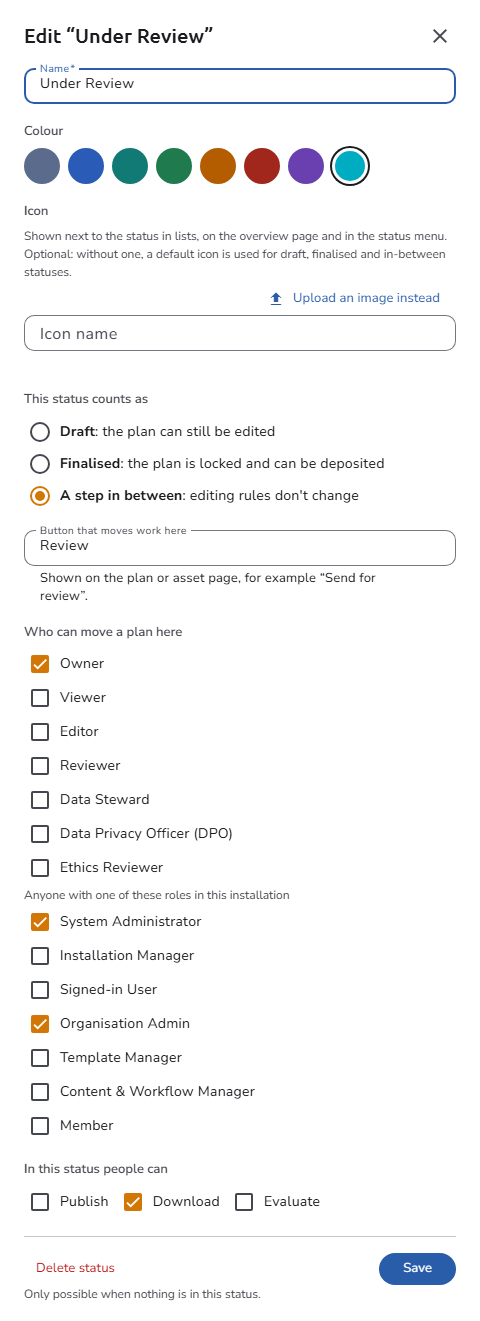
Click Save to save the status. Where work can move from the status is set in Allowed changes. To delete an existing status, click Delete status and confirm; this is only possible when no plan or asset is in this status.
Statuses shared by the Default organisation
The statuses of the Default organisation are shared with every organisation: another organisation can use them in its own workflow, and its diagram and Allowed changes grid list them next to the organisation's own statuses. They can be changed only in the Default organisation, and a change there applies to every organisation that uses them. In any other organisation, a shared status opens in the panel read-only, with the note This status is shared by the default organisation. It can be used here, but only edited in the default organisation., and without Save or Delete status.
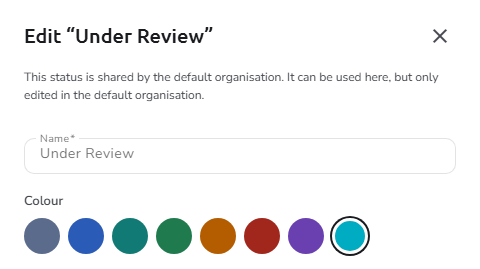
To give an organisation a status of its own, for example with other roles under Who can move a plan here, click Add status, and use the new status in the organisation's workflow instead of the shared one.
A status also stores a description, an order, and access for any signed-in user or for anonymous users. The panel does not show these settings; values set in earlier versions of OpenCDMP, or through the API, are kept when you save. A new status is placed after the existing ones.
What a status counts as
This status counts as links the status, whatever its name, to one of the internal statuses the platform acts on:
| Counts as | Plans | Assets |
|---|---|---|
| Draft | The plan can be edited. | The asset can be edited. |
| Finalised | The plan is locked and can be deposited. Moving a plan into this status finalizes it: the plan must be valid, and the user chooses which assets to finalize with it. Moving it out again reverts the finalization. | The asset is locked. |
| Cancelled | — | The asset is withdrawn. The platform uses this internal status itself when a plan is finalized (see Plan finalization and assets). |
| A step in between | The plan can be edited, as in Draft. | The asset can be edited, as in Draft. |
A step in between stores no internal status. Use it for intermediate steps such as a review or an approval: the work keeps the editing rules of Draft (only a status that counts as Finalised locks it), but the platform does not treat it as a draft where it looks for drafts specifically:
- When someone starts an asset outside a plan (from My Assets or the side menu) or copies an asset to another plan, only plans whose status counts as Draft are offered.
- On asset cards in lists, the edit shortcut is shown only for assets whose status counts as Draft; the asset can still be edited from the plan.
- When a plan is finalized, assets in a step in between that were not chosen for finalization stay in their status instead of being cancelled.
- The prompt to move an asset to the newest version of its template appears only for assets whose status counts as Draft.
If the people working on a plan in a review step must still add assets to it from My Assets, make the review step count as Draft instead.
Several statuses can count as the same internal status, for example two review steps that are both A step in between.
Who can change a status
When a user opens the status menu of a plan or an asset, a target status is offered only if both of the following hold:
- The workflow allows the move: the box of the current status (row) and the target status (column) is ticked in Allowed changes.
- The user satisfies at least one of the options selected in Who can move a plan here (or Who can move an asset here) of the target status: they hold one of the selected roles on the plan, or one of the selected account roles, such as Organisation Admin.
A status that the workflow allows but the user is not authorized for is not offered, and neither is a status the user is authorized for that the workflow does not lead to from the current status. If no option is selected in Who can move a plan here, no user can change a plan to this status. This does not affect who can see the plan: it remains visible to its members and to administrators.
This lets you, for example:
- restrict finalization to Owners or Organisation Admins;
- let Editors send a plan for review, but not finalize it;
- make a status reachable only by administrators.
A deposited plan cannot change status any more.
The API applies the same rules to integrations that change statuses through it: it checks the Who can move permission of the target status, and refuses a change that the workflow does not lead to from the current status (error 210, The workflow does not allow this status change).
Set up a workflow
- Create the statuses. Make sure every status you need exists; click Add status to create a missing one, set what it counts as, the actions people can take in it, and Who can move a plan here, and click Save in the panel.
- Set the starting status. Choose it in New plans start as (or New assets start as). This is typically a status that counts as Draft.
- Define the transitions. In Allowed changes, tick in each status's row the statuses that may follow it. Add a move back (for example from
Under ReviewtoDraft) wherever work may need to return for corrections. - Save. Click Save changes in the save bar.
After editing or deleting a status, check the diagram: statuses that can no longer be reached from the starting status are drawn with a dashed border.
Include a move from a Finalised status back to a Draft status if finalized plans may need corrections. Reverting a finalized plan is refused when a newer version of the plan has already been started.
Example workflows
Simple plan workflow
The minimal workflow, suitable for small teams or straightforward use cases.
| Status | Counts as | Transitions to |
|---|---|---|
Draft | Draft | Finalized |
Finalized | Finalised | Draft |
Starting status: Draft
Plan review workflow
An intermediate review step between drafting and finalization.
| Status | Counts as | People can | Transitions to |
|---|---|---|---|
Draft | Draft | Download | Submitted for Review |
Submitted for Review | A step in between | Download | Draft, Finalized |
Finalized | Finalised | Publish, Download, Evaluate | Draft |
Starting status: Draft
This workflow lets authors submit their plan for review, lets reviewers return it to Draft for corrections or finalize it, and lets a finalized plan be reopened if needed. To keep authors from finalizing directly, select only the reviewing roles in Who can move a plan here of Finalized.
Multi-stage approval workflow
For organisations that require several approval stages.
| Status | Counts as | Transitions to |
|---|---|---|
Draft | Draft | Department Review |
Department Review | A step in between | Draft, Management Approval |
Management Approval | A step in between | Department Review, Finalized |
Finalized | Finalised | — |
Starting status: Draft
Asset workflows
A simple asset workflow:
| Status | Counts as | Transitions to |
|---|---|---|
Draft | Draft | Complete |
Complete | Finalised | Draft |
An asset workflow with a review step:
| Status | Counts as | People can | Transitions to |
|---|---|---|---|
Draft | Draft | Download | Ready for Review |
Ready for Review | A step in between | Download | Draft, Approved |
Approved | Finalised | Download | Draft |
Starting status: Draft
Plan finalization and assets
When a plan moves to a status that counts as Finalised, the user chooses which of its assets to finalize with it. The chosen assets move to the asset status that counts as Finalised. Of the assets that were not chosen, those whose status counts as Draft or Cancelled are cancelled: they move to the asset status that counts as Cancelled and are removed from the plan. Assets that are already finalized, or in a step in between, keep their status.
The asset workflow therefore needs a status that counts as Finalised and one that counts as Cancelled; without them, a plan that has assets cannot be finalized. While the plan is finalized, its finalized assets cannot be moved out of their status.
See also
- Plan workflow (user guide): how authors move a plan between statuses
- Asset workflow (user guide): how authors move an asset between statuses
- Organisation settings: the other sections of the Settings hub
- Webhooks: notify external systems when a plan changes status or is finalized