Evaluate a plan or asset
Evaluators assess a plan (and, where supported, its assets) against a defined standard or set of criteria. Each evaluator runs independently and returns one or more results, each with a score and a detailed breakdown of what passed and what needs attention.
- Plan evaluation is available both on the Plan overview page, in the Evaluation box, and directly in the plan editor, from the Evaluate menu of the toolbar. Asset evaluation is available on the Asset overview page.
- Evaluation is available only when the current plan status permits it, and only to plan collaborators with the Owner role (and to administrators). See Plan & asset workflows.
- Users who cannot evaluate do not see the Evaluate option on the overview pages. They see the Evaluation box only when past results exist, and then only its History.
- The evaluators available to you depend on which Evaluator Services your administrator has configured, and on whether each evaluator supports plans, assets, or both.
Evaluate a plan
- Open the Plan overview page of the plan you want to evaluate.
- In the Evaluation box, press the Evaluate toggle to list the available evaluators. (In the plan editor, click Evaluate in the toolbar instead; the menu lists the same evaluators.)
- Click the evaluator you want to run.
- If the evaluator offers a choice of what to assess against, a dialog appears asking you to make a selection (see Choose what to assess against).
- Confirm. The evaluation result appears in the Evaluation Result dialog.
Previous results are kept in the Evaluation box of the Plan overview page, where you can press the History toggle to switch back and forth between past runs and starting a new evaluation. Each history entry shows the evaluator and the date; press its report icon to reopen the result dialog. While an evaluation is still running, its report icon stays disabled.
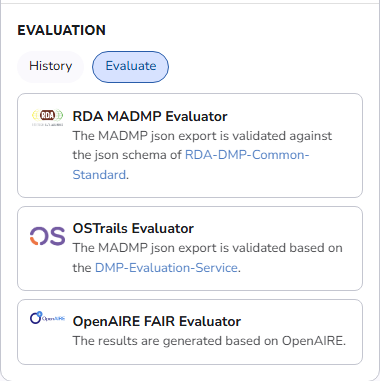 Evaluate a plan
Choose what to assess against
Depending on the evaluator, the selection dialog offers different options:
- Benchmarks: named sets of checks (for example, an RDA or OSTrails benchmark).
- Tests: individual checks that can be run on their own.
- Guidelines: the choices offered by the OpenAIRE FAIR evaluator.
When an evaluator provides both benchmarks and tests, you first choose which kind to use, then pick one or more items from that kind. Select the items you want and confirm to run the evaluation.
Read the results
The Evaluation Result dialog shows, for each result:
- Overall status: a summary chip (
Passed,Failed, orNot evaluated) and a count of benchmarks passed versus failed across everything selected. - Details: the evaluator's summary line, for example the identifier it assessed.
- Per-item breakdown: each selected benchmark, test, or guideline is listed as a card with its own
Passed/Failedchip. - Per-criterion detail: within each card, individual criteria are listed with their pass/fail chip and messages describing what was checked and why it failed.
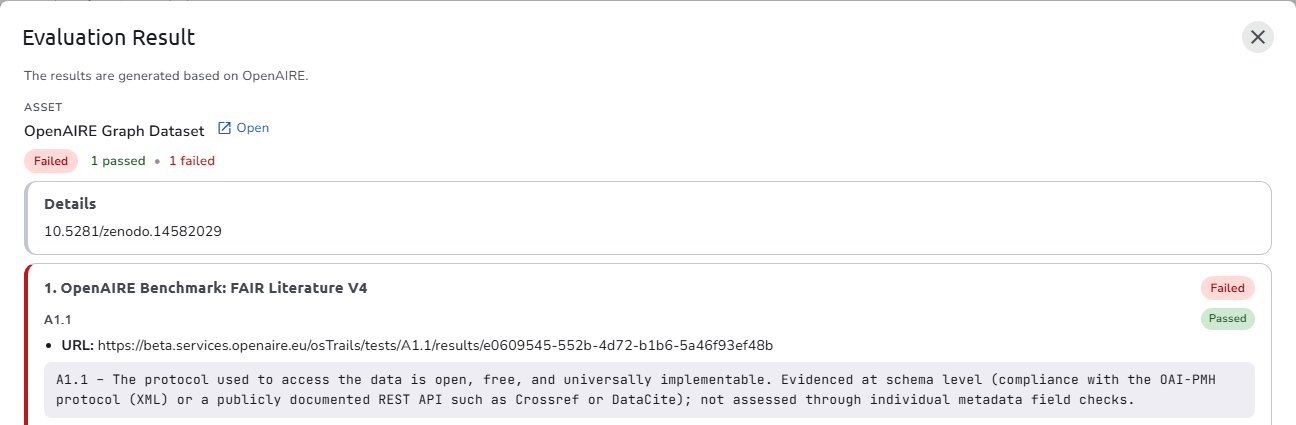 Evaluation result
Depending on how the evaluator is configured, results are shown as a numeric range (for example 0.0–1.0) or as a pass/fail outcome.
Results per asset
Some evaluators assess each asset of the plan separately and return one result per asset. In that case the dialog shows a row of tabs above the report, one tab per result:
- Each tab is named after the asset it covers and carries the asset's status icon (passed, failed, or not evaluated). Use the arrow keys to move between tabs.
- The selected report starts with an
Assetlabel, the asset's name, and anOpenlink that opens the asset's overview in a new tab, so you can jump straight to the asset that needs work. - Results recorded before evaluators could report which asset they cover, and results from evaluators that assess the plan as a whole, are labeled
Result 1,Result 2, and so on.
Not evaluated
When an evaluator cannot assess a target at all, for example because the asset has no persistent identifier that the external service can resolve or because the external service was unreachable, the result is shown with a neutral Not evaluated chip and a Not evaluated notice that quotes the evaluator's reason. Not-evaluated results do not count towards the passed or failed totals, and they do not affect the verdict in the evaluation notification.
Available evaluators
Evaluator RDA maDMP
Checks whether a plan conforms to the RDA DMP Common Standard JSON schema (v1.2). The result shows which required fields are missing or invalid according to the RDA specification.
Asset evaluation is not supported by this evaluator.
Evaluator OSTrails
Checks whether a plan or asset aligns with the OSTrails metadata and policy framework. It assesses completeness, openness, and reproducibility of the research data management strategy.
Evaluator OpenAIRE FAIR
Assesses the assets of a plan against FAIR principles (Findable, Accessible, Interoperable, Reusable) using the OpenAIRE FAIR assessment service. When you run this evaluator, you choose which guidelines to apply from the selection dialog. The evaluator returns one result per asset, shown as tabs in the result dialog (see Results per asset).
The OpenAIRE service evaluates the published record behind each asset's persistent identifier (such as a DOI). An asset without a persistent identifier that OpenAIRE can resolve is reported as Not evaluated, with the advice to deposit the asset or record its identifier and then evaluate again. Publish the plan or record the identifiers first, then run the evaluation.
Act on the results
When an evaluation reveals issues:
- Review the per-criterion messages. Each explains what is missing or incorrect.
- Return to the plan editor and fill in or correct the flagged fields. For per-asset results, use the
Openlink on the result to go directly to the asset. - Re-run the evaluation to confirm the issues are resolved.
You can run evaluations as many times as needed. Evaluation does not modify the plan.
See also
- Evaluator Services: the available evaluators and how they are configured
- Plan overview: where the Evaluate button is located
- Asset overview: where assets are evaluated