References
Some answers in your Plans or Assets are values you select from predefined or externally sourced lists. These selectable values are called references.
The license of a plan is a typical reference. Its options can be a fixed list kept in OpenCDMP or looked up in an external API.
Source types of references
References come from two kinds of sources:
- Fixed lists are stored in OpenCDMP and managed by administrators, for example local lists of licenses, document types, or internal project categories.
- External references are looked up as you type in external registries, such as grant databases or researcher directories.
Select a reference
A plan or asset field that expects a reference shows a search bar, with the references already selected listed as cards below it.
- Search by name or identifier. Results appear in a dropdown as you type and are drawn from all the sources configured for that field. The hint under the search bar says where the values come from.
- Review each result as a card. Every result shows the source's logo (when configured), its name, and the reference's identifier. When the identifier links to an external record, it is shown as a link that opens the source in a new tab.
- See where a value comes from. Each card carries a source badge. When the administrator has set a help message for that source, hovering over the badge shows a tooltip explaining what the source is or how to use it.
- Select one or several values, depending on whether the field allows multiple references. A field that allows one reference collapses to its card once a value is chosen; remove the card to choose another.
- Expand a selected card to view the additional fields carried by that reference.
- Remove a selected card with its close button.
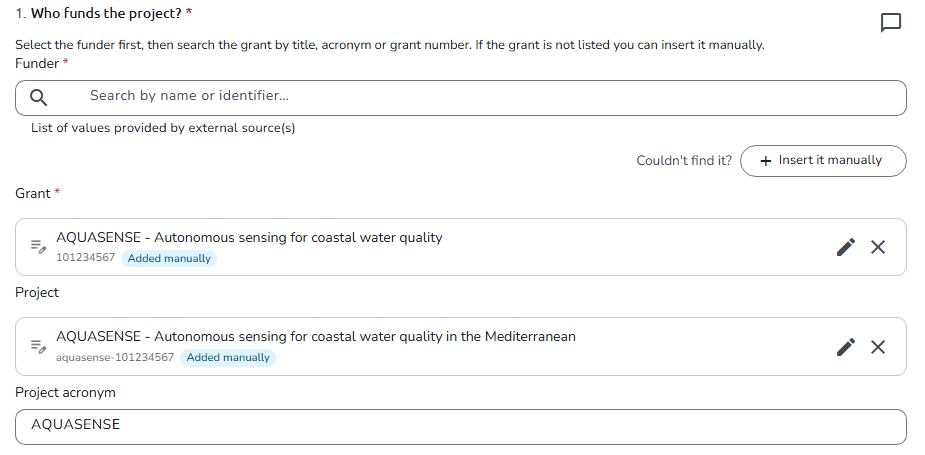
If nothing matches your search, you can add the value yourself. See Adding a reference manually.
Add a reference manually
Under the search bar, Couldn't find it? is followed by an Insert it manually button. It opens the Add to dialog for that reference type (for example Add to Researchers), which reads "Couldn't find it in sources? Add it here and it's saved with this plan."
The dialog asks for:
- Name: the name as it should appear in the plan. When the administrator has set the reference type to build the name from its fields, the dialog does not ask for a name and builds it from the Details instead.
- Details: the fields of the reference type, for example First Name and Last Name for researchers. Fields marked as required, and fields used to build the name, must be filled in.
- Additional Information: a short explanation of the reference, clarifying its purpose or context. Click
Add a descriptionto show it. This is optional.
A Preview shows the card as it will appear. Press Add to add the reference to the field, or Cancel to close the dialog without adding it.
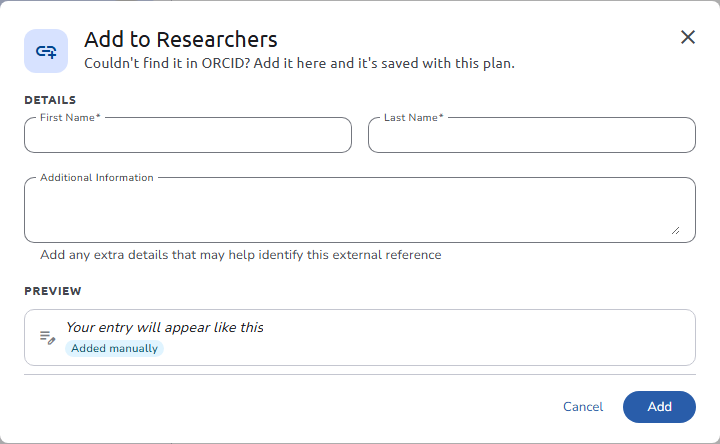
A reference you add manually is saved when you save the plan or asset, and it is never merged with another reference that has the same values. Its card shows an Added manually badge instead of a source name.
Edit a manual reference
Cards of manually added references have an Edit button (pencil icon). It opens the Edit entry dialog with the reference's values and a reminder that saving creates a new entry. Saving with Save for this plan creates a new entry for this field; other plans and assets that use the original keep it unchanged.
References that come from a source cannot be edited; they follow that source.
For how administrators configure and manage reference types, including how manually added entries are named, see Reference Types.