Comments and review
Collaborators review a plan or asset by leaving comments on its questions. Comments form threads on each question, so you discuss and resolve issues in context.
Comments are provided by the Annotations Service, which must be enabled for your installation. Every plan role except Viewer can add comments (see Plan roles).
Open the comments panel
Every question in a plan or asset has a comments icon next to its title. The number on the icon counts all comments on that question, including replies and resolved threads.
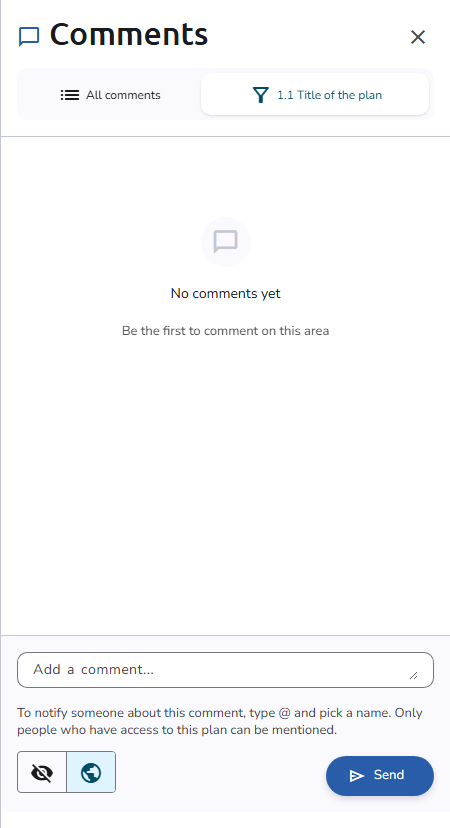
Click the icon to open the Comments panel beside the form, filtered to that question: the question's number and title appear on the selected tab at the top of the panel. The panel shows the existing comment threads of the question, or No comments yet when there are none, and lets you add new ones. Each comment and reply shows its author with a role chip for each role that person currently holds on the plan.
View all comments
To see every comment in the plan or asset in one place, open the Comments panel with View all comments (the comments button in the editor toolbar), or switch to its All comments tab. Comments are grouped by the question they refer to; click a question's name to navigate directly to it.
Add a comment
Open the comments of a question, type your message in the Add a comment... box at the bottom of the panel, and press Send. New comments are added on a question's tab, not on All comments.
Before you send, choose the comment's visibility with the two buttons next to Send:
- Visible (globe icon): all users with access to the plan or asset can see this comment. Other users are notified when a visible comment is posted.
- Private (crossed-out eye icon): other collaborators don't see this comment; administrators still can. Use this for personal notes or draft thoughts.
Reply to a comment
Click Reply under a comment, type your answer in the Write a reply... box, and click Reply again to send it. Replies stay in the same thread: Show replies (with the number of replies) expands them, and Hide replies collapses them again.
Edit and delete your comments
Open the More actions menu on one of your own comments and choose Edit comment to change its text, then Save; mentions in the text are kept, and you can add new ones. Choose Delete comment to remove it after confirming. Deleting the first comment of a thread deletes its replies too. You cannot edit or delete comments written by other users; administrators can.
Mention users
Type @ in the comment text to mention a specific user. A dropdown appears with the people who have access to the plan. Select a user to include their mention in your comment.
Mentioned users receive a notification about your comment.
Change the comment status
Each thread can carry a status to track its resolution, shown as a chip above its first comment. To change it, use the button under the comment:
- When only one other status is available, the button reads Mark as followed by that status, for example Mark as Resolved.
- When several are available, the Change status icon button opens a menu of them.
If your organisation has only one comment status, for example Resolved, a thread that has it shows no status button, so it can't be set back.
The available statuses are configured by your administrator on the Comment statuses page. Common examples include Open, Resolved, and Rejected.
When a comment's status changes, the other users involved in that thread are notified.
Share a direct link
When you point to a question in the editor, a link icon (Copy Link) appears next to its title. Clicking it copies a direct link to that question to your clipboard. This link opens the plan or asset in the editor and scrolls directly to the relevant question.
Direct links are also included in the email notifications sent to users.
Notifications
The platform sends notifications when:
- A visible comment is posted on a question in a plan or asset you have access to
- A comment you are involved in changes status
- You are mentioned in a comment
Which notification channel comes first can be chosen in the Notifications tab of your profile.