Dashboard
When you log in, the Dashboard is the first page to appear. It gives an overview of your recent Plans and Assets, along with usage counts and a guide to help you get started.
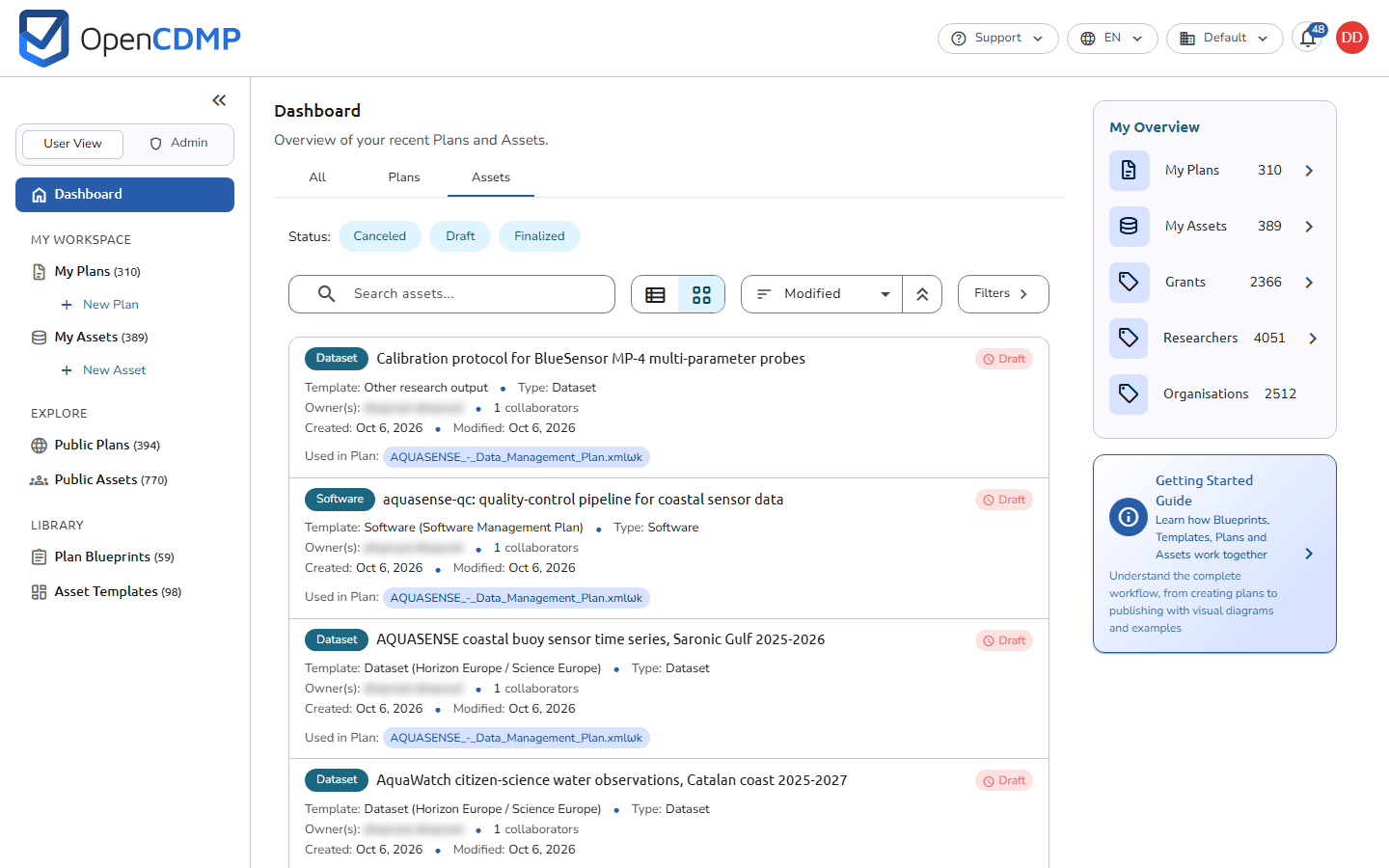 Dashboard
Navigation
A collapsible sidebar on the left holds the navigation. Use the toggle at the top of the sidebar to collapse it to icons only or expand it to show labels. Sidebar items display live counts (for example, the number of your plans and assets).
The sidebar groups items under headings:
- My Workspace: My Plans and My Assets. Start a plan or an asset directly from this group with New Plan under My Plans or New Asset under My Assets.
- Explore: Public Plans and Public Assets. Each of these pages opens with a short hint explaining that it lists plans or assets that other projects have made available for reference.
- Library: browse Plan Blueprints and Asset Templates.
Users with administrator permissions see a Switch view toggle at the top of the expanded sidebar to switch between User View and Admin. The Admin view replaces the end-user groups with the configuration and management sections.
The top navigation bar holds the logo, a Support menu, the language selector, the organisation button, the notifications bell, and your user avatar (or the Log in button).
Recent activity
The main column of the Dashboard is a tabbed list of your recent activity, with tabs for All, Plans, and Assets. Items look the same as on the My Plans and My Assets pages.
- Search: use the search box to find plans and assets by text.
- Status: on the Plans and Assets tabs, a row of status chips narrows the list to the statuses you select.
- Filters: on the Plans and Assets tabs, a Filters button opens the filter panel of My Plans or My Assets, without its status filters, which the chips replace.
- View options: switch between Compact view and Full view.
- Sort: order the list by Modified, Label, or Status, and switch between ascending and descending order with the arrow button next to it.
A count line below the list shows how many items are displayed, for example Showing 5 of 20 items. Press Load more to show more items.
A tab with nothing to show says so: it points you to New Plan or New Asset when you have no plans or assets yet, and reads Nothing matches your search or the selected statuses. when a search or a status chip leaves no results.
My Overview
A My Overview card on the right shows usage counts. Each row is a link to the list behind its count:
- My Plans: the number of plans you have; opens My Plans
- My Assets: the number of your assets; opens My Assets
- One row per reference type that the organisation shows in plan lists (for example, Grants or Organisations), in the configured order. The count is the number of distinct references of that type that your plans use, not the number of plans. The row shows the logo of the reference type's source when one is set, or a default icon otherwise.
Selecting a reference type row opens My Plans with the filter panel open and that reference type's section expanded, listing the references your plans use.
The reference type rows follow the References shown in lists setting for plan lists. If the organisation shows no reference types, the card shows only the plan and asset rows.
Getting started guide
A Getting Started Guide card links to the OpenCDMP documentation, explaining how Blueprints, Templates, Plans, and Assets work together. Clicking it opens the guide in a new tab.
Guided tours
The first time you open one of the redesigned pages, a short guided tour walks you through what is where. Tours exist for:
- the Dashboard (for signed-in users);
- My Plans and My Assets;
- the new plan wizard, while you choose a blueprint;
- the plan editor, and the asset editor inside it;
- the Plan overview and the Asset overview.
Before your very first tour, a What's new in 2.0 card introduces the new look; press Start tour to begin or Skip to dismiss it. Each tour step points at a real control on the page, shows its progress (for example 1 of 3), and offers Skip and Next, or Done on the last step. Steps whose control is not on the page, for example an action your role does not allow, are skipped. Tours are not shown on the public, read-only overviews.
To replay the tour of the page you are on, open the Support menu and choose Take a tour of this page. Which tours you have seen is saved with your account, so a dismissed tour stays dismissed on other devices and browsers. An organisation administrator can switch tours off for the whole organisation (see Guided tours in the organisation settings).
Library
The Library section of the sidebar provides read-only browse pages for Plan Blueprints and Asset Templates (see Blueprints and asset templates). Each page lists the available blueprints or templates as cards with their version, description, last update, and number of uses, and has a search box. Open a card to see the questions of that blueprint or template; Back returns to the list.
Support
The Support menu in the top navigation bar holds the help and information links, such as the FAQ, the User Guide, the Glossary, and any contact, terms, or policy links your administrator has configured. On pages that have a guided tour, the menu also offers Take a tour of this page, which replays the tour on demand.
Notifications
OpenCDMP notifies you when something happens to your plans: for example when you are added to a plan, when a plan changes status, is evaluated or published, or when someone comments on a question or mentions you.
- The bell in the top navigation bar shows the number of unread notifications.
- Click it to open the Notifications panel, with the unread count and your five most recent notifications, each with its subject, the start of its text, and its date. Unread ones are marked with a dot. Click a notification to read it in full; this marks it as read.
- View all notifications at the bottom of the panel opens your notifications page, which lists them all with their subject, state (Unread or Read), type, and date, and can filter them by state and type. Click a row to read that notification.
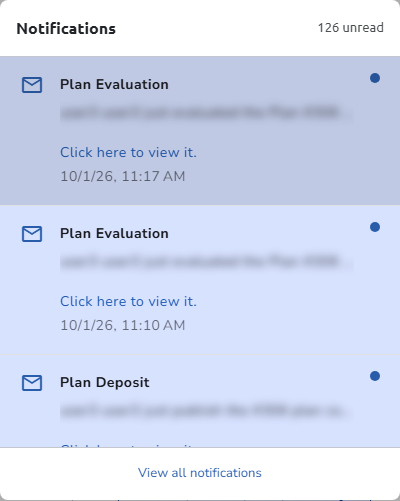 Notifications panel
Notifications can also reach you by email. Choose which channel each kind of notification uses first in the Notifications tab of My Profile.
Switch organisation
The top navigation bar shows the organisation you are working in, for example Default, on a button with a building icon. If you belong to more than one organisation, click it and choose another one to switch: the page reloads in that organisation.
Each organisation is a separate workspace. After switching, you see that organisation's plans and assets, its blueprints and templates, its statuses and workflows, its look and texts, and the roles you hold there. Public Plans and Public Assets list the public plans of every organisation either way.
Dashboard for visitors who are not logged in
The Dashboard is also shown to visitors who are not logged in. For them, it presents information about the OpenCDMP platform and an Overview card with the number of public plans and assets, counted across every organisation in the installation. The reference type rows follow the plan list setting of the default organisation and count the distinct references used by public plans. The rows open Public Plans and Public Assets instead of the personal lists.
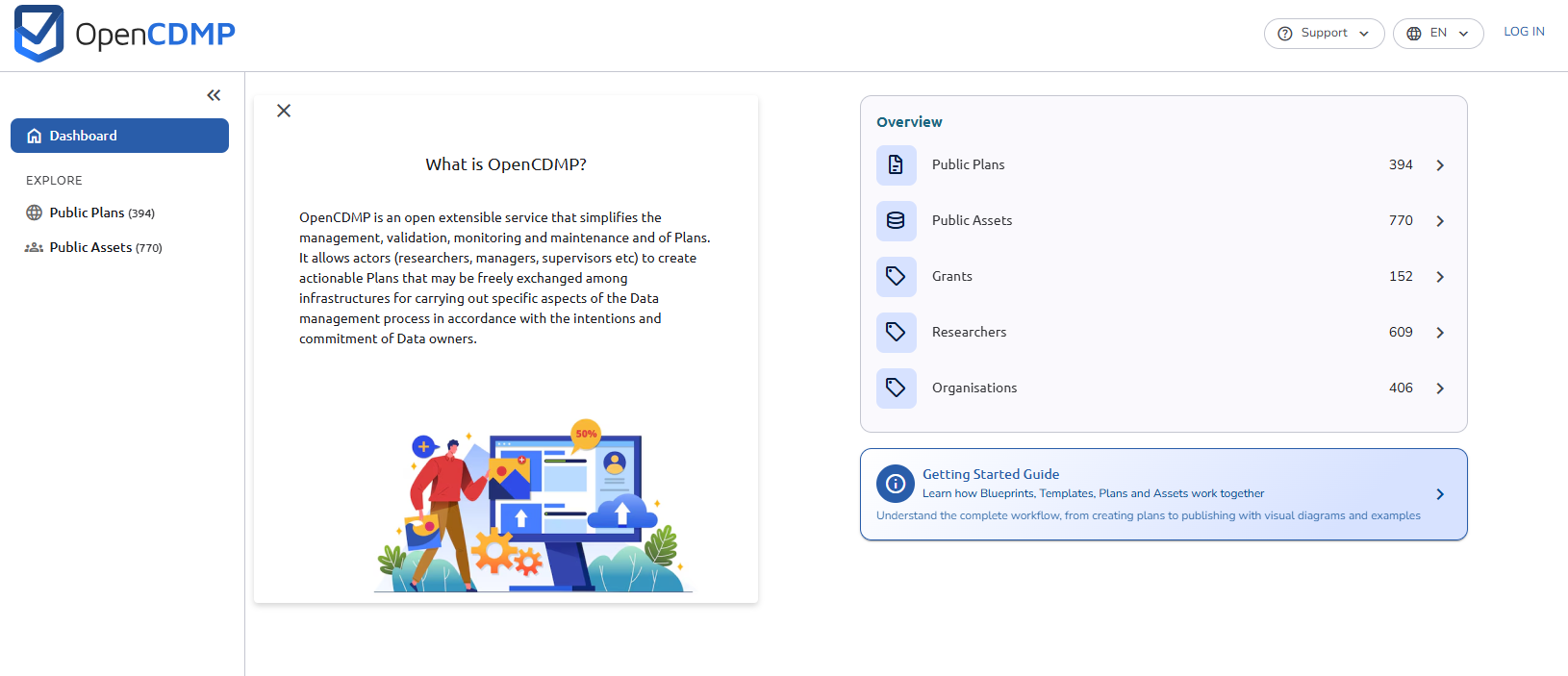 Dashboard view for anonymous users