Asset overview
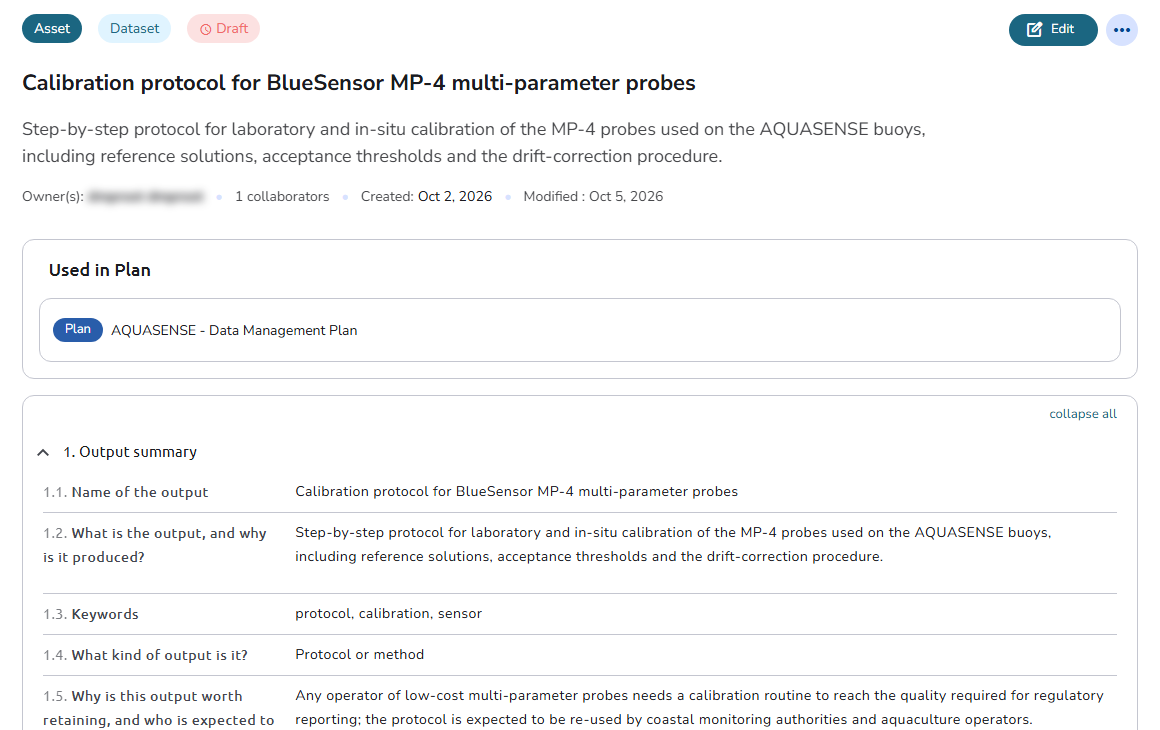
The Asset overview opens when you select an asset on the Dashboard or the My Assets page. It shows the asset and the actions your plan role allows. At the top, badges show the entity type, the asset type, and the current status, followed by the asset name, its description, the owners, the number of collaborators, and the created and modified dates. The Used in Plan section links to the plan the asset belongs to; the plan overview opens in a new tab. Below that, the entire content of the asset is displayed, organized into its sections, subsections and questions/answers exactly as defined by its template, and can be expanded or collapsed individually or all at once using the collapse all / expand all control.
 Asset overview
Actions
The actions are at the top right of the page, with more actions under the ... button. Each action lists the plan roles it requires.
-
Edit: Opens the asset in the edit page, inside the plan editor.
Only the collaborators with the role Owner or Editor (in the plan section where the asset exists) can do this -
Preview: Shown instead of Edit when you cannot edit the asset, when the asset is finalized, or when someone else is editing it (see When someone else is editing). It opens the edit page on the selected asset in read only access.
Only the collaborators with the roles Reviewer, Viewer, Editor (in a plan section where the asset does not exist) have read only access -
Evaluate: When your administrator has configured evaluator services that support assets, an Evaluation box appears next to the asset content. Press its Evaluate toggle to list the available evaluators, then click one to assess the asset; the result opens in the Evaluation Result dialog. Past results are kept in the same box, where the History toggle lists previous runs with the evaluator and date, and a report icon reopens each result. See Evaluate a plan or asset for how to read the results, including the
Not evaluatedstatus.
Available to plan collaborators with the Owner role on an active asset; not available in public/read-only views. Users who cannot evaluate the asset see the box only when past evaluations exist, with only the History. -
When you click the more actions (...) button:
- Download: Opens a submenu with all the export formats, such as PDF, Document, and XML. See Download a plan or asset.
Every collaborator can do this. - Duplicate: Copies the asset into a plan.
Only the collaborators with the role Owner or Editor (in the plan section where the asset exists) can do this - Delete
Only the collaborators with the role Owner or Editor (in the plan section where the asset exists) can do this. It is disabled while someone else is editing the asset.
- Download: Opens a submenu with all the export formats, such as PDF, Document, and XML. See Download a plan or asset.
The status of an asset is changed in the asset editor, not on this page.
Guided tour
A short guided tour introduces the page the first time you open it.