My Assets
The My Assets page, in the My Workspace group of the side navigation menu, lists the assets you have created or contribute to. Each asset is shown as a card. At the top of each card are the asset type badge and the asset's name, with its status at the top right. The body of the card shows the template the asset is based on, the type of the asset, the owners and number of collaborators, the created and modified dates, and the plan it is used in. Click an asset's name to open its Asset overview.
Cards also show reference columns, such as Researchers or Organisations, when an organisation administrator has configured them. See References shown in lists.
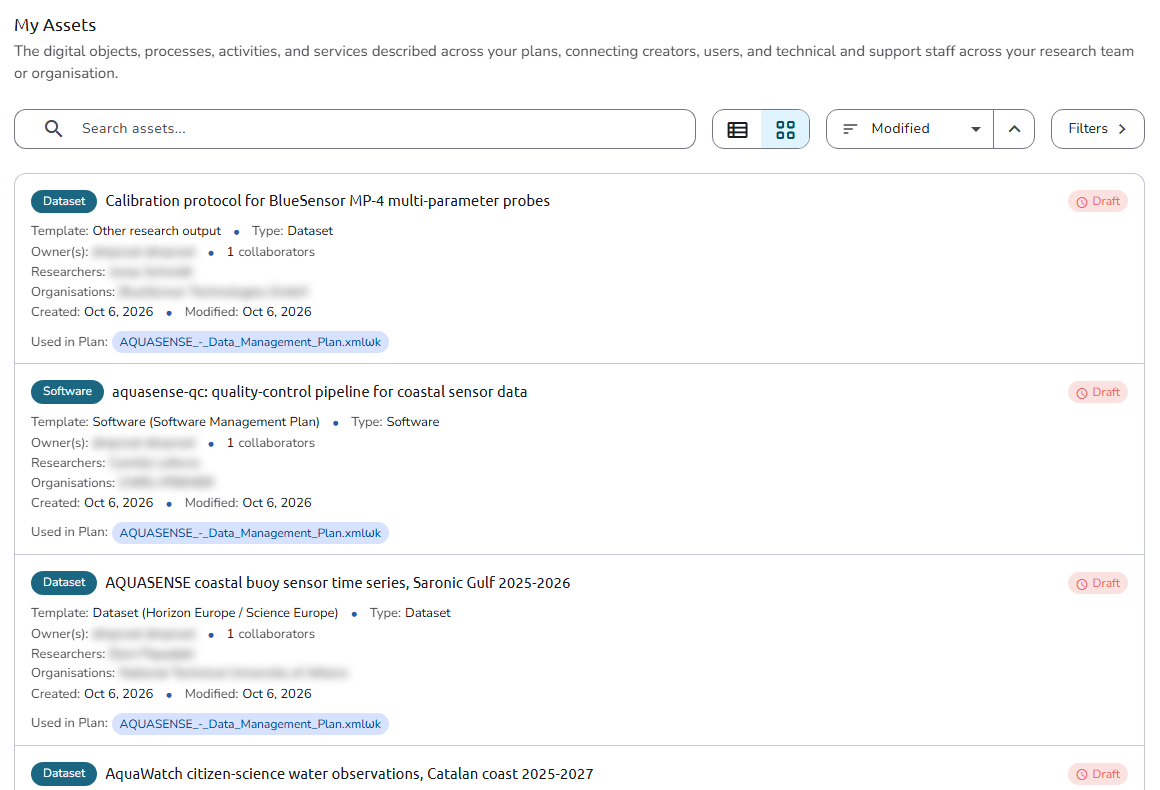 My Assets
A count line below the cards shows how many assets are displayed, for example Showing 5 of 20 assets; press Load more to show more. When you have no assets yet, the page explains that assets are added from within a plan or with New Asset.
Start a new asset
The New Asset action sits directly under My Assets in the side navigation menu. It asks which plan the asset belongs to (Select a Plan for your Asset) and then opens the plan editor for that plan, where you add the asset with Add new Asset in the section it belongs to (see Create or edit an asset).
A short guided tour introduces the page the first time you open it.
Search
Use the search box above the asset cards to search for assets by text.
View
Next to the search box, you can switch between a Compact view (one row per asset) and a Full view (full cards).
Filter
Click the Filters button to open the filter panel. It works like the filter panel of My Plans, with these filters:
- Active Filter: show only the active assets (on by default).
- Status: show only assets with specific statuses.
- Asset Types and Templates: filter by the type of the asset and the template it uses.
- Related Plans: filter by the plan the asset belongs to.
- Role: filter by your role on the asset's plan.
- Tags: filter by tag.
- Reference Types: filter by the references the assets use, one section per reference type.
Click Apply filters to apply them, or Reset to clear them.
Sort
The following sorting options are available, and the arrow button next to them switches between ascending and descending order:
- Modified: sort assets by most recent updates
- Label: sort assets by label
- Status: sort assets by status
Public Assets
The Public Assets page, under Explore in the side navigation menu, lists the finalized assets of finalized plans whose access is Public (see Who can see your plan). As with Public Plans, the page lists the public assets of every organisation in the installation, not only those of the organisation you are working in. Public assets can be sorted by Published (the date their plan was finalized) or by Label.
The Public Assets page is available to both logged-in users and visitors who are not logged in.