My Plans
The My Plans page, in the My Workspace group of the side navigation menu, lists the plans you have created or collaborate on. Use the inline + action next to it (New Plan) to create a plan.
Under the page title, a short hint explains what plans are (Plans are your project's own version of a blueprint - the structure it sets out, filled in for your specific project, grant, or initiative.). Each plan is shown as a card. At the top of each card are the Plan badge and the plan's name, with its version and status at the top right. The body of the card shows the blueprint the plan is based on, the owners and number of collaborators, the created and modified dates, the assets of the plan, and, once the plan has been published, its DOIs.
Click a card to open the plan's Plan overview. The cards carry no action buttons: the plan actions (edit, download, new version, duplicate, delete, and so on) are on the Plan overview page and in the plan editor. The page loads a first batch of plans and shows how many are listed (for example Showing 5 of 108 plans); click Load more to see more.
Cards also show reference columns, such as Grants or Researchers, when an organisation administrator has configured them. See References shown in lists.
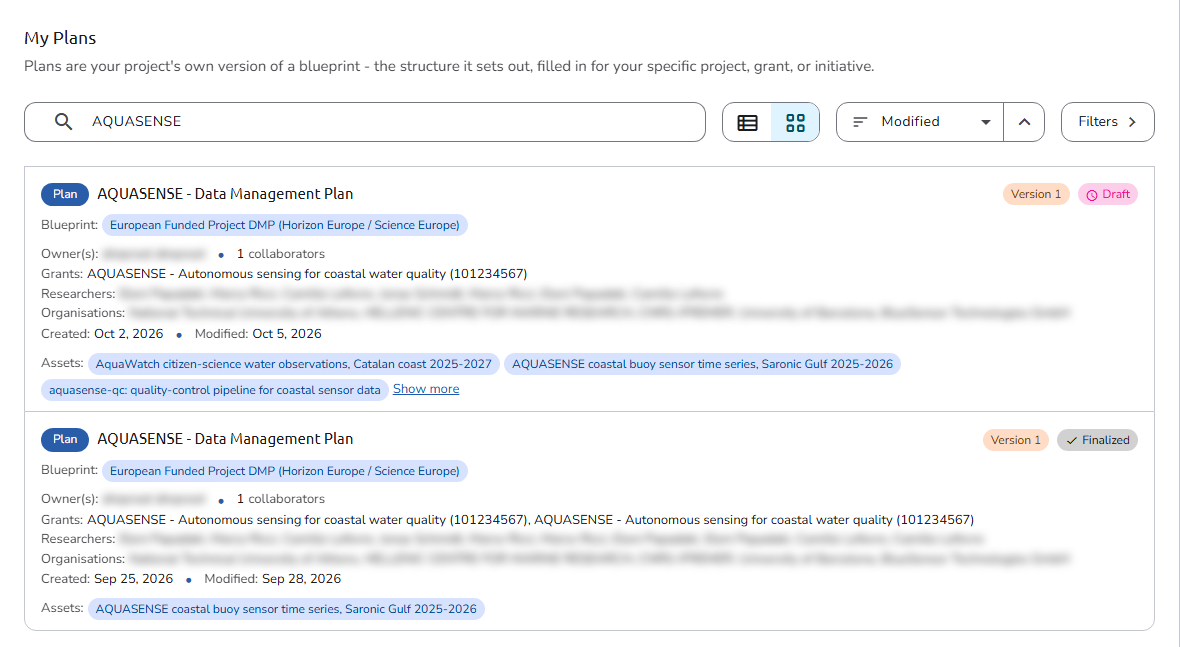 My Plans
A short guided tour introduces the page the first time you open it.
Search
Use the search box above the plan cards to search for plans by text.
View
Next to the search box, a toggle switches between Compact view (one row per plan) and Full view (full cards showing status, collaborators, and the latest activity).
Filter
Click the Filters button to open the filtering options in a side panel; a counter on the button shows how many filters are active. The filters are:
- Active Filter: Show only the active plans (on by default).
- Status: Show only plans that are saved with a specific status.
- Blueprint Types: Filter plans based on the type of their blueprint (blueprint types are categories that administrators assign to blueprints).
- Templates: Filter plans based on the templates their assets are using.
- Blueprints: Filter plans based on their blueprint.
- Role: Filter plans based on the role the user has on them.
- Reference Types: Filter plans based on their references. Each reference type shown in plan lists (see References shown in lists) has its own collapsible section, followed by a More reference types section that covers every other type, grouped by type name. A section lists only the references your plans use, most used first, each with the number of plans that use it. Search within a section, show more entries with Show more, and tick the references to filter by. Selected references appear as chips in a Filtered by row above the list; remove one with its close button, or all of them with Clear all.
When you have set the filters, click Apply filters at the bottom of the panel. Reset clears all the selected filters.
Sort
Next to the view toggle, the Sort by control orders the plans by one of the following, and the arrow button next to it toggles between ascending and descending order:
- Modified: most recently updated plans first
- Label: alphabetical order by plan title
- Status: grouped by status
Public Plans
The Public Plans page, under Explore in the side navigation menu, lists all finalized plans whose access is set to Public (see Who can see your plan). The page hint reads Plans other projects have made available - their own version of a blueprint, filled in for their specific project, grant, or initiative. Useful as a reference if you're working on something similar.
The same information is displayed for each plan. Public plans can be searched by text and sorted by Published (the date the plan was finalized) or Label; the Filters panel is not offered on the public listing. The similar Public Assets page lists the individual assets that other projects have made available.
The page lists the public plans of every organisation in the installation, not only those of the organisation you are working in, and each of them opens in its public, read-only overview.
The Public Plans page is available to both logged-in users and visitors who are not logged in.