Versions
A plan can have many versions. One version is marked as current: the most recent one, which the listings show. All the other ones are marked as previous and can be viewed from the Version dropdown on the Plan overview page.
If the plan is finalized, you can create a new version of it. The new version has all the properties of the last one and is saved automatically with the starting status of the plan workflow, ready for changes. Creating a new version does not delete the previous ones.
Create a new version
You can start a new version from several places:
- The Start new version (
+) icon button next to the Version button on the Plan overview page, or the Start new version entry in its ... more actions menu. - The Start a new version icon button in the plan editor toolbar.
The New Version dialog opens. In it, you can change the Title of Plan, the Description, and the Plan Blueprint, and select under Assets which assets to include in the new version (Check/Uncheck selects or clears them all). Each asset has a dropdown to choose the blueprint section it goes to. Assets that were canceled are marked so and are not included by default. Click Create New Version to create it; the new version opens in the plan editor, with its assets available for editing.
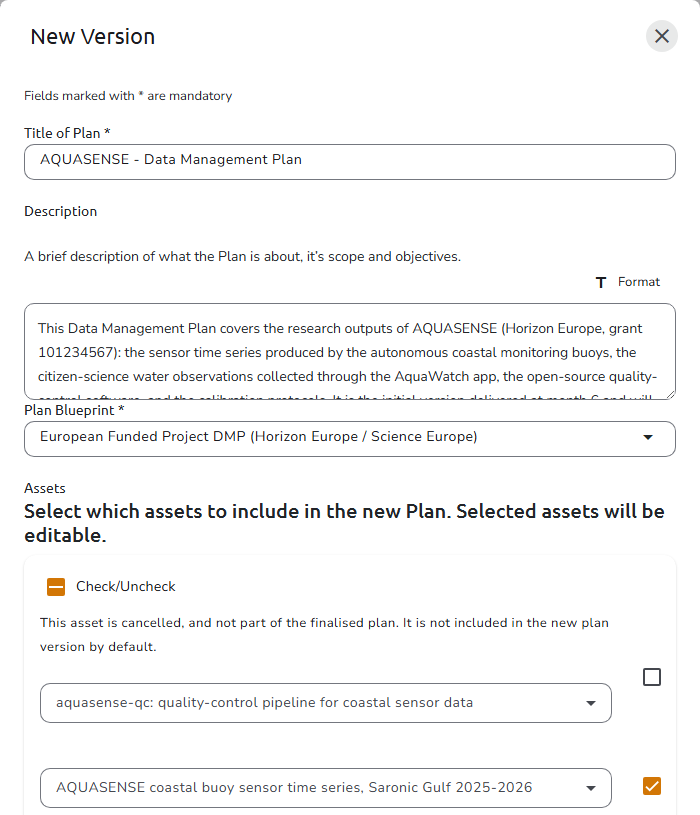 New Version dialog
If the blueprint asks for consent, you accept it before you can edit the new version (see Plan creation consent).
When viewing a previous version of a plan, the message There is a newer version of the plan available. is displayed at the top of the page, and its newer version link takes you back to the latest version.
 Viewing a previous version
Compare versions
You can see what changed between any two versions of the same plan. On the Plan overview page of a plan that has more than one version, click the Compare with another version icon button next to the Version button and choose Compare with Version N from the menu.
The Compare versions dialog opens and shows the range being compared (for example, Version 1 → Version 2). The comparison always reads from the older to the newer version, regardless of which version you started from. The differences are grouped as follows:
- Plan changes: every plan-level field whose value differs, shown as previous value → new value. This covers the system fields Title, Description, Language, Access rights, Contacts, and Tags, as well as the fields defined by the blueprint. Blank values are shown as Empty.
- Asset changes: one entry per asset, tagged Added, Removed, or Changed. A changed asset lists its field-level differences underneath. An additional Template updated tag indicates that the asset moved to a newer version of its asset template between the two plan versions.
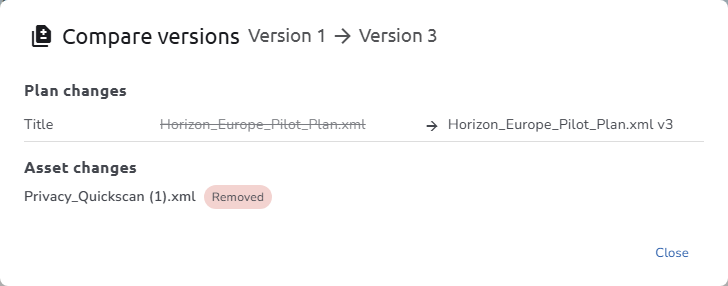 Compare versions
If the two versions were created with different blueprint versions, the dialog displays the notice These versions were created with different blueprint versions, so some fields may only exist on one side. If nothing differs, it reports These versions have no differences.
The comparison matches an asset in one version to the same asset in another, even if it was renamed: OpenCDMP records where each asset came from when a new version, duplicate, or copy is created. For older versions without that record, assets are matched within the same section and template by their label and, failing that, by their order of creation.
Version comparison is available to users who can access both versions. It is not offered on the public view of a plan.
See also
- Plan overview: where the version controls live
- Change status and finalize a plan: the statuses a plan moves through
- Create or edit a plan: the editor toolbar, including Start a new version