Change status and finalize a plan
A plan moves through statuses during its life. Your organisation decides which statuses exist and which transitions between them are allowed (see Plan & asset workflows). Every status counts either as a draft or as finalized:
- A new plan gets the starting status of the workflow, usually a draft status. While the plan is in a draft status, you can change it and save it as often as you need.
- Finalizing moves the plan to a finalized status. A finalized plan can no longer be edited, and its collaborator list can no longer change.
- If the workflow has a transition back to a draft status, a plan owner can undo the finalization.
Finalizing is not the same as making the plan public or publishing it to a repository. See Who can see your plan.
Change the status
The status control is the colored pill at the start of the plan editor toolbar. It shows the current status, for example Draft. Click it to open the Change plan status menu, which lists the statuses the workflow lets you move the plan to, each with its icon and, when the organisation has set one, a short description. The Plan overview shows the status next to the title but does not change it.
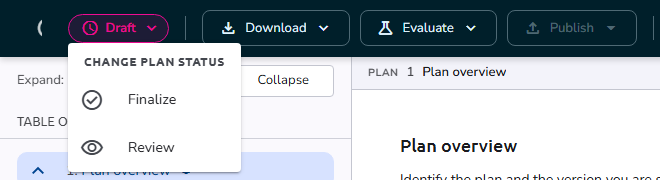 Change plan status menu
The menu entries are disabled, with the tooltip Save your changes first, while the plan or one of its assets has unsaved changes, or while you have added assets that are not saved yet.
While another collaborator is editing the plan or one of its assets, the pill cannot be clicked, and its tooltip says why, for example An asset in this plan is locked by another user (see When someone else is editing).
The status control is not offered on a previous version of a plan, or once the plan has been published to a repository.
Moving to a status that is not finalized takes effect at once. The menu shows the action name your organisation gave each move, which can differ from the name of the status it leads to. Moving to a finalized status opens the Finalise this item? dialog.
Finalize a plan
Only the plan's Owners can finalize it (as can Organisation Admins and System Administrators), and the workflow can restrict who may move the plan to a given status.
Invite your collaborators and set the plan's Access field the way you want it (see Who can see your plan): neither can change once the plan is finalized.
- Save or discard your changes.
- Click the status pill and choose the finalized status. Its label depends on your workflow, for example Finalize.
- Review the Finalise this item? dialog, described below.
- Click Finalise plan (N asset(s)), or Cancel to close the dialog without changing anything.
When the plan is finalized, its Plan overview opens.
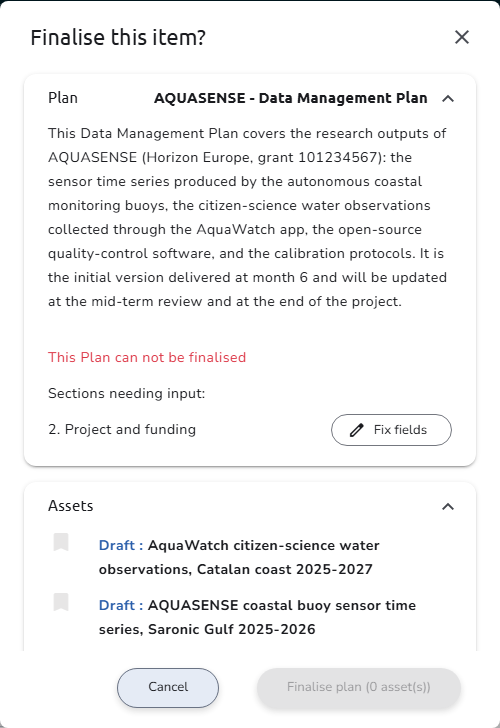 Finalise this item? dialog
The Finalise this item? dialog
The dialog checks the plan and its assets, and has two panels:
- Plan shows the plan's title and description. If required answers are missing, it reads This Plan can not be finalised and lists the Sections needing input. Fix fields next to a section closes the dialog and takes you to that section, with the missing answers marked.
- Assets lists the plan's assets with their status. A draft asset with missing required answers is marked (Invalid), with the questions to complete and its own Fix fields button.
When the plan itself is complete, the dialog asks Do you want to finalise any of the following Draft Assets? and lists the complete draft assets. Tick the ones to finalize together with the plan. Assets that are already finalized stay finalized.
At least one asset must be finalized: until one is (already, or ticked in the list), the dialog shows You need to have at least one Asset Finalised and the Finalise plan button stays disabled. A plan without assets cannot be finalized: the dialog shows No Assets for this Plan so far.
As soon as at least one asset will be finalized with the plan, already or ticked, the dialog also reminds you that you will not be able to edit the plan again. When the plan's Access is Public, it notes that the plan becomes publicly available once finalized; when it is Restricted Access, it notes that the plan can become public later if its access is opened.
Assets you leave out
A warning lists every draft asset that will not be part of the finalized plan: the ones you did not tick and the incomplete ones. When you finalize:
| Asset status before | What happens |
|---|---|
| Finalized | Stays finalized and is part of the finalized plan. |
| Draft, ticked | Is finalized together with the plan. |
| Draft, not ticked or incomplete | Is set to the canceled status and removed from the plan. |
| Canceled | Is removed from the plan. |
Removed assets no longer appear in the plan, its downloads, or its public view. They cannot be edited, and undoing the finalization does not bring them back. If you want to keep an asset, complete it and tick it, or do not finalize the plan yet. See also Asset workflow.
After finalizing
- The plan is read-only: the Plan overview offers Preview instead of Edit, and the collaborator list can no longer change.
- Owners can start a new version to keep working on the plan, and can publish it to a repository if the status allows it.
- If the plan's Access is Public, the plan appears on Public Plans, and its finalized assets on Public Assets. See Who can see your plan.
- The plan's collaborators get a notification about the status change.
Undo finalization
If the workflow has a transition from the finalized status back to a draft status, a plan owner can reopen the plan:
- Open the plan in the editor (the Plan overview offers Preview for a finalized plan).
- Click the status pill and choose the draft status.
- Confirm Undo Finalisation? with Yes.
The plan becomes editable again. Its assets keep their statuses: finalized assets stay finalized until you move them back to a draft status in the asset editor, and assets removed at finalization stay removed.
Undoing the finalization is refused:
- once a new version of the plan has been started, with the message You have already created a new draft version for this plan. Work on the new version instead;
- on a previous version, once a newer version has been finalized: the status control is no longer offered;
- once the plan has been published to a repository.
Publishing is not a status
If the current status allows it, usually a finalized one, the plan can be published to a repository. Publishing is an action, not a status: the plan keeps its finalized status.
Once a plan is published, it can no longer change status or be deleted. This cannot be undone. To keep working on it, duplicate it or start a new version.
See also
- Who can see your plan: collaborators, the Access field, Public Plans, and publishing
- Fill in a plan: required questions and the Required fields counter
- Asset workflow: asset statuses
- Plan & asset workflows: how administrators set up statuses and transitions