Plan overview
The Plan overview opens when you select a plan on the Dashboard or the My Plans page. It shows a summary of the entire plan, grouped by category into collapsible expansion panels that you can expand or collapse. It includes general metadata such as the title, description, language, contact details, researchers involved, associated organizations, and funding details (for example grants and funding organizations).
It also shows licensing and access rights, and any included assets.
At the top of the page, the header shows the entity type, the plan title, its status in the color configured for that status, and a Version button. You change the status in the editor (see Change status and finalize a plan). When the plan has other versions, click the Version button to open a dropdown listing all versions of the plan and switch to any of them; otherwise the button is disabled. Next to it, a Start new version (+) icon button appears on the current version of a finalized plan, and a Compare with another version icon button appears when the plan has other versions. When the plan or its assets have comments, a speech-bubble icon in the header shows how many, replies included. When a newer version of the plan's blueprint exists, a banner under the header reads A new version of the blueprint you used to create this Plan is now available. You can use it by creating new version of the plan.
On the right-hand side of the page, an About box lists the created and modified dates, the blueprint used, the owner, and the PID (once the plan has been published). Until then, users who can publish the plan see a hint under the PID: You need to finalise the plan before publishing it., or, once the plan can be published, Publish the plan to a repository to get a DOI. The About box is followed by a Collaborators box listing the users involved in the plan along with their roles, and an Evaluation box.
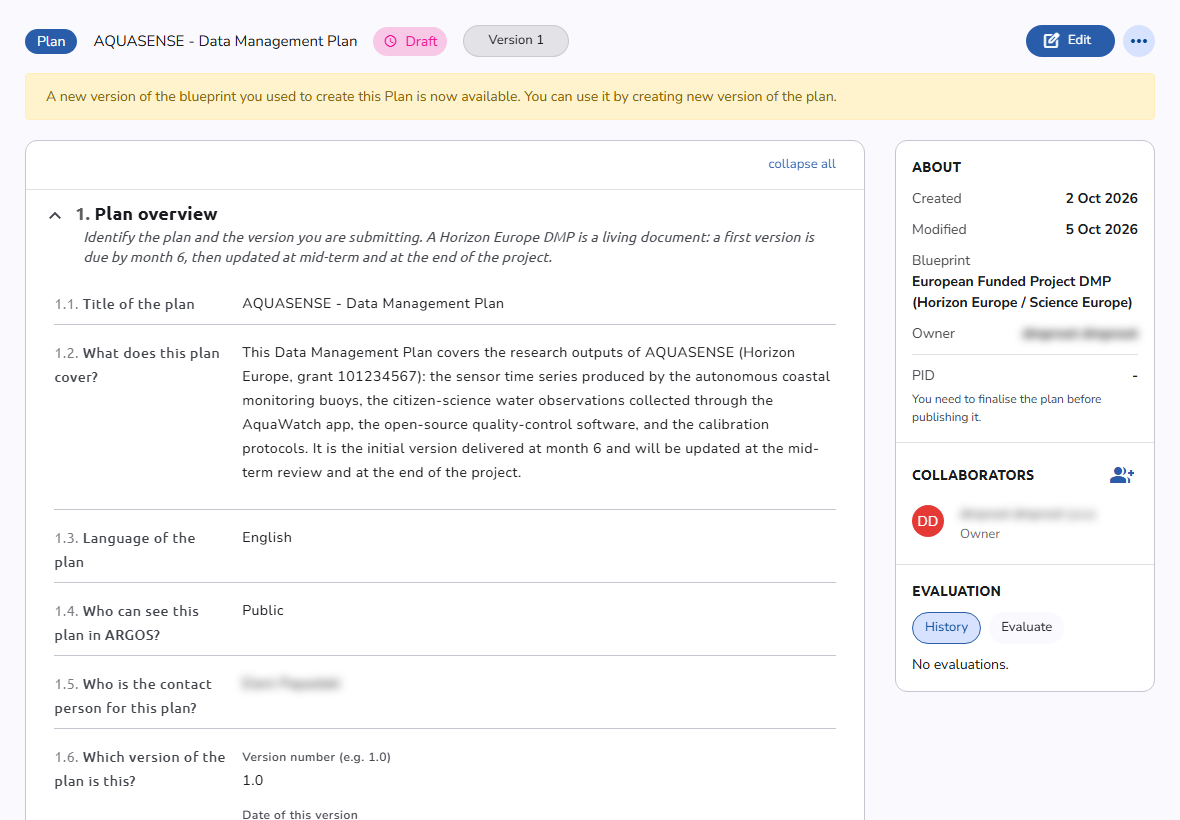 Plan overview
A short guided tour introduces the page the first time you open it.
Actions
The Plan overview page gives access to the plan actions. Most of these actions are also available directly in the plan editor toolbar. Each action below lists the roles it requires.
- Edit: Opens the edit page.
Shown while the plan is not finalized, to collaborators who can edit the plan or some of its sections: the Owner, and section-scoped roles such as Editor (see Plan roles) - Preview: Opens the edit page with read only access. It replaces Edit once the plan is finalized, for collaborators who cannot edit anything in the plan (such as a Viewer), or while another user holds the edit lock (see When someone else is editing).
- Publish: Opens a menu that lists, under Publish to, the repositories you can publish the plan to (for example Zenodo, DSpace, CKAN, Dataverse, or Fedora), and under Already published, the repositories that already hold a record of this plan, each linking to its record. Choosing a repository opens the Publish to dialog. See Publish a plan.
Only the collaborators with the role Owner can do this. The button is shown only when the current plan status allows publishing, which usually means the plan is finalized; until then, the hint under PID in the About box tells you to finalize the plan first - When you click the ... more actions button:
- Start new version: Creates a new version of this plan. See Versions and plan workflow.
Only the collaborators with the role Owner can do this, on the current version of a finalized plan. Otherwise the entry is disabled, with the tooltip Finalise this plan first to start a new version., or, on the current version for collaborators without that role, You don't have permission to start a new version of this plan. - Download: Opens a submenu with the download formats (PDF, Document, RDA JSON, RAiD JSON, XML). See Download a plan or asset.
Every collaborator can do this, when the current plan status allows downloads. - Duplicate: Creates a copy of this plan. If the blueprint asks for consent, you accept it before you can edit the copy (see Plan creation consent).
Only the collaborators with the role Owner can do this - Delete: Deletes the plan after confirmation. Disabled while another user is editing the plan, and not shown once the plan is published to a repository.
Only the collaborators with the role Owner can do this
- Start new version: Creates a new version of this plan. See Versions and plan workflow.
The Collaborators box, in the right-hand side of the page, lists the users involved in the plan, along with their roles.
- Manage (group icon next to the box title): Opens the collaborators panel as a side sheet, where you invite others to collaborate on the plan or change their roles. See Work together.
Only the collaborators with the role Owner can do this
The Evaluation box, below Collaborators, lets you switch between the History of previous evaluation runs and starting a new one.
- Evaluate: Lists the evaluators available for the plan. See Evaluate a plan or asset.
Only the collaborators with the role Owner can do this, and only when the plan status allows evaluation
The box is shown only to users who can evaluate the plan, or when the plan already has evaluation results. Other users see only the History of past runs, and do not see the box at all when the plan has never been evaluated.
Versions
Click the Version button in the header to open a dropdown with every version of the plan and jump to another one. When you view a version that is not the latest, a message at the top of the page reads There is a newer version of the plan available., with a link to the newer version.
Next to the Version button:
- Start new version (
+icon) creates a new version. It is shown only on the current version of a finalized plan. - Compare with another version (compare icon) opens a menu listing the other versions. Choose Compare with Version N to open the Compare versions dialog, which lists the field-level differences between the two versions, grouped into Plan changes and Asset changes.
See Versions for creating and comparing versions.
See also
- Download a plan or asset: download in PDF, DOCX, JSON, or XML
- Publish a plan: publish to a repository and receive a DOI
- Evaluate a plan or asset: assess your plan against standards
- Versions: create new versions and compare them
- Work together: manage team access and roles
- Change status and finalize a plan: finalize the plan, and undo the finalization
- Who can see your plan: collaborators, public plans, and publishing