Fill in a plan
The questions of a plan come from its blueprint, and the questions of each asset from its asset template. Both are answered in the plan editor and work the same way. Your organisation decides which questions you see.
Anatomy of a question
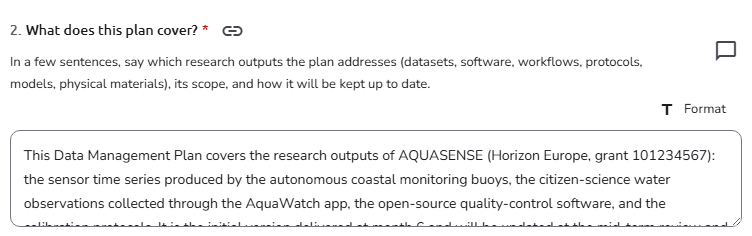 A question in the plan editor
- Number and title: questions are numbered within their section (for example
2.), matching the table of contents. - Asterisk (
*): the question is required. See Required questions. - Help text: a description under the title. Longer guidance can be hidden behind View more, and an info icon next to the title may show more in a tooltip.
- Link icon (Copy Link): copies a direct link to the question. See Link to a question.
- Comment icon: opens the comments on this question; a badge shows how many there are. See Comments and review.
Required questions
Required questions carry an asterisk, and a section that contains any shows Fields marked with * are mandatory under its title. In the table of contents, a Required fields indicator counts the completed required questions, and each section or asset that still has some shows an amber counter; hover it to see which. See Required fields.
Saving needs only the plan title and a name for each asset. The other required questions can stay empty while you work, but they must be answered before you finalize. An empty required question shows Required once you have visited it.
Kinds of question
| Question | How you answer |
|---|---|
| Text | Type a single line. Some questions expect a web address or an email address and say so (Please provide a valid URL, Please provide a valid email address). |
| Text area | Type several lines. The clear button empties the answer. |
| Rich text | Type formatted text. Format shows a toolbar for bold, lists, links, and similar formatting; Plain Text hides it again. |
| Number | Type a number (Please provide a valid number otherwise). |
| Date | Type a date, or pick it from the calendar button. |
| Yes / No | Choose Yes or No. |
| Checkbox | Tick the box. |
| Single choice | Choose one of the options shown as radio buttons. |
| Dropdown | Choose one value, or several when the question allows it. |
| Tags | Type a tag and press Enter or a comma; existing tags are suggested as you type. |
| Reference | Search for a funder, grant, researcher, organisation, license, and so on, and select it from the results. If it is not listed, use Insert it manually. See References. |
| Link to plans or assets | Search by title and select one or more of the plans or assets you have access to. |
| File upload | Drag a file onto the upload area, or click Upload to browse. See File uploads. |
| Identifier | Enter an identifier and choose its type. Some identifier questions have a Validate button that checks the identifier against the selected source and shows a tick or a cross. |
Some questions also have a Please Specify box under the answer, for a free-text explanation.
Core plan and asset fields
A few questions set the plan's or the asset's own fields: for a plan, its Title, Description, Language, Access, and Contact; for an asset, its Title, Description, and Tags. Their labels can differ from blueprint to blueprint. The Access question decides whether the finalized plan becomes public; see Who can see your plan.
File uploads
An upload question takes one file. Under the upload area, Supported formats: lists the file types the question accepts, and the question may also set a maximum size; your installation sets an overall limit too. A file of another type is refused with Invalid file type. Accepted types:, and a file that is too large with File exceeds max size.
Once uploaded, the file name appears in the upload area: click Download to get it back, or remove it with its close button. When the plan is published to a repository, uploaded files can go with the record as supporting files.
Questions with several answers
Some questions take more than one answer, for example one per person or one per cost item. They are shown in one of three ways:
- Stacked: each answer is a copy of the question's fields. Add one with Add more (or the label the question sets, for example Add a person), and remove one with its delete button.
- Table: each answer is a row. Add (or the question's own label) adds a row; the pencil button opens the row in a dialog, where you edit it and click Save; the delete button removes it.
- Transposed table: the fields are rows, under a Field column, and each answer is a column. It is used for questions with many fields, and works like a table.
A question can require a minimum number of answers (Please provide at least N answers) and allow a maximum, after which the add button is no longer offered.
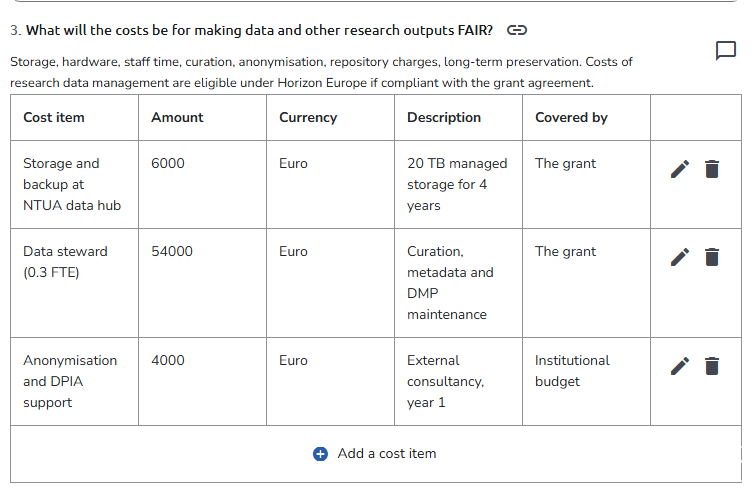 A question answered as a table
Questions that appear with an answer
Some questions appear only after a certain answer to another question, for example extra questions for a particular funding programme. They show up as soon as you give that answer and disappear when you change it. Answers to hidden questions are left out of downloads.
Link to a question
Click the link icon next to a question's title to copy a direct link to it (Link copied). The link opens the plan or asset in the editor and scrolls to that question, which helps when you ask a collaborator to look at something. The email notifications about comments include such links too.
Comments on a question
Every question has its own comment thread: click the comment icon next to it. Comments open in a panel beside the form, so you can read the answer while you discuss it. See Comments and review.
See also
- Create or edit a plan: the editor, its toolbar, saving, and the table of contents
- Create or edit an asset: add an asset and answer its questions
- References: select references and add them manually
- Work together: when someone else is editing the same plan