Plan Blueprints
The Plan Blueprints page lists the plan blueprints of the organisation. From it you create, import, edit, version, and finalize blueprints.
Plan Blueprints describe how a Plan is structured. All the sections and questions a Plan consists of are defined here.
By default, the listing shows the name of each blueprint with its code underneath, its status, type, and version, and when it was last updated. The code is defined when the blueprint is created, cannot change afterwards, and is used internally during imports and exports. At the top right corner of the listing you can also select which columns to display.
The created timestamp is hidden by default. Turn it on from the Display settings button.
You can create new blueprints by clicking the Create Plan Blueprint button at the top right of the page. To import a blueprint from an XML file, click the Import button, upload the file, and enter a name for the blueprint in the popup form. The imported blueprint is added to the listing as a new blueprint.
The three dots in the last column of a blueprint offer these actions:
- Edit: Open the blueprint in the editor.
OnlyDraftblueprints can be edited. For aFinalisedblueprint the menu shows View instead, which opens it read-only. - New Version: Create a new version of this blueprint.
This action is available on the current version of aFinalisedblueprint (more details in statuses and versions). - Clone: Open a copy of the blueprint as a new blueprint.
- All Plan Blueprint Versions: Open the version history of this blueprint.
In the listing, only the latest versions of blueprints are displayed. - Download XML: Download the structure of the blueprint in XML format.
- Delete
Rows that you cannot edit, which are finalized blueprints and blueprints shared by the default organisation, show an eye icon (View) and a clone icon next to the menu. They open read-only.
This listing is organisation-scoped and supports the standard admin listing controls: scope tabs, search, filter chips, Show deleted, column picker, and density. See that page for details.
Authorization
Open to the System Administrator, Organisation Admin, and Template Manager roles. See Roles.
Navigation
In the side navigation menu, switch to the Admin view and go to Templates > Plan Blueprints.
This page's filters
- Status: its own filter chip. Filter blueprints by their status. The status can either be
DraftorFinalised.
By default, no status is selected (more details in statuses and versions). - Type: its own filter chip, shown once at least one blueprint type exists. Filter blueprints by their type.
By default, no type is selected.
For the search, scope tabs, Show deleted, column picker, and density controls shared with other administration pages, see Admin listings.
The editor
When you create, edit, clone, or create a new version of a plan blueprint, the editor opens. Asset templates use the same editor, described in The blueprint and template editor: the header and banners, the problems panel, the outline, sections, questions and inputs, copying and moving, the Review tab, finalizing, and the version history. The sections below cover what only blueprints have.
Details tab
The About this blueprint card works as described in Details tab. In a blueprint:
- Type: The blueprint type, which groups this blueprint with others of the same kind in the library.
This is optional. - Description and use cases: Shown in the blueprint library and when an author starts a new plan.
This is optional.
Plan creation consent
Switch on Ask for consent to make authors accept a statement once, before a plan based on this blueprint is created. They cannot proceed without accepting.
- Consent message (required when consent is on): One sentence, shown as the title of the consent step.
- Consent details (optional): The full text authors can expand before accepting, such as links to data policies or legal notices.
If a plan is created through a method other than direct creation (for example import, clone, or new version), the plan is created automatically, but the user must accept the consent before they can edit it.
How authors will see it
The side card previews the blueprint in the blueprint library and, when consent is on, the consent step before the plan is created.
Structure tab
The Structure tab holds the blueprint's sections, which can hold subsections and questions. It works as described in Structure tab, with these differences.
Required preset fields
A new blueprint can Start with Basics: a first section holding the four required preset fields. The Required preset fields bar lists Title, Description, Language, and Access, ticked once they are in place. While Contact is missing, the bar mentions it as optional; add it with Add question > Preset field. Click a missing required preset to add it, or Add the missing ones to section to add them all to one section. See Preset fields.
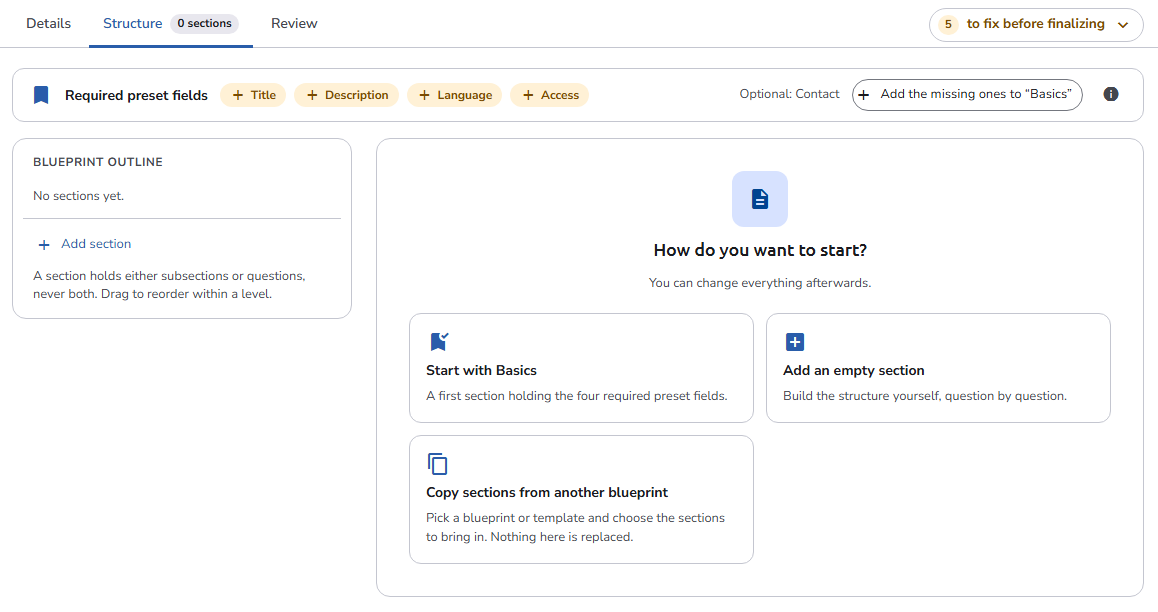
A blueprint must contain the Title, Description, Language, and Access preset fields. It cannot be saved without them.
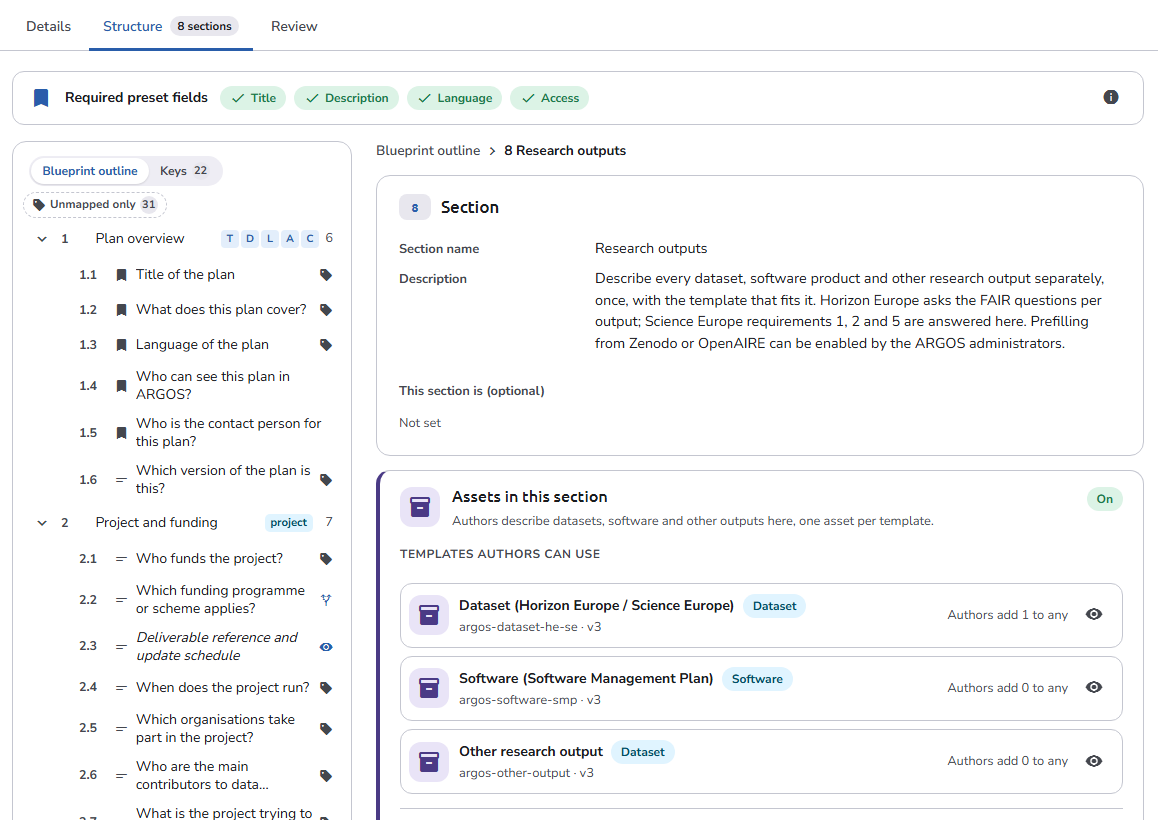
Assets in this section
Each top-level section can collect assets. Switch on Assets in this section to let authors add assets, such as datasets or software, in the section. Subsections show a link to the top-level section that holds these settings.
- Templates authors can use: The asset templates offered in the section. Click Add asset template to pick one or more finalized templates; templates already in the section are not listed. Drag the rows to reorder them, use the eye icon to preview a template, and Remove to take it out.
- Authors add minimum to maximum: How many assets with the template a plan must and may have. Leave a box empty for any.
- Authors may add other templates: Besides the ones listed, authors can pick any finalized asset template. When this is off, at least one template must be listed.
The asset multiplicity options have four special cases:
- With a
minimumand nomaximum, the template is mandatory and there is no limit on the amount. - With a
maximumand nominimum, the template is not mandatory and there is a limit on the amount. - With the same
minimumandmaximum, only that specific amount is possible. - With neither, the template is not mandatory and there is no limit on the amount.
At least one section of the blueprint must collect assets. The blueprint cannot be saved otherwise.
Turning Assets in this section off removes the section's templates and prefilling settings; when templates are listed, you confirm first. A section that collects assets cannot be moved inside another section.
Prefilling
Prefill assets from repositories lets authors import an asset's metadata from a prefilling source instead of typing it (the Import option of the new-asset wizard). The switch is unavailable when no prefilling source is configured.
- By default, every configured source of the organisation is offered.
- Click Limit to specific sources to offer only the sources you pick, and Use all sources instead to go back.
With no sources picked, the section offers every active source.
Questions
Blueprint questions use the same input types as asset templates, including conditional questions and semantics. See Field Types.
Review tab
The Review tab previews the blueprint in three moments: Starting a new plan (the blueprint in the library, the consent step, and the sections the author then works through), Filling the plan, and Download, which also shows where the assets added to each section appear. In the plugin coverage, the values the attached asset templates fill also count. See Review tab.
Statuses and versions
A new blueprint is a Draft. Only Finalised blueprints are available to plans, and a finalized blueprint cannot be edited again: create a new version, or clone it. Authors keep getting the current version until you finalize the next one, and plans already started stay on the version they were created with. See Finalizing and new versions and Version history.
Blueprint field types
The preset fields and input types that the questions of a plan blueprint can use