The blueprint and template editor
Plan blueprints and asset templates are built in the same editor. Plan Blueprints and Asset Templates cover what is specific to each, such as their required preset fields, the assets a blueprint section collects, and the editors of a template.
The editor opens when you create, edit, clone, or create a new version of a blueprint or template. In the examples below, template stands for either.
Header and banners
The header shows the template's name, its status (Draft or Finalised), its type, and a version menu (for example v3). The version menu lists the versions, marks the one authors get, and links to the version history. Below the name are the code, the version, how many plans or assets use this version (for a finalized version), when it was last saved, and how many sections, questions, and conditional rules it has. An asset template also shows its language.
The header also holds the actions:
- Close: Return to the listing. With unsaved changes, a Save your changes? dialog lists what changed since the last save and offers Discard, Keep editing, and Save and close.
- Save: Save as a draft.
- Finalise…: Open the finalize checklist.
- New version: Shown instead of Save on the current version of a finalized template.
- The More actions menu: Download XML, Clone, and Delete.
A banner under the header explains when the template cannot be edited or is a special copy:
- Another user is editing it. The banner names them, and the template opens read-only until they close it or their lock times out. Users who can delete locks see a Take over button. See Edit Locks.
- It is a new version, or the draft of a later version. Compare with vN lists the sections and questions added, changed, removed, or moved compared with the version authors get today.
- It is a clone: give it a name and a code, then save.
- It is shared by the default organisation. It is read-only, and Clone for organisation creates an editable copy.
- It was deleted, or it is finalized.
Tabs and problems
The editor has three tabs: Details, Structure, and Review. Next to them, a readiness button shows either Ready to finalise or the number of items to fix before finalising. Click it to open the problems panel:
- Each problem says where it is and has a Fix (or Add) button that opens the exact spot.
- Optional items are suggestions, such as a missing icon, with an Open button. They never block anything.
- The checks that already pass are listed at the end.
Save does not save while problems are open: it opens the panel instead and reports how many problems to fix first. After a failed save, the tabs show how many problems each one holds.
Details tab
The About this card holds:
- Icon: Click the icon tile to pick an icon. Type in Icon name to search the Material icons by name, and pick one from the suggestions, which show each icon; text you type that matches no icon is cleared, while an icon name the item already had is kept. Click Upload an image instead to use your own image, and Remove icon to clear it.
This is optional. - Name: The display name.
- Code: A short unique key, used in exports and the API.
The code is set once, when the template is created, and stays the same for all its versions. - Type: The blueprint type or asset type.
- Description and use cases: Shown when an author picks a blueprint for a new plan, or a template for a new asset.
The Export template card holds the settings of the export plugins your organisation has switched on in Settings > Plugins, such as a DOCX file that shapes how plans or assets made from this template are downloaded. When none is switched on, the card is not shown. Click Customize to change them; without changes, they download with the platform default template. See DOCX templates. When you upload a DOCX template, the file transformer checks it, and any warnings or errors about unknown placeholders or missing styles appear below the uploader. The check does not block saving, but fix the reported issues first.
The How authors will see it side card previews the template as authors meet it.
The Details tab of a blueprint also holds the plan creation consent, and that of an asset template its language and its editors.
Structure tab
The Structure tab holds the content: sections, which can hold subsections, and questions, which hold one or more inputs.
A new template opens with a choice of how to start:
- Start with Basics: A first section holding the required preset fields.
- Add an empty section: Build the structure yourself, question by question.
- Copy sections from another template (or blueprint): Pick a template or blueprint and choose the sections or questions to bring in. See Copying, moving, and reordering.
The bar at the top of the tab lists the Required preset fields. A preset field stores its answer as a built-in property of the plan or asset; click a missing one in the bar to add it. Which presets are required differs: see blueprints and asset templates.
The outline
The left panel shows the outline: numbered sections and their questions. Click an entry to open it. Next to each entry, markers show when a question controls other questions, is conditional, carries a semantic key, or needs attention.
- Drag an entry to move it, also into another section. Hold Alt while dropping to copy it instead. While you drag, places where the entry cannot go show the reason.
- The three dots of an entry offer Add question, Add subsection, Turn the questions into a subsection, Duplicate section (or Duplicate for a question), Move up, Move down, Move or copy to…, and Delete.
- Add section at the bottom adds a top-level section.
- Unmapped only shows only the questions with no semantic key, for a mapping pass.
- The Keys view lists every semantic key in use with the questions that carry it, and the questions that carry no key. See Semantics.
A section holds either subsections or questions, never both. To ask something next to subsections, add it inside a subsection, or use Turn the questions into a subsection first.
Sections
The right panel shows the selected section:
- Section name
- Description: Shown to authors at the top of the section.
This is optional. - This section is: The object the section describes for export plugins, such as
rda.dataset.distribution. See Objects.
This is optional.
Below the section card are its questions, or its subsections with an Open button each. Drag them by their handle to reorder them. A section must contain at least one question or subsection.
Questions
Click Add question and pick the input type of its first input, or a preset field from the Preset field group. The input types are listed in Field types.
A collapsed question shows a summary: its type, whether it is required, its default value, semantic keys, rules, and whether it repeats. Click it to expand it:
- Question title: The label authors see.
- Help for authors: Click Edit to switch on any of three optional help texts:
- Short help, shown under the question.
- Longer explanation, behind a View more link.
- Tooltip, on the info icon next to the title.
- Inputs: The inputs of the question (see Inputs). Add another input to this question adds one more.
- Export: The object one answer to the question describes, and Answers stand for keys, which shows a Stands for column in the options of choice inputs. See Semantics.
- Authors can answer more than once: Makes the question repeatable, for lists such as several datasets or partners.
- At least / and at most: The minimum and maximum number of answers. The minimum cannot be more than the maximum.
- "Add another" button text: The text of the button that adds one more answer.
- Show the answers as a table: One row per answer, one column per input.
- Inputs as rows: Flips the table, so each answer is a column. This is useful for questions with many inputs.
- Add a comment box: A free-text box under the question for notes to reviewers.
Preview as an author at the bottom opens the Review tab. To drag a question in the section panel, collapse it first.
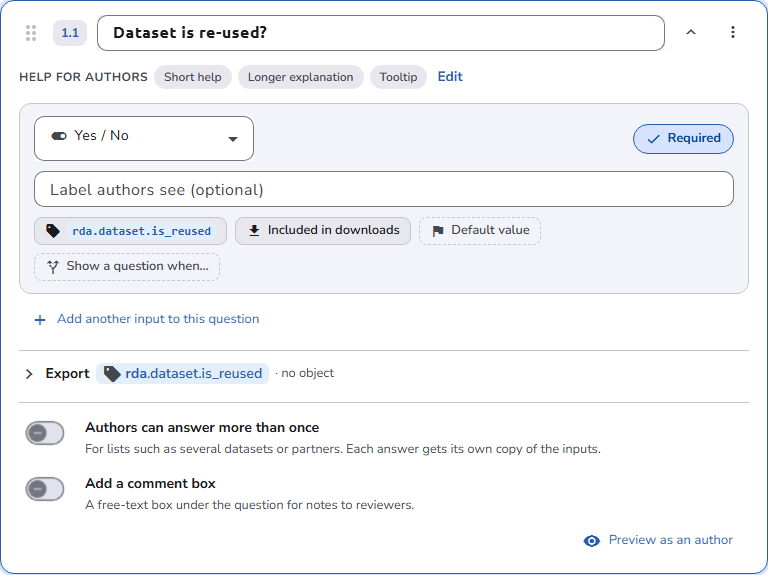
A question with a preset field cannot be repeated or made conditional, because a preset field represents a single, unique property of the plan or asset.
Inputs
Each input has:
- Type: The input type. Choosing Preset field shows Which preset field.
- Required: Authors must answer it. Required presets such as Title are always required.
- URL and Email: For Free text inputs, the answer must be a valid URL or email address.
The settings the type needs appear below:
- Single choice and Multiple choice: The Options list, with a Label authors see and a Stored value for each option (the stored value is filled in from the label), Make default to preselect an option, and Add option. For single choice, Show as a dropdown switches between radio buttons and a dropdown.
- Reference: The Reference type the values come from, and Authors can pick more than one. See Reference Types.
- Plan or asset in OpenCDMP: Link to
PlansorAssets, and Authors can link more than one. - Dataset identifier: Check that the identifier resolves, which tells authors when a DOI or handle cannot be found.
- File upload: The Max size and the Allowed file types. Use Other media type… to add a type that is not in the list, with the name authors see and its media type.
- Most types also take an optional placeholder or label text.
Under the settings, a row of chips opens the rest:
- Add semantics: The semantic keys of the input. See Semantics.
- Included in downloads / Not in downloads: Whether the answer appears when the plan or asset is downloaded.
- Default value: Prefilled for authors; they can change it.
- Show a question when…: Rules that show other questions depending on this answer. See Conditional Questions.
When an installed plugin reads a key the input carries, mappings that will not export correctly are listed under the input, for example a free-text input on a key that needs a number.
Copying, moving, and reordering
- Move up and Move down reorder sections and questions within their level, and the arrows of an input reorder the inputs of a question.
- Move or copy to… lists every place in this template, with the reason next to the places the entry cannot go. Move there moves the entry, and Copy there copies it. The entry lands at the end of the destination.
- Another template or blueprint in the same dialog copies the entry into another draft you can edit. The draft opens with the copy in place, unsaved, so you can check it and save it there.
- Duplicate section and Duplicate copy an entry next to itself.
- Insert from another template (in a section) and Copy sections from another template (when starting) open a dialog where you pick a source: any template you can see, including those shared by the default organisation, and plan blueprints if you can manage them. Select the sections or questions to copy. Sections go after the selected section, and single questions go into it.
A copy gets new identifiers and keeps its semantics and the rules inside it. Rules that point outside the copy are dropped, and the dialog lists them first. Preset fields are left out when the destination already has them or cannot hold them. The source is never changed.
Review tab
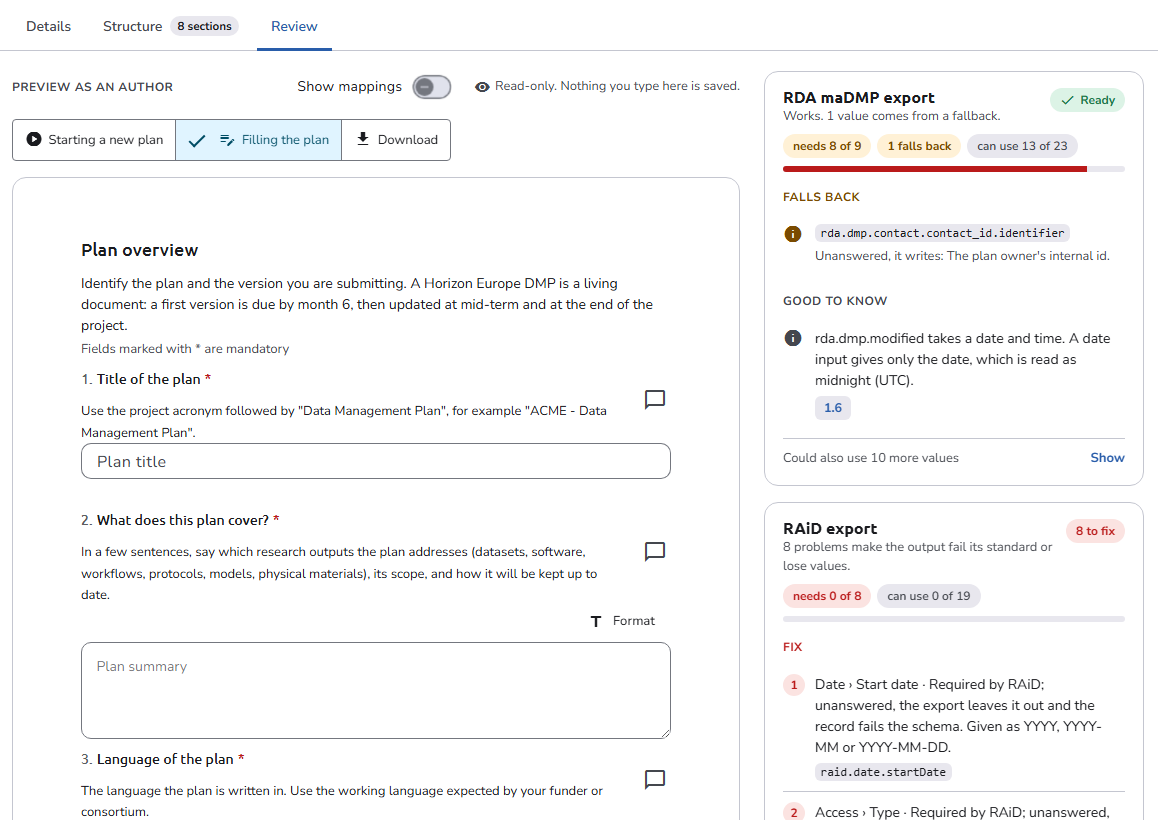
The Review tab shows the template the way authors meet it. Nothing you type there is saved. The author preview needs the problems that block saving to be fixed first.
- Filling the plan or Filling the asset: The form as authors fill it in, with conditional questions working. Show mappings puts the semantic keys on the form.
- Download: What a downloaded plan or asset contains, section by section, with the inputs left out of downloads and those included only when shown.
- For a blueprint, Starting a new plan also shows the blueprint in the library, the consent step (or a note that there is none), and the sections the author then works through.
The side panel has one block per installed plugin that reads semantic keys, with what the template gives it and what to fix. For a blueprint, the values the attached asset templates fill also count. Below it, a summary line counts the semantic keys in use and links to the Keys view. See What the editors show about plugins.
Finalizing and new versions
A new blueprint or template gets the Draft status.
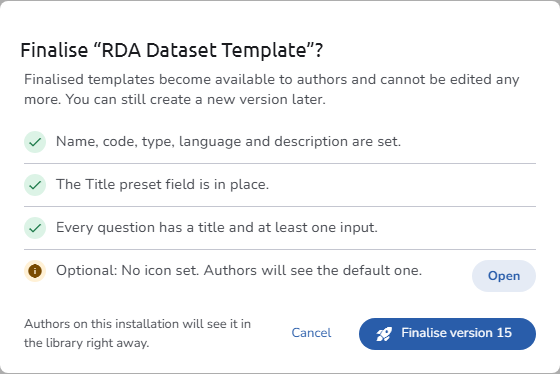
Click Finalise… to open the finalize checklist. It lists the checks that pass, the items to fix first, each with a Fix button, and the optional suggestions. When nothing blocks it, Finalise version N finalizes the template, which then opens on the Review tab. Cancel closes the checklist without finalizing.
- Only
Finalisedblueprints and templates are offered to authors. - A finalized version cannot be edited again. Create a new version to make changes, or clone it as a new blueprint or template.
New version opens a draft of the next version, based on the current one. Authors keep getting the current version until you finalize the new one, and plans or assets already started stay on the version they were created with. You can save the new version as a draft and come back to it, or finalize it directly.
Version history
All Plan Blueprint Versions or All Asset Template Versions in the listing, and Version history in the editor's version menu, open the version history. It lists each version with its status:
- Draft: Not visible to authors yet.
- Current: What authors get when they start a plan or add an asset.
- Previous: Kept for the plans or assets that use it.
For each version, it shows when it was started or finalized and how many plans or assets use that version, with Continue editing for the draft and Open for the others. The menu of each row offers Open read-only (or Continue editing), Clone as a new blueprint or template, a link to the plans or assets that use the version, and Download XML for finalized versions. When no draft exists, the page also offers New version. There is one draft at a time, and only the current, finalized version can start a new one.
See also
- Plan Blueprints - The blueprint listing, and what only blueprints have
- Asset Templates - The template listing, and what only templates have
- Semantics - The keys export and deposit plugins read