Edit Locks
The Edit Locks page shows the locks that stop two people from editing the same record at once, and lets you remove them.
Why edit locks matter
When multiple users collaborate on plans and assets, a lock keeps one person's changes from overwriting another's. Use this page to:
- Release locks left behind when a user closed the browser without saving or discarding their changes.
- Remove a lock that blocks an urgent edit while the person holding it is unavailable.
- See which records are being edited, and by whom.
- Investigate when users report that they cannot edit content.
How locks work
When a user edits a plan, an asset, a plan blueprint, or an asset template, the system automatically places a lock on that record. No other user can make changes while the lock is active. Locks are automatically removed:
- After a period of inactivity (timeout)
- When the user saves or discards their changes
- When the user navigates away from the editor
Managing locks
The page lists the active locks. The columns are:
- Target: the name of the locked record, linked to its page. If the record no longer exists or cannot be opened, the column shows Deleted or unavailable item. A Shared chip marks locks on records that belong to the default organisation. Plans and assets are private to their organisation, so a plan or asset of another organisation is shown without a link; its tooltip says to open it from that organisation.
- Type: the kind of record (plan, asset, plan blueprint, or asset template).
- Locked By: the user holding the lock.
- Locked At and Touched At: when the lock was placed and when it was last renewed.
The listing is sorted by Touched At, most recent first. Use the Display settings button at the top right to choose which columns are visible.
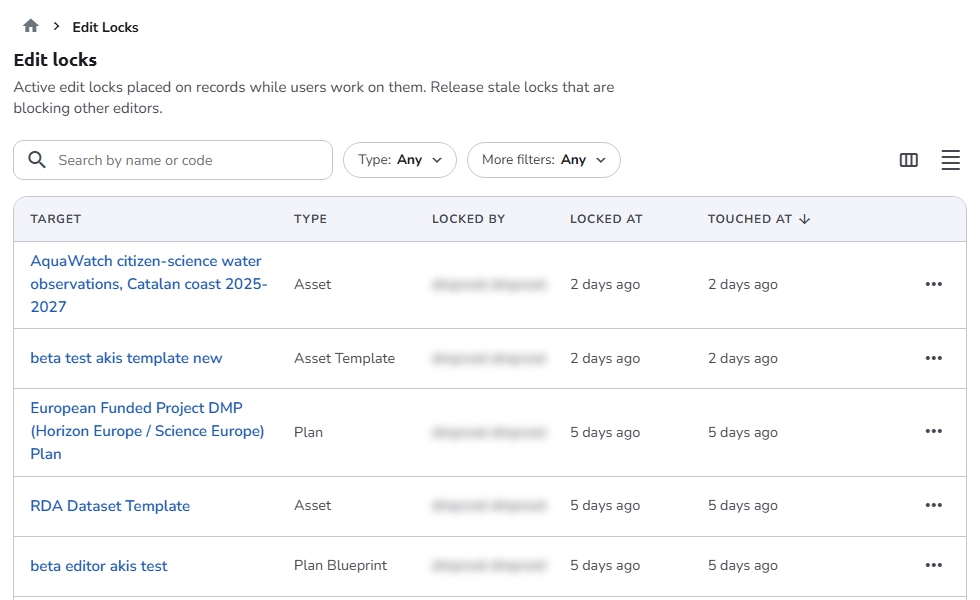
This listing is organisation-scoped and supports the standard admin listing controls: scope tabs, search, filter chips, column picker, and density. Locks are not kept after they are removed, so there is no Show deleted items toggle. Because the system creates locks itself, the empty Owned by [organisation name] tab says so instead of inviting you to create one.
To remove a lock, click the three dots menu at the end of its row and select Delete. Only locks that belong to the organisation you are working in can be removed from that organisation.
Remove a lock manually only when necessary, for example when the user's session has ended but the lock remains. Removing a lock while a user is editing makes them lose their unsaved changes.
Authorization
Only users with the System Administrator role can access this page. See Roles.
Navigation
In the side navigation menu, switch to the Admin view and go to Installation > Edit Locks.
This page's filters
- Type: its own filter chip. You can select one or more record types.
By default, no type is selected. - Users: available under the More filters chip. You can select one or more users.
By default, no user is selected.
For the search, scope tabs, column picker, and density controls shared with other administration pages, see Admin listings.