Data Transfer
The Data transfer page lets a system administrator move the content of an organisation between OpenCDMP installations, duplicate the content of one organisation into another organisation of the same installation, or permanently clear the content of an organisation.
All operations act on the organisation you are currently working in. Select the target organisation with the organisation button in the top bar before you open the page. The page names it at the top ("Working on name (code)").
The page offers three operations as tabs, and a fourth one in a collapsible section below them:
| Tab or section | What it does |
|---|---|
| Export a bundle | Exports the content of the current organisation as a .zip transfer bundle. |
| Import a bundle | Imports a transfer bundle into the current organisation. |
| Copy from another organisation | Duplicates the content of another organisation of the same installation into the current organisation. |
| Danger zone: clear the data of name | Permanently deletes content owned by the current organisation. |
Comments (annotations) live in the separate annotation service. They are exported, imported, copied, and purged together with the plans only when the API service is configured with the ANNOTATION_SERVICE_URL environment variable, and the annotation service runs a release that supports transfers. Without this configuration, plans transfer without their comments and a warning is shown in the report. See the backend configuration reference.
Prerequisites
- The System Administrator role. See Roles.
- An organisation selected in the top bar. Operations on the
Defaultorganisation act on its shared rows. - For imports, the source and target installations must be at the same database schema version, that is, the version of the last applied database migration, as shown on the Database card of the Maintenance page. A bundle exported at a different schema version is rejected with error
189, and the message shows both versions; upgrade both installations to the same release first. - For large bundles, make sure the API upload limit (
MULTIPART_MAX_FILE_SIZEandMULTIPART_MAX_REQUEST_SIZE, default100MB) is large enough, and that any reverse proxy in front of the API allows the same request size. - For comment transfer,
ANNOTATION_SERVICE_URLmust point to an annotation service of the matching release (see above).
Export a bundle
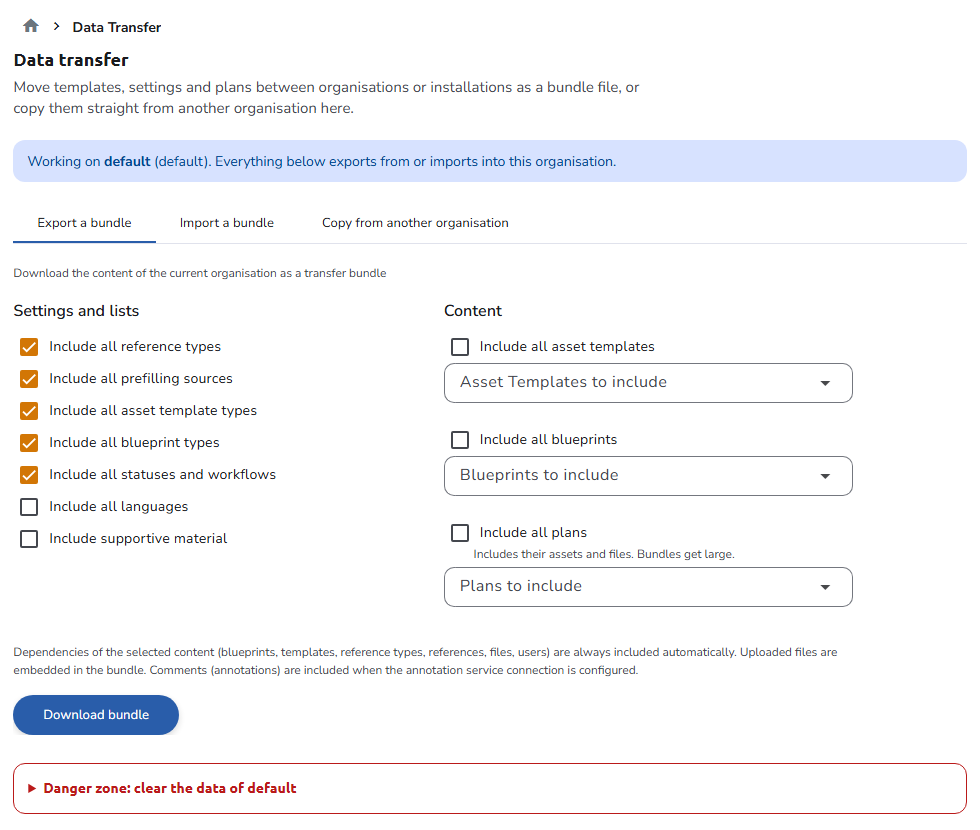
Exports the selected content of the current organisation into a single .zip file named opencdmp-transfer-<timestamp>.zip.
The tab has two groups of options:
Settings and lists
- Include all reference types
- Include all prefilling sources
- Include all asset template types
- Include all blueprint types
- Include all statuses and workflows
- Include all languages
- Include supportive material (the help pages and legal texts)
Content
- Include all asset templates, or select specific templates in Asset Templates to include
- Include all blueprints, or select specific blueprints in Blueprints to include
- Include all plans, or select specific plans in Plans to include. Including all plans also includes their assets and files, so the bundle can get large.
Click Download bundle to generate and download the file.
What is included
- Only active rows owned by the current organisation are exported. On the
Defaultorganisation, its shared rows are exported. - Dependencies are always added automatically: the blueprints, asset templates, reference types, references, tags, statuses, languages, users, and uploaded files that the selected content needs travel with it, even when their category is not ticked. Shared default-organisation rows that the selected content references are included as well, so the bundle is self-contained.
- For plans, the bundle also contains their assets, collaborators, plan references, attached asset templates, asset references, asset tags, and DOIs. All versions of a selected plan, blueprint, or template group are included.
- Uploaded files referenced by the exported content (for example blueprint or template attachments and plan uploads) are embedded in the bundle.
- Comments are included when
ANNOTATION_SERVICE_URLis configured. If the annotation service cannot be reached, the export is aborted, so a bundle never silently lacks its comments. - The bundle carries a manifest with the format version, the source organisation code, the database schema version of the source installation, and entity counts.
Plugin secrets and the organisation settings (logo, locale, registered plugins, and similar settings from the Organisation settings page) are not part of a bundle. Configure them on the target organisation manually.
Import a bundle
Imports a transfer bundle into the current organisation. The import is additive: it only creates rows that do not exist yet and never updates or deletes existing rows.
The tab guides you through three steps:
- Choose a bundle: select the
.zipfile in Transfer bundle (.zip). - Check what will change: click Check the bundle. The Dry run report shows, per entity type, what the import would do without changing anything. Review the report, especially the Conflicts column and the Messages and Warnings lists.
- Import: click Import into name and confirm. The button is enabled only after the bundle has been checked. The Import report shows what was created.
Report columns
| Column | Meaning |
|---|---|
| Entity type | The entity type in the bundle (for example PlanBlueprint, DescriptionTemplate, Plan, Description, User). |
| In bundle | Number of rows of this type in the bundle. |
| Will create / Created | Rows that do not exist on the target and are created. |
| Matched by id | Rows that already exist on the target with the same id and are left untouched. |
| Matched by key | Rows matched to an existing row by a business key (see below) and remapped to it. |
| Conflicts | Rows that needed special handling; details are listed under Messages. |
How rows are matched
- Identifiers are preserved. Plans, assets, blueprints, and asset templates keep their original UUIDs (and version group ids), so a bundle can be imported once and re-imported later without creating duplicates.
- Configuration entities are deduplicated by code. Reference types, prefilling sources, asset template types, and blueprint types are matched by their
code; plan and asset statuses by name; languages by code; supportive material by type and language. When a match exists among the rows visible to the target organisation (its own rows or the shared default-organisation rows), the bundle row is remapped to the existing one instead of being created. Only active rows are considered for matching. - Blueprint and template codes that already exist on the target for different content are renamed with an
-imported-<id>suffix and reported as a conflict; relations keep working because they use the preserved UUIDs. - Workflows are skipped when the target organisation already resolves a plan or asset workflow (its own or the shared default one); review status transitions manually in that case.
- Users are matched by email. A user whose email exists on the installation is linked to the existing account; otherwise the account is created. Imported users become members of the target organisation, and users who already have a login on this installation are also added to the organisation's group in Keycloak. Users created by the import have no credential yet; their account is claimed automatically at their first login.
- Uploaded files are written to the file storage of the target installation.
- Comments are imported through the annotation service when
ANNOTATION_SERVICE_URLis configured.
An import cannot be undone from the user interface. Always check the bundle first and keep a database backup before importing into a production organisation.
Copy from another organisation
Duplicates content of another organisation of the same installation into the current organisation. Use this, for example, to seed a new organisation with the blueprints and templates of an existing one.
- Enter the code of the source organisation in Copy from. The source must be a different, active organisation (the
Defaultorganisation code is accepted to copy the shared content). - Tick the categories to copy: Include all plans, Include all asset templates, Include all blueprints, Include all reference types, Include all prefilling sources, Include all asset template types, Include all blueprint types, Include all statuses and workflows. Dependencies of the selected content are added automatically, as in an export.
- Click Check first and review the Copy preview. The copy button is enabled only after a check has run.
- Click Copy into name and confirm.
The Copy preview and Copy report show, per entity type, the rows In bundle, the rows that the operation Will copy / Copied, and the rows that are Shared (referenced).
Unlike an import, a copy creates new identities:
- Copied rows receive fresh ids, version group ids, and file references; the originals are not touched.
- Reference types, prefilling sources, asset template types, and blueprint types get a
-copy-<id>suffix on their unique code. - Shared default-organisation rows are referenced, not duplicated, because the target organisation already sees them.
- Users are linked to the target organisation (and to its Keycloak group), not copied; languages and supportive material are never duplicated.
- DOIs are not copied: a copied plan is a new, undeposited plan.
- Comments are copied through the annotation service when
ANNOTATION_SERVICE_URLis configured, and re-attached to the copied plans and assets.
Clear organisation data
Permanently deletes content owned by the current organisation. The Danger zone: clear the data of name section below the tabs is shown only to users who may clear organisation data (by default, the System Administrator role). Click its title to expand it.
Deletion is irreversible. Take a database backup (and a backup of the file storage) before clearing organisation data.
- Tick the categories to delete:
- Plans and assets (including collaborators, references to them, DOIs, evaluations, comments)
- References
- Tags
- Asset Templates
- Blueprints
- Reference types
- Prefilling sources
- Statuses and workflows
- Blueprint types
- Asset Template types
- Uploaded files
- Click Analyze (dry run) and review the Deletion preview. It lists, per entity type, the rows the operation Will delete and the rows Kept (in use by other organisations).
- Type the organisation code in the Type the organisation code (code) to enable deletion field, which appears after the analysis. The Delete permanently button is enabled only when the text matches the code of the current organisation.
- Click Delete permanently and confirm.
How the deletion behaves:
- Only rows owned by the current organisation are deleted. Rows inherited from the
Defaultorganisation are never touched when purging a regular organisation. - Categories cascade downward. Deleting a dependency automatically selects everything that references it, ending at plans: for example, deleting blueprint types also deletes the blueprints of that type and the plans that use them; deleting reference types deletes their references and the plans and assets that use them.
- On the
Defaultorganisation, the purged rows are its shared ones. Shared rows that other organisations still reference (blueprints used by other organisations' plans, templates, references, statuses, types, and so on) are kept and reported in the Kept column, so the content of other organisations keeps working. - When plans are deleted, their comments are purged through the annotation service (when
ANNOTATION_SERVICE_URLis configured), plan removal events are published to the other services, and the plans and assets are removed from the Elasticsearch indexes. - Deleted uploaded files are also removed from the file storage. Organisation settings that referenced deleted files (logo, status icons, plugin files) may need to be uploaded again; the report warns you when this applies.
Authorization
Only users with the System Administrator role can access this page and export, import, copy, or clear organisation data. See Roles.
All operations are recorded in the audit log.
Navigation
In the side navigation menu, switch to the Admin view and go to Installation > Data Transfer. On the Organisations page, Export or copy content in the row menu of an organisation switches to that organisation and opens this page.
See also
- Organisations - Create and manage organisations
- Organisation settings - Settings that are not part of a transfer bundle
- Maintenance - Rebuild the search indexes and resend events after a transfer
- Backend configuration -
ANNOTATION_SERVICE_URLand upload size limits - Annotation Service - The service that stores comments