Maintenance
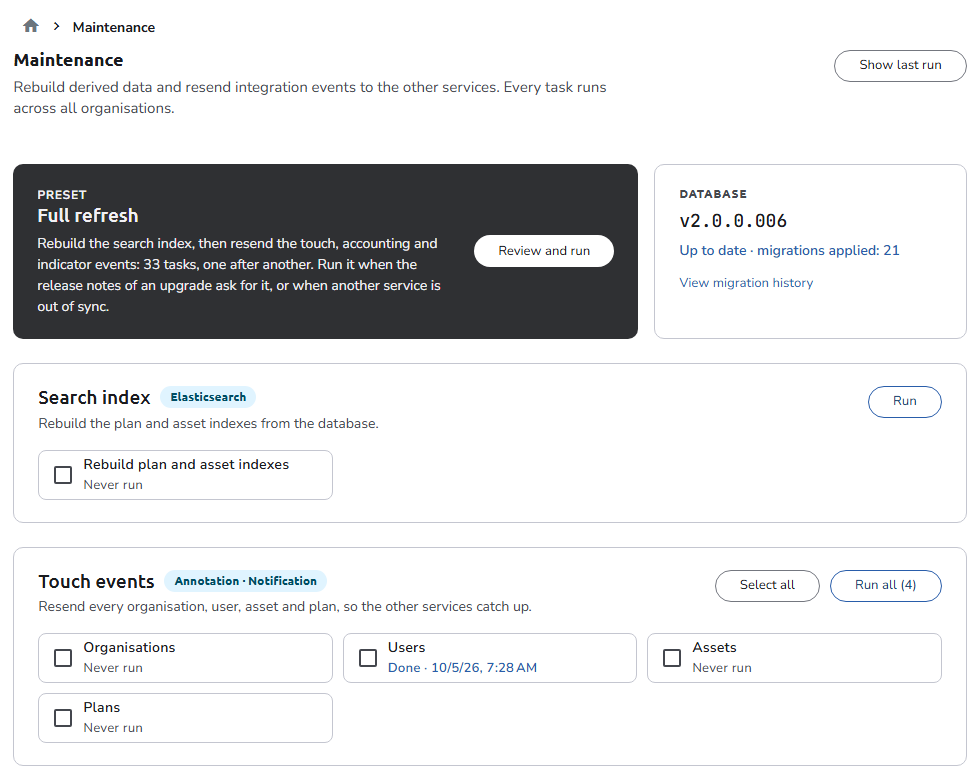
The Maintenance page lets a system administrator rebuild derived data, resend integration events to the other OpenCDMP services, and check the state of the database migrations. Every task runs across all organisations, regardless of the organisation you are working in.
The page has four parts:
- The Full refresh preset, which runs every task of the page in one go
- The Database card, which shows the migration state of the database
- The task groups, from which you select and run individual tasks
- Clear the search indexes, a separate action that deletes the search indexes
Database schema changes and the data conversions of an upgrade are not run from this page. The API service applies them automatically at startup; see Database migrations.
Full refresh
The Full refresh preset rebuilds the search index, then resends the touch, one task after another. Click Review and run to open the confirmation dialog and start it.
You do not need a full refresh after every upgrade. Run it when the release notes of an upgrade ask for it, or when another service is out of sync with OpenCDMP. The number of tasks it runs depends on the groups shown on the page (see Task groups).
Database migrations
The Database card shows the version of the last applied database migration and one of the following states:
| State | Meaning |
|---|---|
| Up to date · migrations applied: n | Every migration that the running API service ships has been applied. |
| Migrations pending: n | Migrations exist that have not been applied yet. |
| Migrations failed: n | Migrations are recorded as failed. Check the API service log. |
| Database migrations are switched off on this installation. | The API service runs without automatic migrations. |
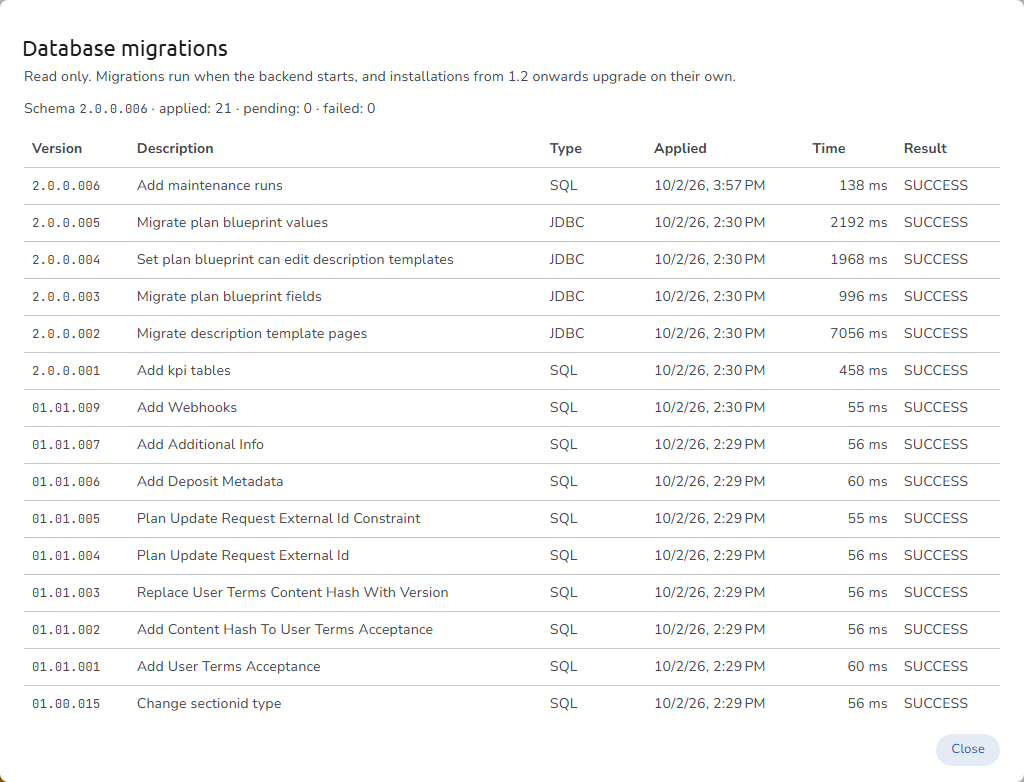
Click View migration history to open the read-only Database migrations dialog. It lists every migration, newest first, with its Version, Description, Type (SQL for an SQL script, JDBC for a Java data transformation), Applied date, execution Time, and Result. Migrations run when the API service starts; nothing on this page applies or repeats them.
Task groups
Tasks are grouped by the service they serve. Each group shows the service it targets, and each task shows when it last ran: Never run, Done · date, or Failed · date.
| Group | Service | Tasks | What it does |
|---|---|---|---|
| Search index | Elasticsearch | Rebuild plan and asset indexes | Deletes the plan and asset indexes, recreates them, and fills them again from the database. |
| Touch events | Annotation · Notification | Organisations, Users, Assets, Plans | Resends every organisation, user, asset, and plan to the annotation and notification services, so that they catch up. |
Running tasks
- Choose the tasks to run in one of the following ways:
- Click Run (or Run all (n)) on a group to run all of its tasks.
- Tick individual tasks in any group, using Select all and Deselect all where needed. A selection bar shows the number of selected tasks; click Run selected (n), or Clear selection to start over.
- Click Review and run on the Full refresh preset.
- In the Start this run? dialog, review the number of tasks. Tick Stop at the first failure to skip the remaining tasks when one fails; otherwise the remaining tasks still run and the failures are listed at the end.
- Click Run (n).
How a run behaves:
- Tasks run on the server, one after another. You can leave the page while they run; the run continues, and the page shows its progress again when you return.
- Tasks always run in page order: search index, touch events, whatever the order in which you selected them.
- Only one run at a time. A run cannot start while another one is in progress anywhere on the installation; the page reports "Another maintenance run is in progress. Wait for it to finish, or stop it".
- Progress panel. While a run is in progress, a panel shows the overall progress (for example 3 of 5) and the state of each task: Queued, Running, Done, Failed (with the error message), or Skipped. Use Hide to close the panel and Show last run to open it again.
- Stopping. Click Stop after this task to stop a run. The task in progress finishes, and the remaining tasks are skipped.
- Run results. A finished run is reported as Finished, Finished with failures: n, or Stopped. A run is reported as Interrupted when the API service stopped while it was in progress; start the remaining tasks again.
Clear the search indexes
Clear indexes deletes the plan and asset search indexes after a confirmation. Search stays empty until you run Rebuild plan and asset indexes. This action is never part of a run.
- Rebuild plan and asset indexes is enough to bring the indexes up to date, for example after an upgrade that changes the index mapping. It deletes and recreates the indexes itself.
- Run Clear indexes only when you want search to stay empty, for example while you investigate an Elasticsearch problem.
Authorization
Only users with the System Administrator role can access this page and run its tasks, including the search index tasks. See Roles.
Starting and stopping runs and clearing the indexes are recorded in the audit log.
Navigation
In the side navigation menu, switch to the Admin view and go to Installation > Maintenance.
See also
- Upgrade Guide - Automatic database migrations, and the tasks to run after an upgrade
- Data Transfer - Moving and clearing organisation content