Notification Log
The Notification Log lists every email and in-app message the platform has sent, or tried to send, in every organisation of the installation: invitations, plan and asset changes, comments, publishing, evaluations, and the other notifications. Use it to answer questions such as did the invitation email go out?, why did nobody hear about this plan being finalized?, or are emails failing right now?
The log is kept by the notification service, which sends the messages; the page reads it from there.
Navigation
In the side navigation menu, switch to the Admin view and go to Installation > Notification Log (address /notifications).
Authorization
Only users with the installation-wide System Administrator role can open the page. See Roles.
The listing
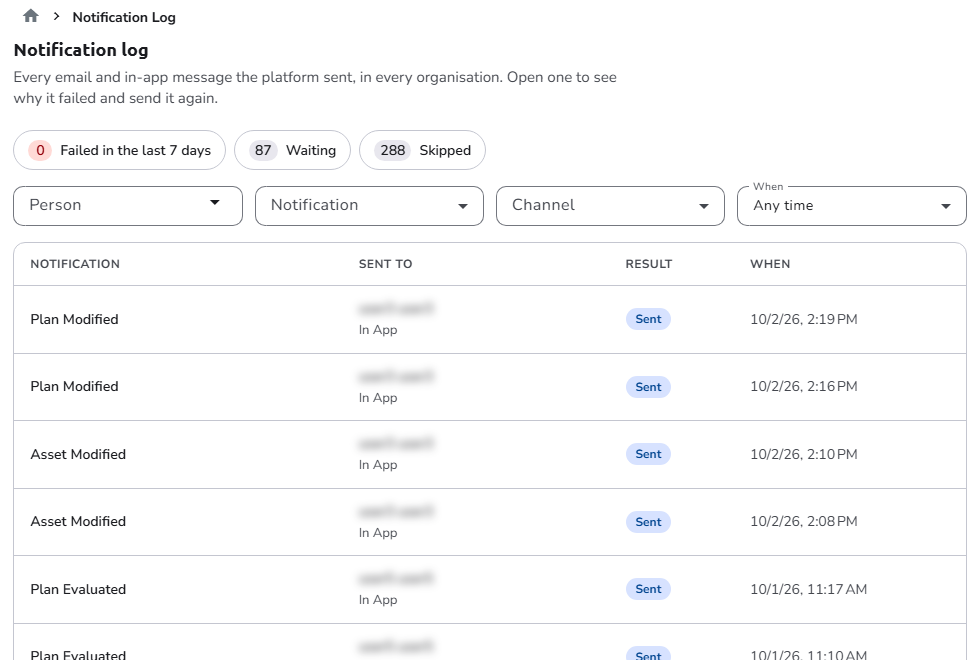
The newest notifications come first. The columns are:
- Notification: the kind of notification, such as Plan Modified, Plan Publish, or Invitation External User. Click it to open the notification.
- Sent to: the person, and below it the channel, Email or In App. Unknown person is shown when the notification is not linked to an account.
- Result: what happened to it (see Results).
- When: when the notification was created.
Above the list:
- Quick filters, each with its count: Failed in the last 7 days, Waiting, and Skipped. Click a chip to show only those notifications, and again to show all. Failed in the last 7 days also sets When to Last 7 days.
- Person: the notifications of one person.
- Notification: one kind of notification; Any notification shows all.
- Channel: Email or In App; Any channel shows both.
- When: Last 24 hours, Last 7 days, Last 30 days, or Any time.
The list shows 25 notifications per page; choose 50 or 100 at the bottom.
Results
| Result | Meaning |
|---|---|
| Sent | Sent successfully. |
| Read | An in-app notification that the person has opened. |
| Waiting | In the queue; it is sent within a few minutes. |
| Failed | Could not be delivered after several tries. |
| Skipped | Not sent: it waited in the queue too long, so it was dropped instead of arriving late. |
A notification's details
Click a notification to open it in a drawer:
- the kind of notification, the channel, and the person;
- the result, with its explanation;
- What happened: when it was Created, how many times it was tried, when it was Sent by its channel, and when it Last changed;
- Technical details, collapsed: the Notify state, Tracking state, Tracking process, Retry count, Notified with, and the Notification id, User id, and Type id. These help when you report a problem with the notification service.
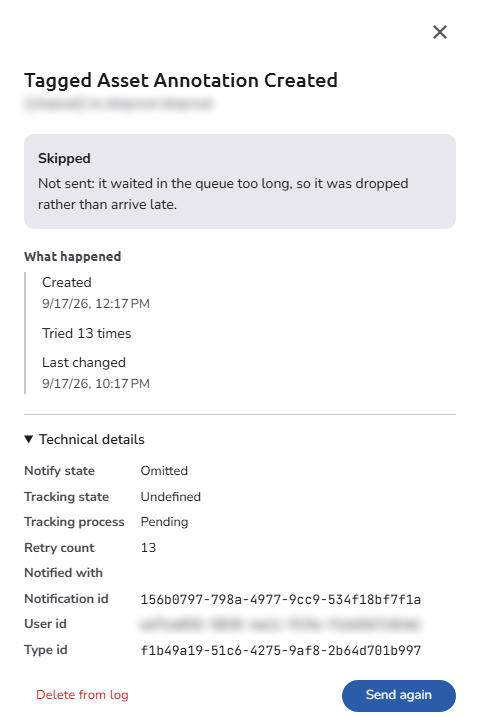
The drawer does not show the text of the message or the email address it was sent to.
Two actions are at the bottom:
- Send again, for a Failed or Skipped notification, puts it back in the queue.
- Delete from log removes the notification from the log, after a confirmation. It is not sent again.
Typical uses
- Did an invitation go out? Filter Notification on Invitation External User (someone without an account) or Invitation Existing User, and Person on the invitee if they have an account. For invitations to a plan, use Plan Invitation External User or Plan Invitation Existing User. If it failed or was skipped, open it and click Send again.
- Are emails failing? Click Failed in the last 7 days and set Channel to Email. Many failures at once usually point to the mail server settings of the notification service; see Notification Service configuration.
- Why did someone not hear about a change? Filter on the person and the kind of notification. If nothing is listed, check the channels allowed for it under Settings > Notifications (see Notifications) and the person's own notification preferences.
See also
- Notifications: how notifications flow through the platform
- Notification templates: the wording of each notification