Types
The Types page manages the categories that plan blueprints and asset templates are grouped by. It has a section for each kind:
- Blueprint types classify plan blueprints, for example by funder, discipline, or purpose ("Horizon Europe"). When someone starts a new plan, the blueprints are shown grouped by type.
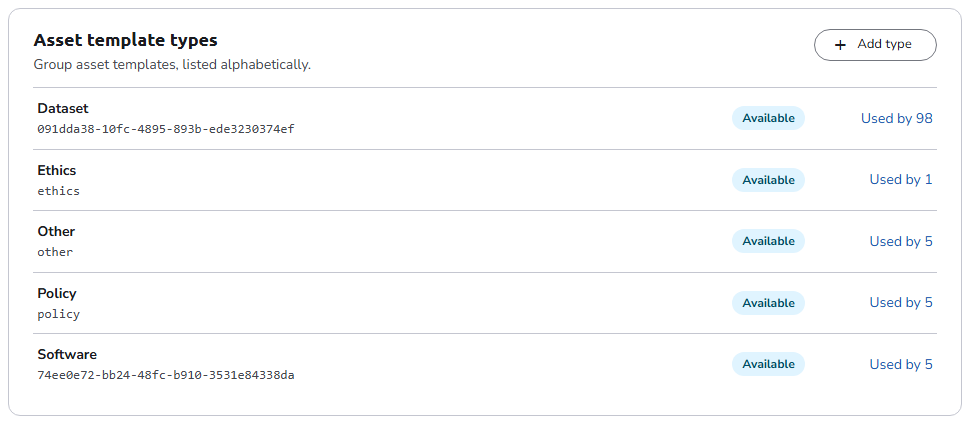
- Asset template types, also called asset types, classify asset templates by the kind of output they describe. Authors can filter templates by type when they add an asset.
Administrators assign a type in the Type field of the blueprint or template editor. Types also keep a growing library manageable, and the plans and assets they apply to can be analyzed by type.
Typical asset template types include:
- Dataset: research datasets
- Software: software and code outputs
- Publication: research papers and reports
- Prototype: physical prototypes or designs
- Sample: biological or physical samples
- Model: computational or mathematical models
Navigation
In the side navigation menu, switch to the Admin view and go to Templates > Types.
Authorization
Users with the System Administrator, Organisation Admin, or Template Manager role can access this page and create, edit, and delete types. See Roles.
The two sections
Each section lists the organisation's own types, each with:
- its name and code;
- its state, Available or Hidden;
- how many blueprints or templates use it (Used by n, which opens the Plan Blueprints or Asset Templates listing filtered by that type), or Not used yet.
Asset template types are listed alphabetically. Blueprint types are listed in the order in which blueprints are grouped when someone starts a new plan: drag a blueprint type by its handle, or use its up and down arrows, to change the order. The new order is saved straight away. Pickers and filters list types alphabetically.
Types shared by the default organisation are listed under Shared from the installation. They can be used, but not edited, from other organisations.
Creating and editing a type
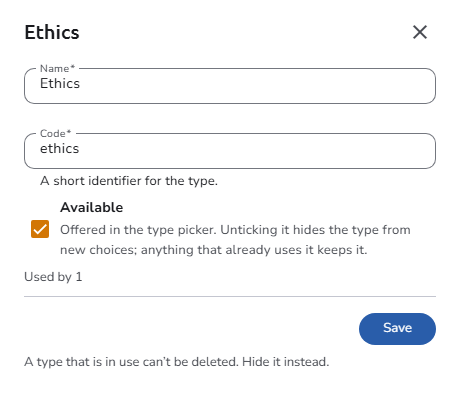
Click Add type in a section to create a type of that kind, or click a type to edit it. A drawer opens with the following controls:
- Name: The display name of the type.
- Code: A short identifier for the type, used internally during imports and exports.
- Available: When ticked, the type is offered in the type picker of the blueprint or template editor. Unticking it hides the type from new choices; blueprints and templates that already use it keep it.
Click Save to save the type. To delete a type, click Delete type in the drawer and confirm. A type that is in use cannot be deleted; hide it instead. For a type in use, the drawer shows how many blueprints or templates use it and a note in place of Delete type.